
Currencies
Configure the currencies accepted by your store.
Currencies define what monetary units your store uses for pricing and transactions. Proper currency configuration is essential for displaying correct prices to your customers.
Accessing Currency Settings
Currencies are managed in two places:
- Settings > Currencies lists every currency available in Shopper. This is where you enable or disable currencies and set their exchange rates.
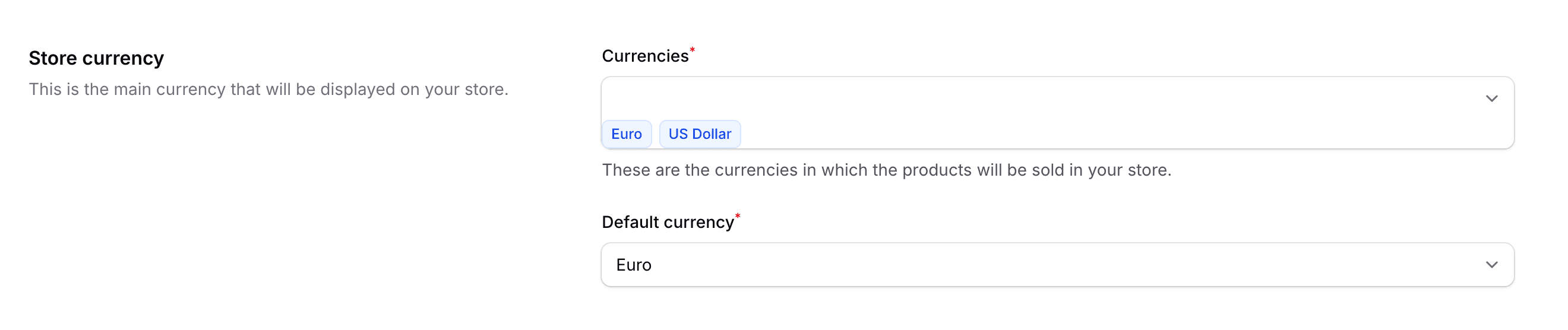
- Settings > General, in the Store currency section, is where you pick the currencies your products are sold in and your default currency (see General Settings).
To pick your store currencies:
- Click on Settings in the sidebar
- Select General from the settings menu
- Scroll to the Store currency section, select your currencies in Currencies, choose your Default currency, then click Save
Default Currency
Your store has one default currency, chosen in the Default currency field of the Store currency section. It is used for:
- Product pricing
- Order totals
- Reports and analytics
- Default display currency
Choose your default currency carefully during initial setup, as changing it later may affect existing product prices and orders.
Currency Configuration
Click Currencies in the settings menu to see the table of all currencies available in Shopper:
| Column | Description |
|---|---|
| Name | The currency name (e.g., Euro, US Dollar) |
| Code | The ISO 4217 code (e.g., USD, EUR, GBP) |
| Symbol | The currency symbol (e.g., $, €, £) |
| Exchange rate | The rate relative to your store's default currency. Leave it at 1 for the default currency |
| Status | A toggle that enables or disables the currency |
The exchange rate is the only value you can edit: click the edit icon on a currency's row, enter the rate in the Edit exchange rate window, then click Save changes. The name, code and symbol come from the currency list built into Shopper and cannot be changed.
There are no symbol position, separator or decimal settings. The admin formats amounts according to the admin language, and the number of decimals follows the currency: currencies without cents, such as JPY or XAF, are shown without decimals.
Common Currency Formats
Here are some examples of how different currencies are typically formatted in their home markets. In the admin, the format follows the admin language instead:
| Currency | Code | Format Example |
|---|---|---|
| US Dollar | USD | $1,234.56 |
| Euro | EUR | €1.234,56 |
| British Pound | GBP | £1,234.56 |
| Japanese Yen | JPY | ¥1,234 |
Enabling Additional Currencies
If your store serves international customers, you may want to sell in additional currencies. All currencies are enabled on a new install, so you only need to pick yours:
- Click on Settings in the sidebar, then Currencies
- Check that the currencies you want to support have their Status toggle on. To enable or disable several at once, select their rows, open Bulk actions and choose Enable or Disable
- Set the exchange rates if applicable, with the edit icon on each row
- Go to Settings > General and add the currencies to the Currencies field of the Store currency section, then click Save
You cannot add a new currency from the admin: the list is the one built into Shopper. A disabled currency no longer appears in the Currencies and Default currency choices of the General settings.
Exchange rates are not updated automatically. If you rely on them, update them regularly, or ask your developer to keep them in sync with a currency conversion service.
How Currencies Work with Zones
Each zone is assigned one currency. When a customer checks out from a zone, they see prices and pay in that zone's currency. This means:
- A product can have different prices in different currencies (e.g., $29.99 USD in the US zone, 27.99 EUR in the Europe zone)
- You set prices per currency on each product from the product edit page
- The zone determines which currency the customer sees at checkout
Shopper does not automatically convert prices between currencies. You set each price manually per currency. This gives you full control over pricing strategy in each market.
For developer details, see the Currencies documentation.
Last updated on
Edit on GitHub