
Discovering Dashboard
Get familiar with the Shopper dashboard and navigation.
The Dashboard is your command center for managing your online store. Let's explore its key elements and learn how to navigate efficiently.
Overview
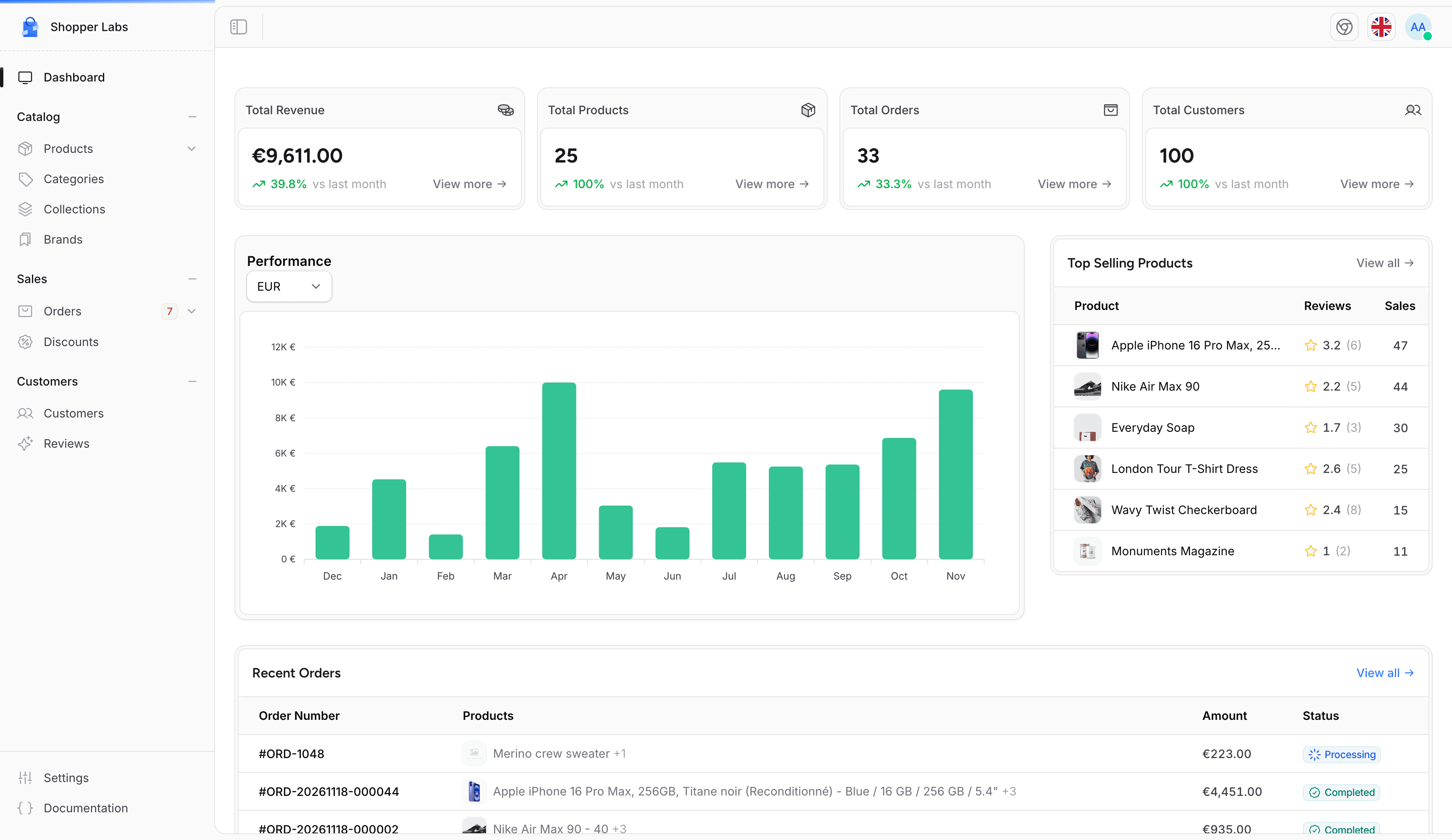
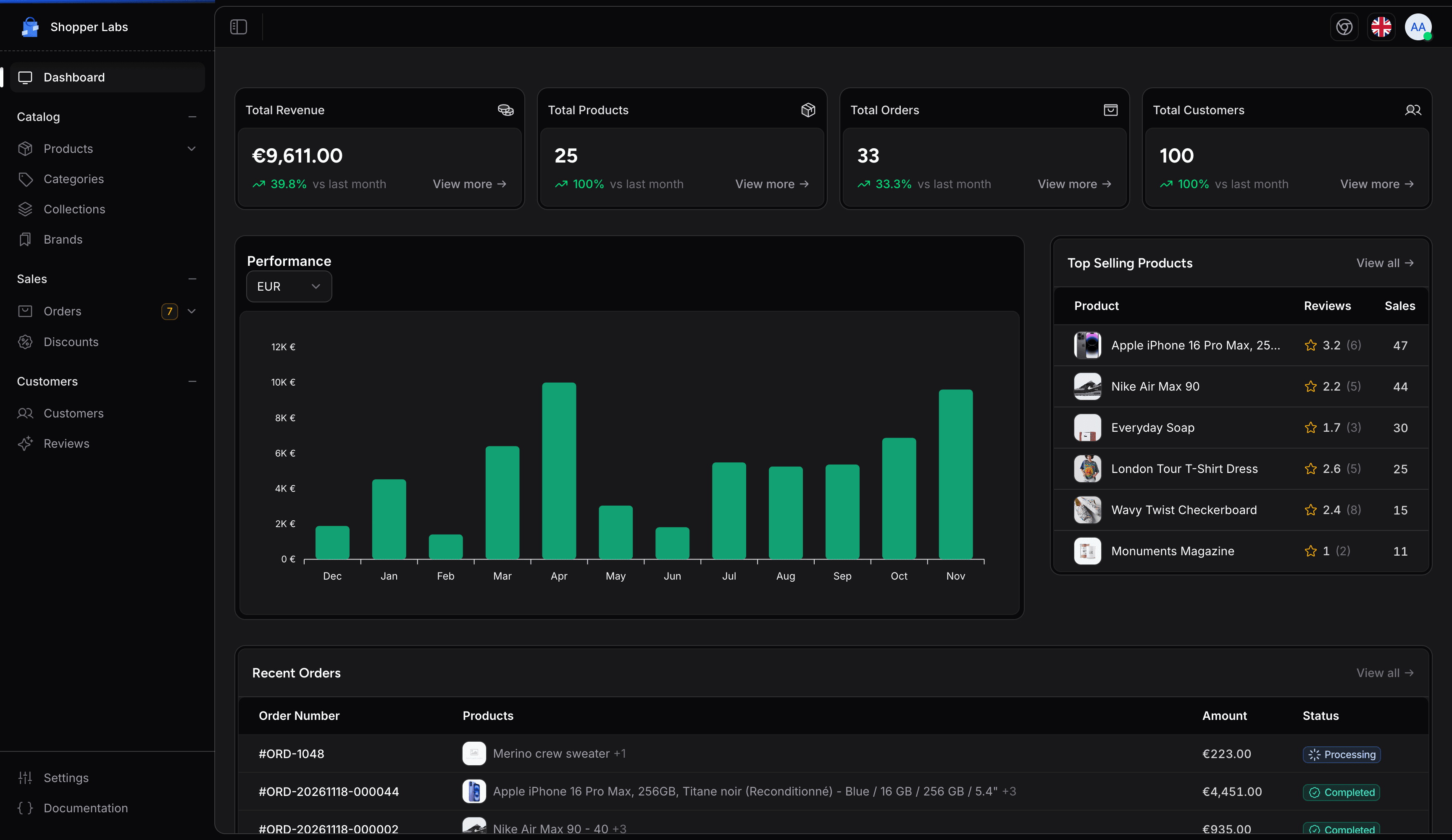
When you log in, you'll see the main dashboard which displays key metrics and quick access to important features.
Main Navigation
The sidebar on the left side of the screen is your main navigation tool. It provides access to all sections of your store management:
| Section | Description |
|---|---|
| Dashboard | Overview of your store's performance and recent activity |
| Products | Manage your product catalog |
| Categories | Organize products into categories |
| Collections | Create curated product collections |
| Brands | Manage product brands |
| Customers | View and manage customer accounts |
| Orders | Process and track orders |
| Discounts | Create and manage discount codes |
| Reviews | Moderate customer reviews |
| Settings | Configure your store settings |
Quick Actions
From the dashboard, you can quickly access common tasks:
- Check your Total Revenue for the month and your Total Products, Total Orders and Total Customers, each compared with last month. View more on a card opens the matching list.
- Follow your revenue over time in the Performance chart
- See your Top Selling Products
- View recent orders in Recent Orders, or click View all
- Access store settings
On a new store, the dashboard shows a Setup guide instead: add your first product, create a collection, set up shipping zones, payment methods and taxes. Click Dismiss to hide it.
Settings Panel
Click on Settings in the sidebar to access all configuration options for your store.
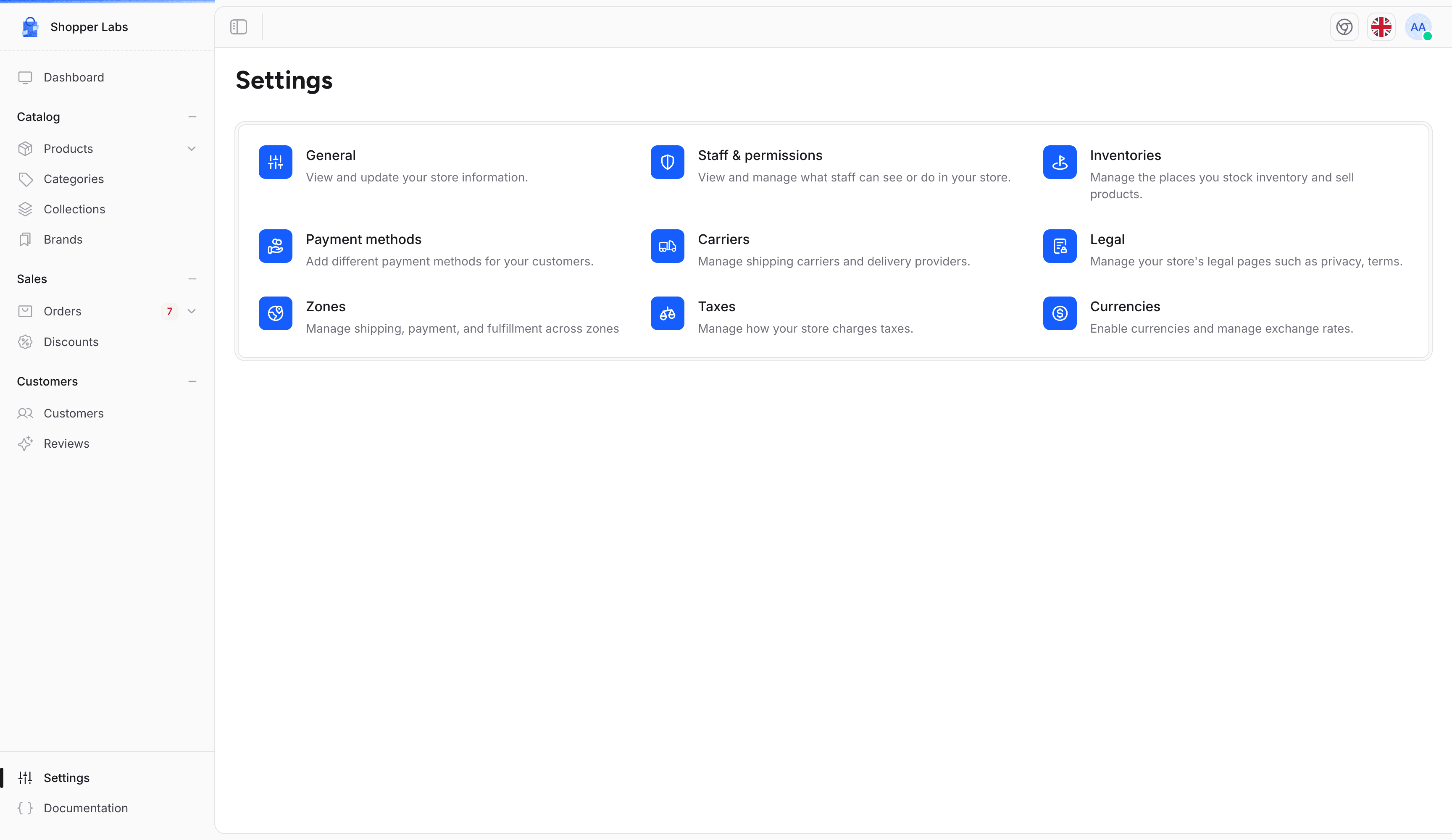
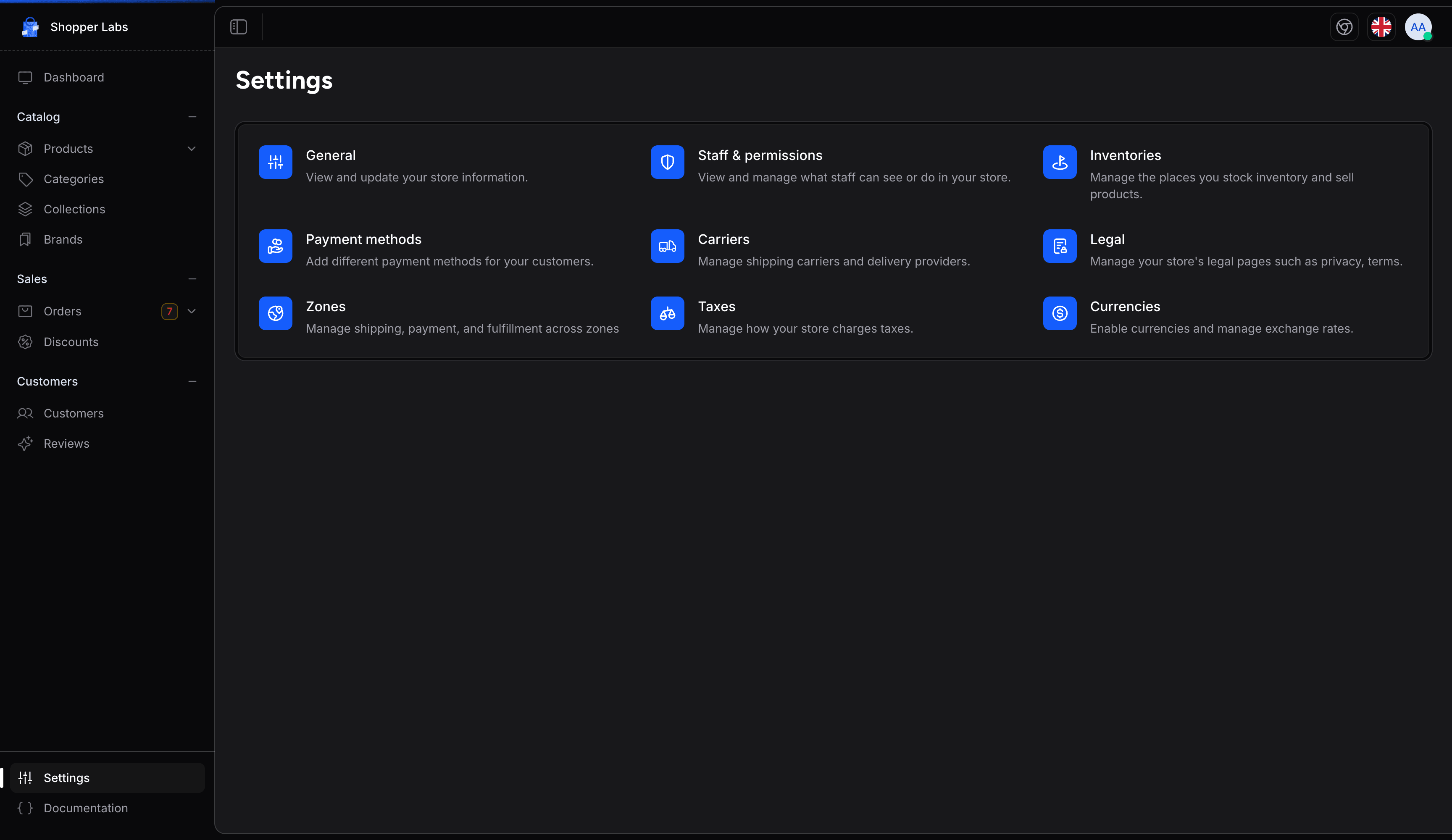
The settings panel shows one card per area, in this order:
- General - Store name, contact details, address, currencies and social links
- Staff & permissions - Administrator accounts, roles and permissions
- Inventories - The places where you stock inventory and sell products
- Payment methods - The payment methods offered to your customers
- Carriers - Shipping carriers and delivery providers
- Legal - Privacy policy, terms of use, shipping and refund policies
- Zones - Shipping, payment and fulfillment per zone
- Taxes - How your store charges taxes
- Currencies - Enabled currencies and exchange rates
Once you open a settings page, the same areas appear as tabs at the top of the page, so you can move from one to another without going back.
Your Profile
Access your personal profile settings by clicking on your avatar at the top-right of the header, then Personal Account.
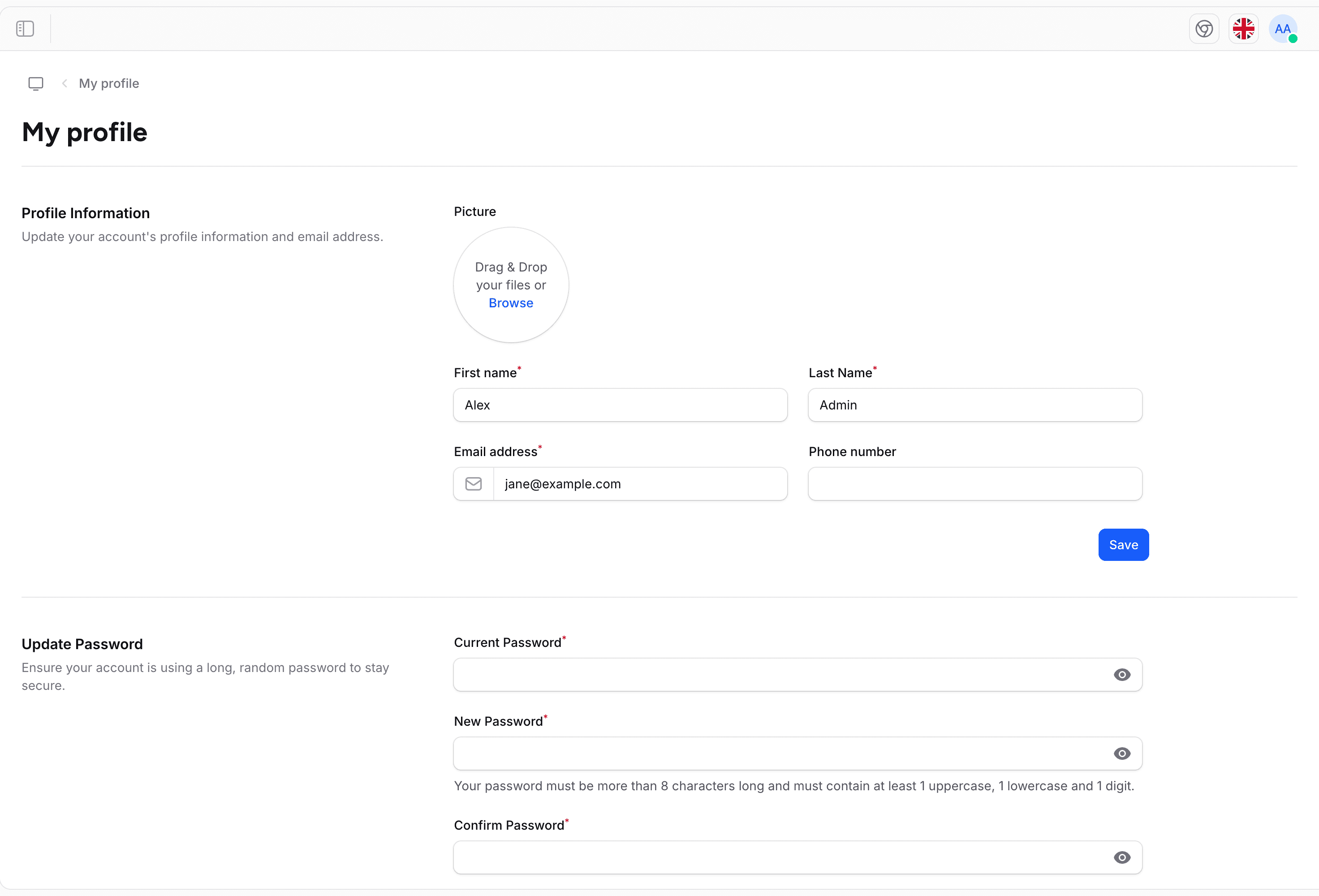
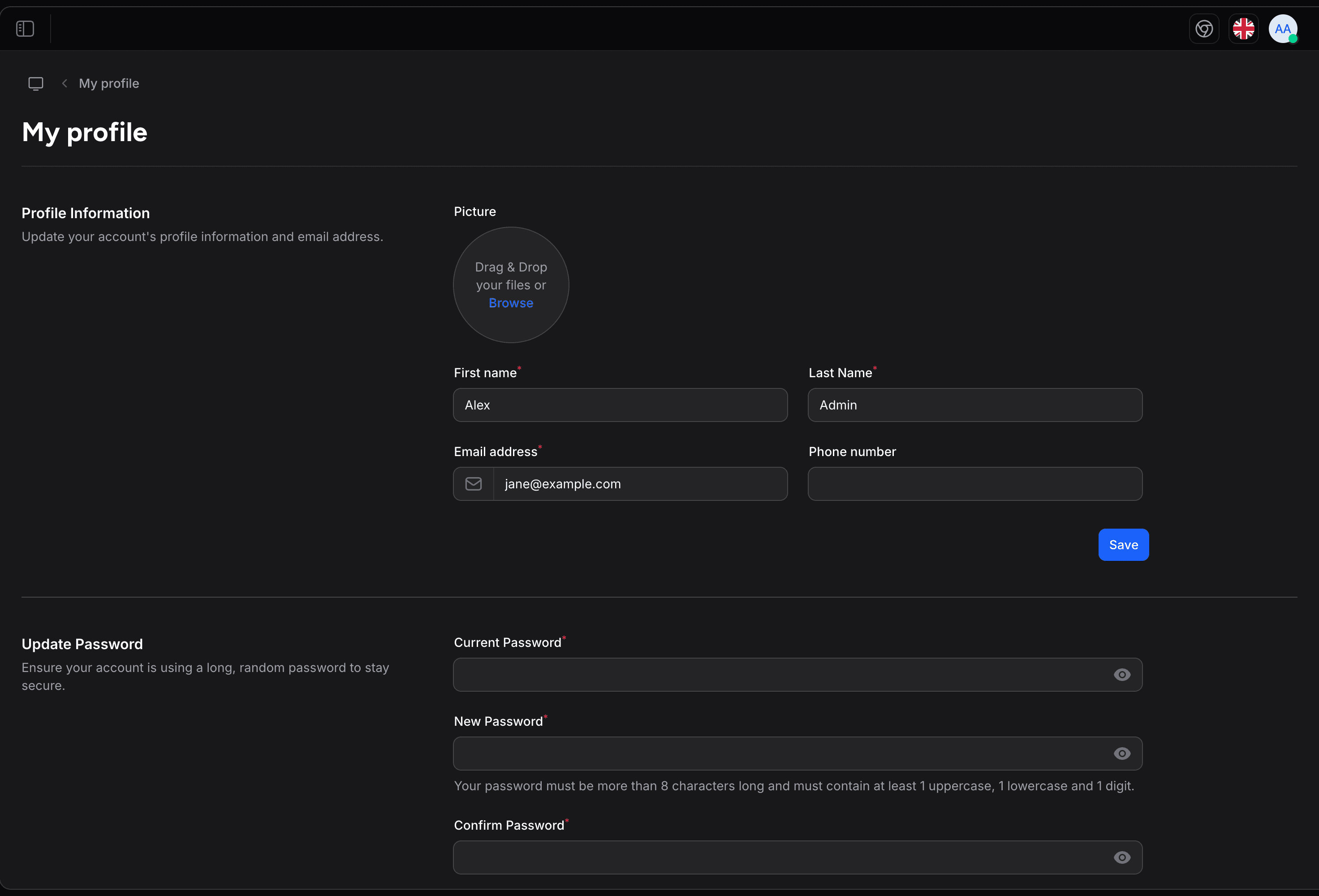
From here you can:
- Update your personal information
- Change your password
- Enable two-factor authentication, when it is turned on for your store
- See the devices signed in to your account and log out your other browser sessions
To sign out, click your avatar and select Sign out.
Last updated on
Edit on GitHub