
Managing Attributes
Create product attributes for variations like size, color, and material.
Attributes define the characteristics of your products. They're essential for creating product variants and helping customers filter and compare products.
Overview
Attributes describe product properties such as:
- Size - Small, Medium, Large, XL
- Color - Red, Blue, Green, Black
- Material - Cotton, Polyester, Leather
- Storage - 64GB, 128GB, 256GB
Accessing Attributes
- Click on Products in the sidebar
- Select Attributes from the submenu
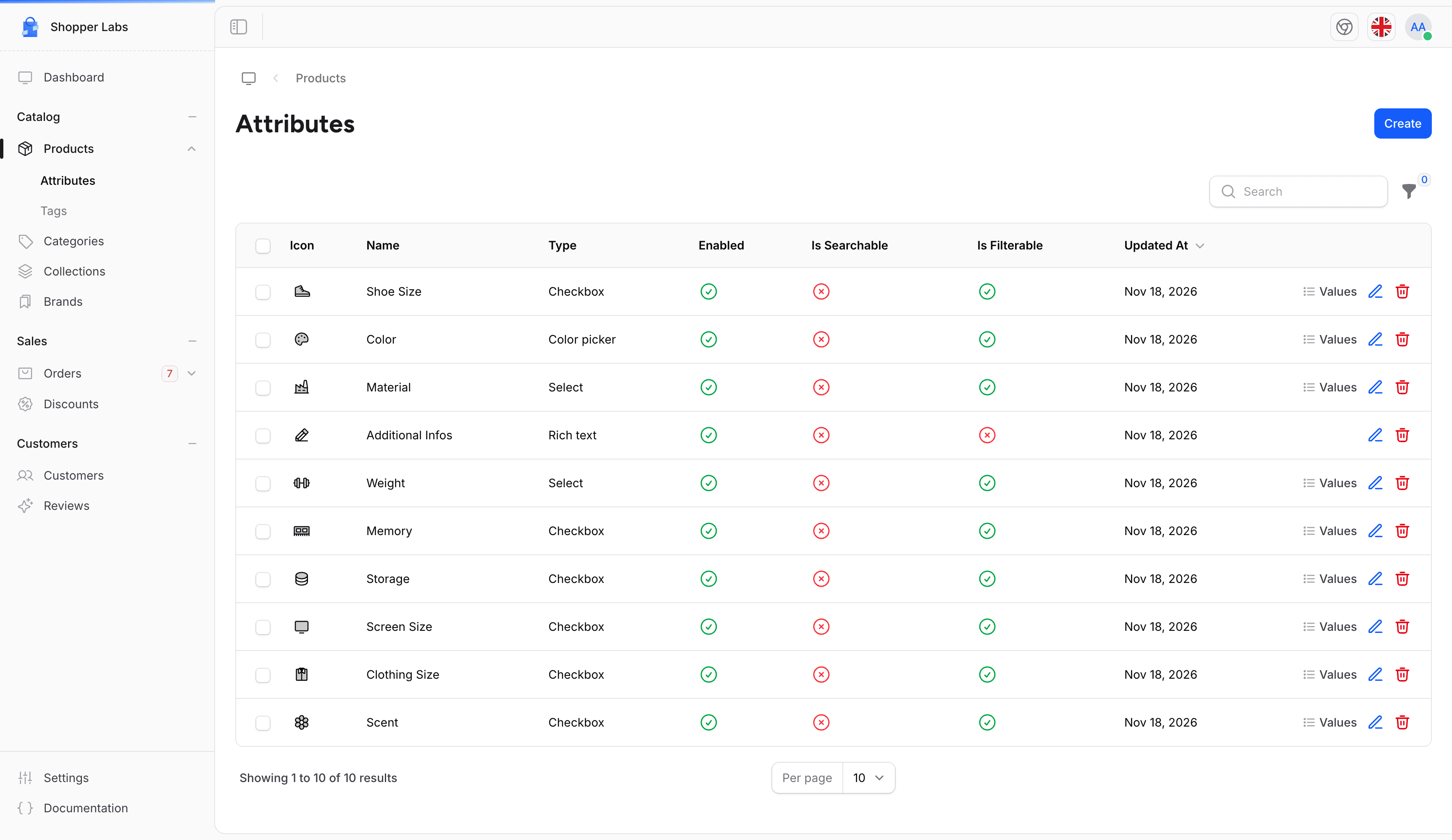
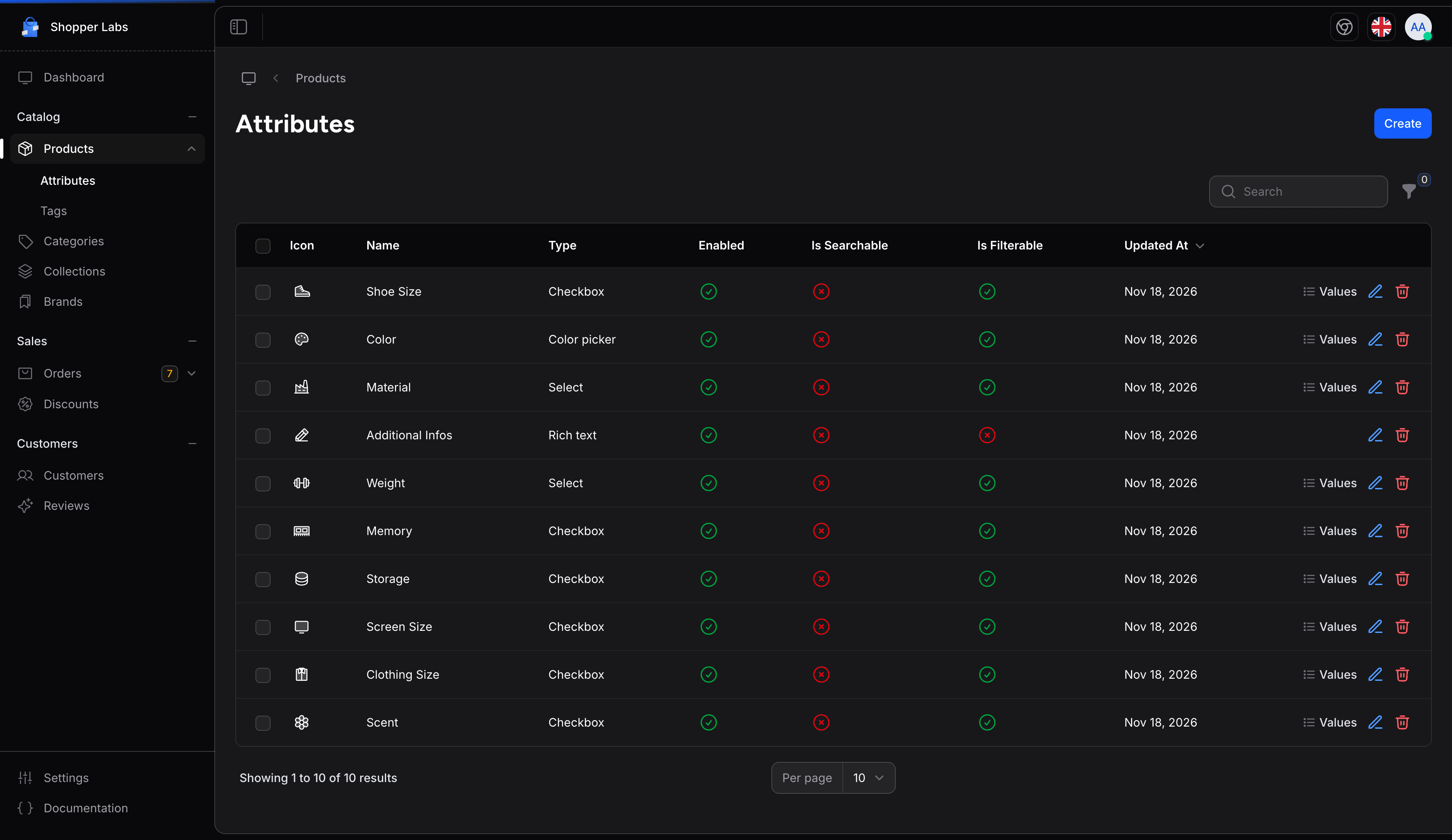
Creating an Attribute
To create a new attribute:
- Click the Create button
- Fill in the attribute details in the New attribute panel
- Click Save
The form has no values. Once the attribute is saved, you add its values from the list (see Attribute Values).
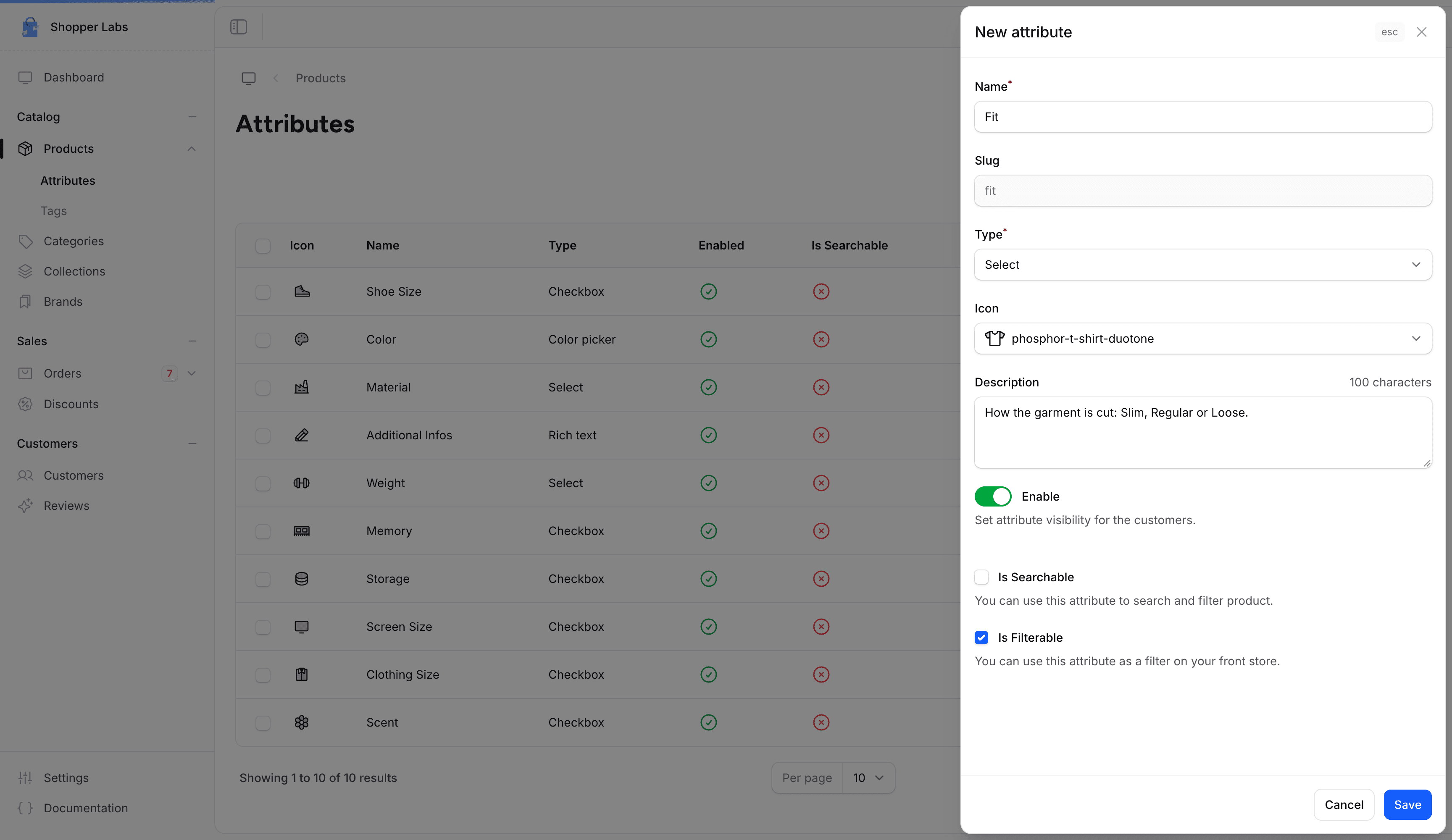
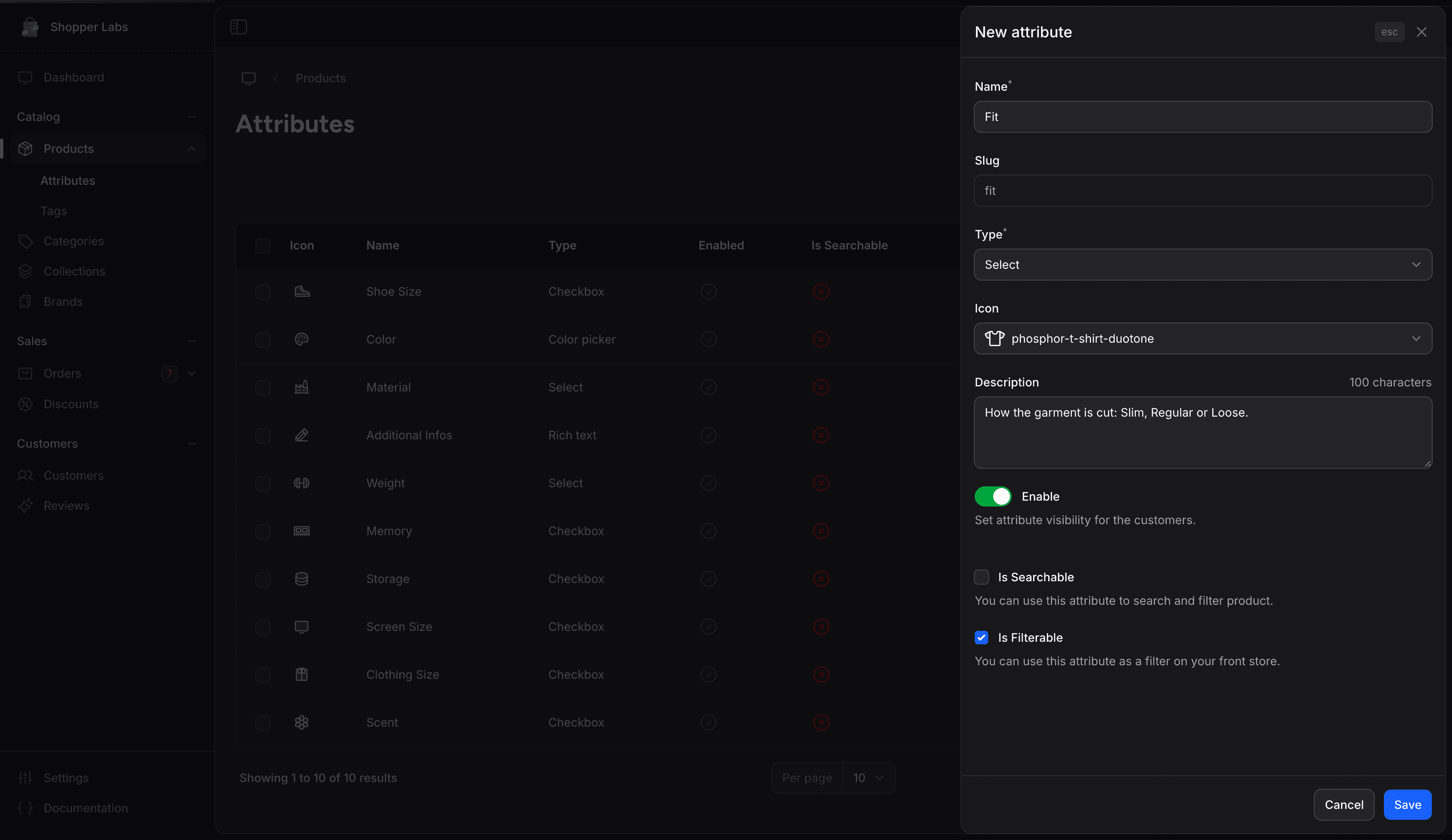
Attribute Fields
| Field | Required | Description |
|---|---|---|
| Name | Yes | The attribute name (e.g., "Color", "Size"), up to 75 characters |
| Slug | Auto | Generated from the name. It cannot be edited. |
| Type | Yes | The kind of field used to fill in the attribute (see below) |
| Icon | No | An icon shown next to the attribute in the list |
| Description | No | Explain what this attribute represents, up to 100 characters |
| Enable | No | Toggle to make the attribute visible to customers |
| Is Searchable | No | Use this attribute to search and filter products |
| Is Filterable | No | Use this attribute as a filter on your storefront |
Attribute Types
The type sets how the attribute is filled in on each product:
| Type | Best For |
|---|---|
| Select | One value per product from a list you define (e.g., size) |
| Checkbox | Several values per product from a list you define (e.g., features) |
| Color picker | Several colors per product, each value picked with a color picker |
| Text field (input) | A short text typed on each product |
| Text field (number) | A number typed on each product (e.g., storage in GB) |
| Rich text | Formatted text written on each product (e.g., care instructions) |
| Date picker | A date picked on each product (e.g., release date) |
Attribute Values
Only Select, Checkbox and Color picker attributes have a list of values. After saving one of them:
- Click Values on the attribute's row in the list
- In the Attribute values panel, click New Value
- Fill in the Key (a short identifier in slug format; for a color, the color itself) and the Value (the name shown for this value)
- Repeat for each value
Examples of values:
| Attribute | Example Values |
|---|---|
| Size | XS, S, M, L, XL, XXL |
| Color | Red, Blue, Green, Yellow, Black, White |
| Material | Cotton, Wool, Polyester, Silk |
Using Attributes on Products
Once created, attributes can be assigned to products:
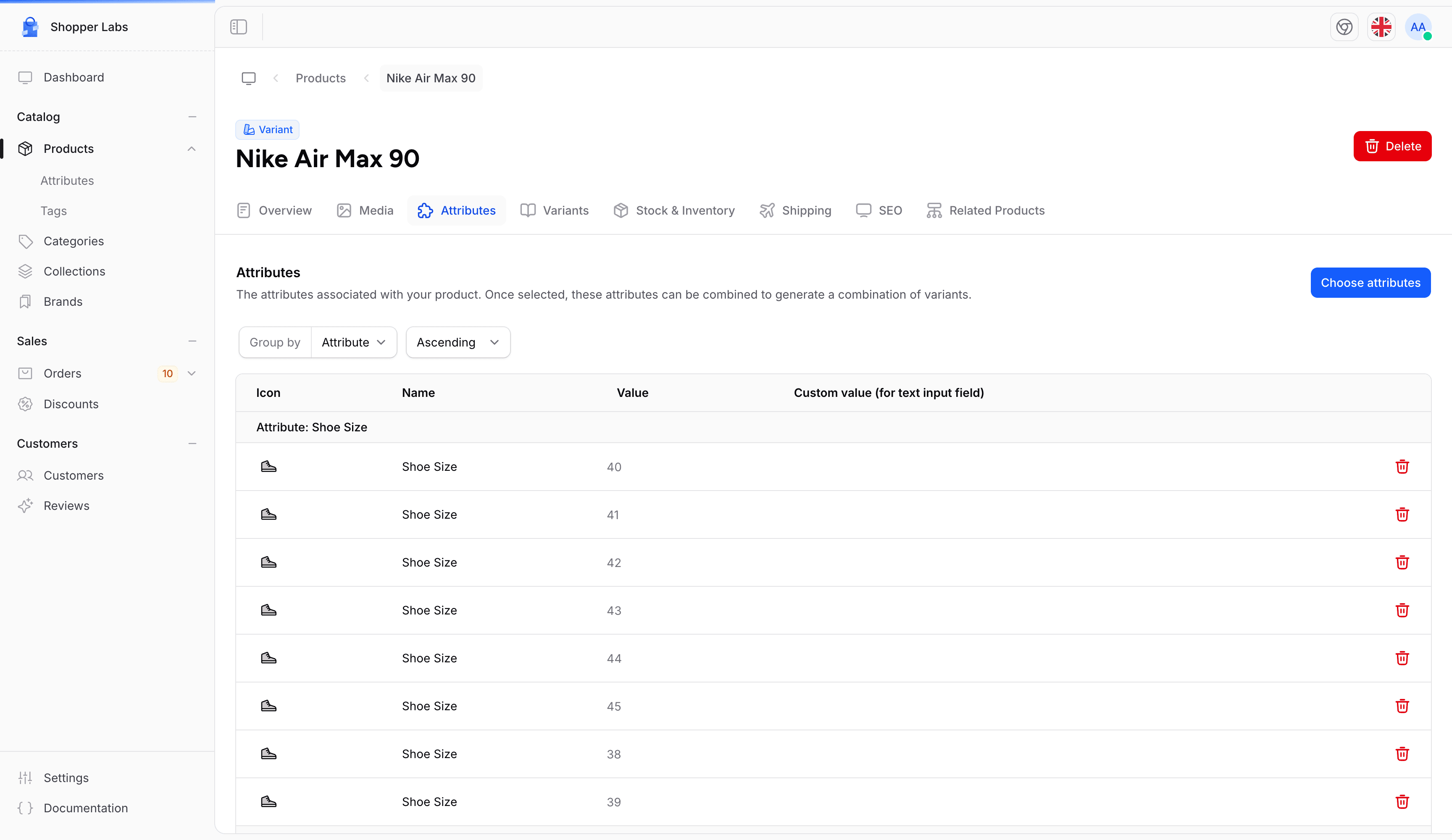
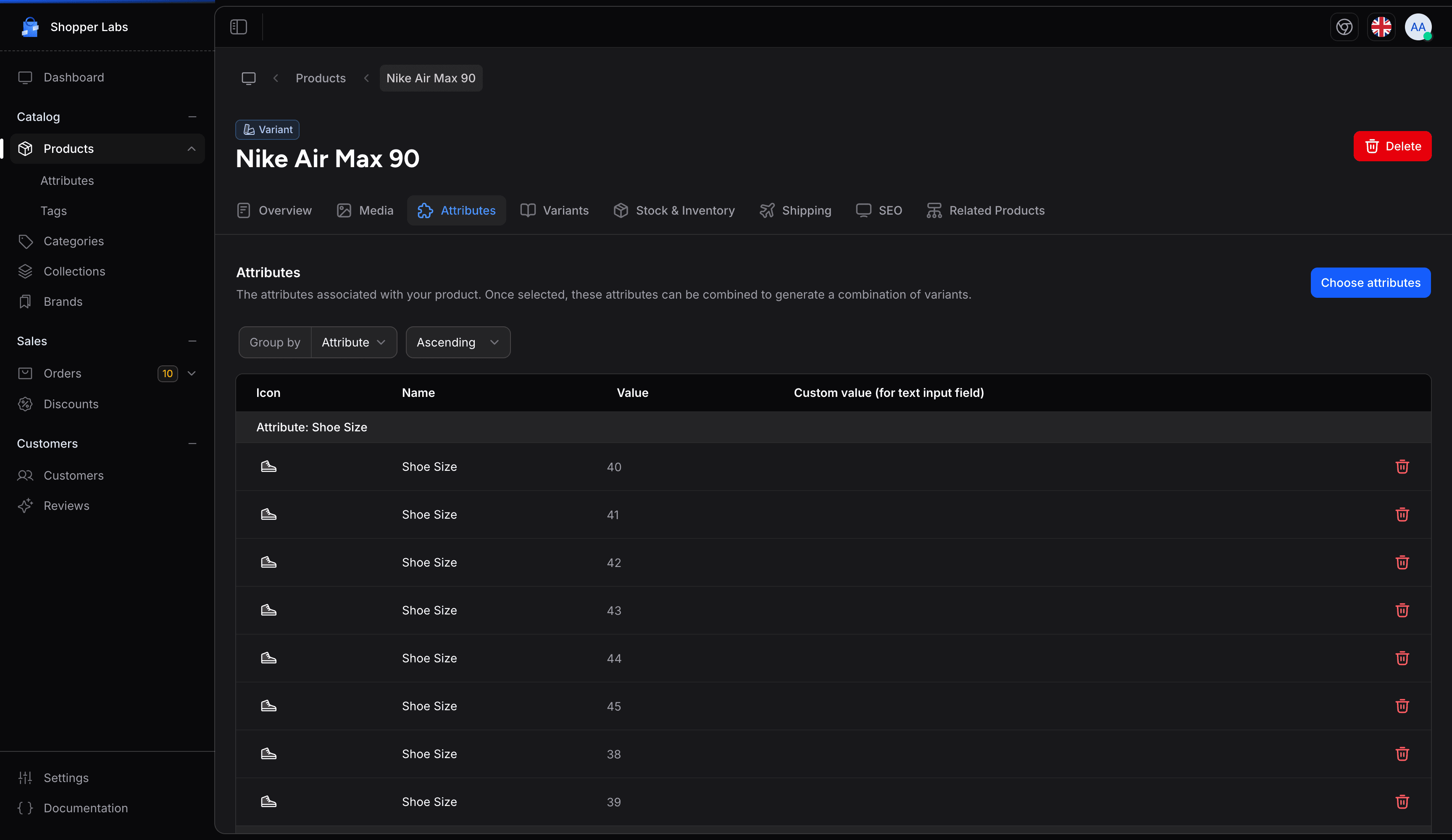
Attributes enable you to:
- Create product variants (e.g., a shirt in multiple sizes)
- Allow customers to filter products
- Compare products with similar attributes
Common Attribute Examples
Fashion / Apparel
| Attribute | Values |
|---|---|
| Size | XS, S, M, L, XL |
| Color | Various colors |
| Material | Cotton, Polyester, etc. |
| Fit | Slim, Regular, Loose |
Electronics
| Attribute | Values |
|---|---|
| Storage | 64GB, 128GB, 256GB |
| Color | Black, White, Silver |
| Memory | 4GB, 8GB, 16GB |
Food & Beverages
| Attribute | Values |
|---|---|
| Weight | 250g, 500g, 1kg |
| Flavor | Vanilla, Chocolate, etc. |
Best Practices
Create attributes before adding products. It's easier to set up your attribute structure first and then assign them to products.
- Be consistent - Use the same attribute names across similar products
- Keep it simple - Only create attributes that help customers make decisions
- Use clear names - Attribute names should be instantly understandable
- Order logically - Arrange values in a logical order (S, M, L, not M, S, L)
For developer details, see the Attributes documentation.
Last updated on
Edit on GitHub