
Managing Products
Edit pricing, SEO, media, and other settings after product creation.
After creating a product, you can manage all its details from the product edit page. This guide covers the common management tasks available for all product types.
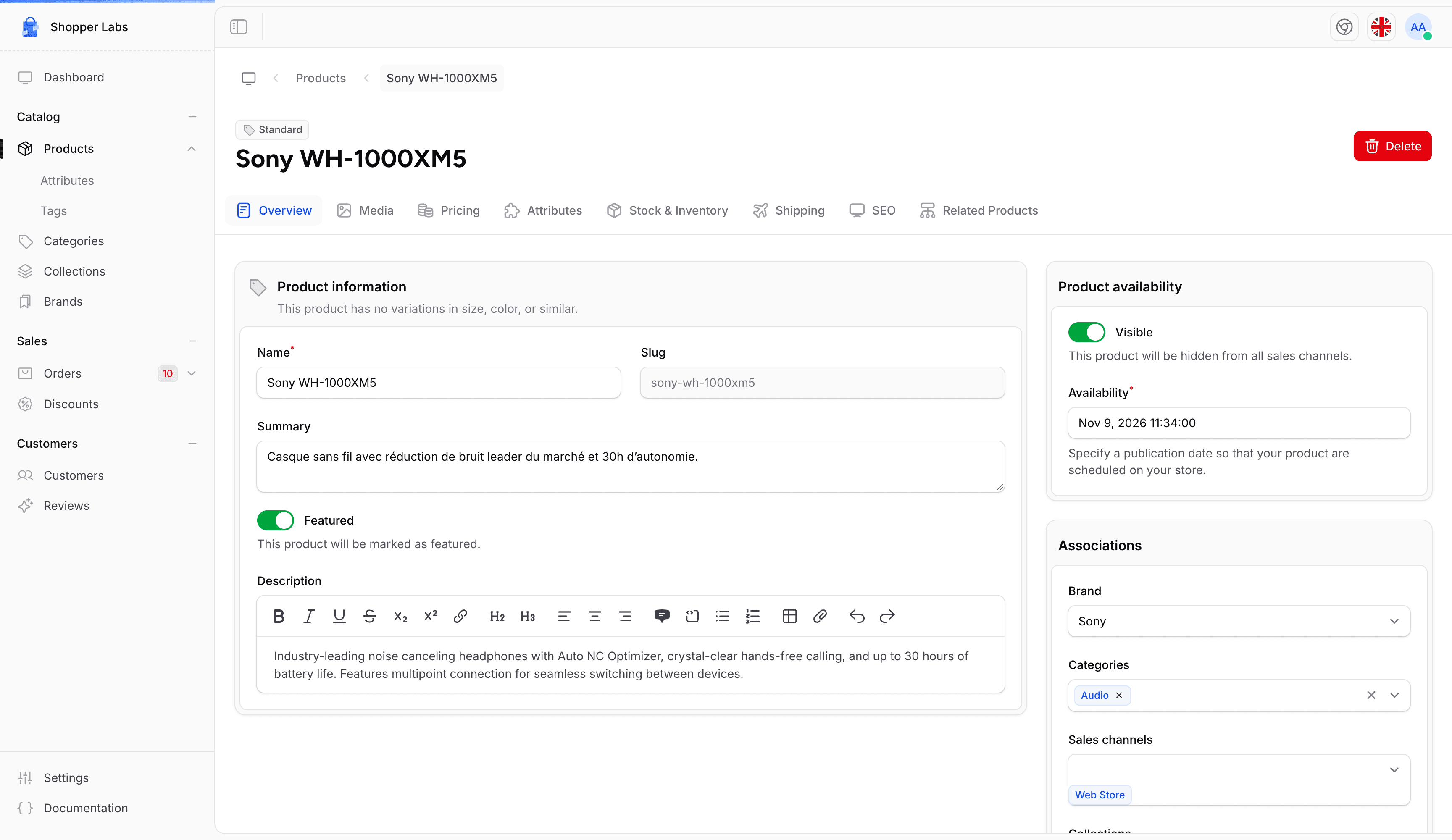
Product Edit Page
Click on any product from the products list to open its edit page. The page is organized into tabs based on your product type: Overview, Media, Pricing (all types except Variant), Files (Virtual), Attributes (Standard, Virtual and Variant), Variants (Variant), Stock & Inventory, Shipping (Standard and Variant), SEO and Related Products.
Pricing
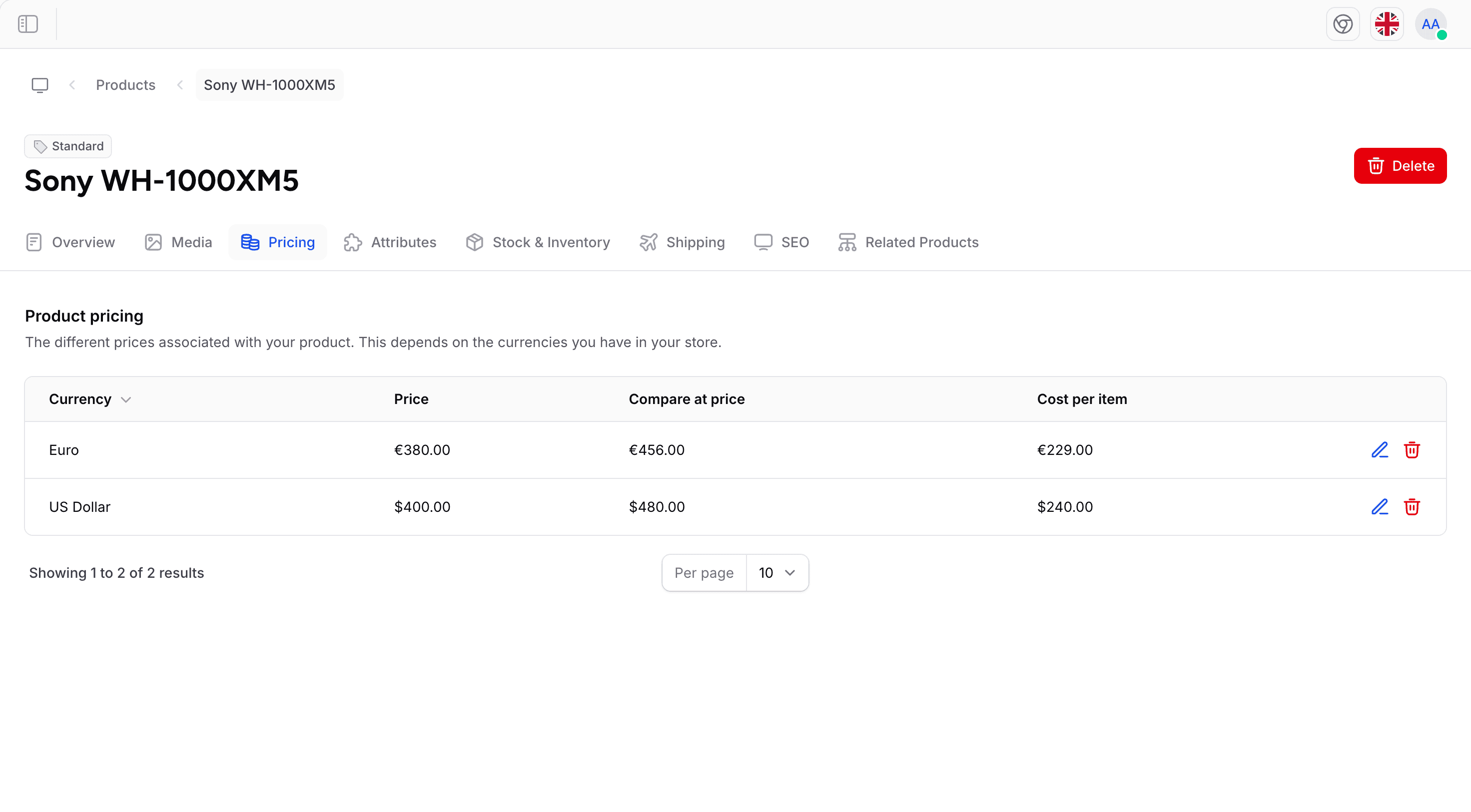
The pricing section lets you configure your product's price, comparison price, and cost. If your store supports multiple currencies, you can set prices in each currency.
| Field | Description |
|---|---|
| Price amount | The regular selling price shown to customers. Required when you fill in Compare at price. |
| Compare at price | The original price displayed with a strikethrough to indicate a discount. Leave empty if the product is not on sale. |
| Cost per item | Your cost to acquire or produce the item. Used for profit margin calculations and not visible to customers. |
Click Add new price to open the Product pricing panel, fill in the fields and click Save. The prices you set are listed per currency in the Product pricing table. To change a price, click Edit on its row: the panel then shows only that currency.
Multi-Currency Pricing
If you have multiple currencies configured in your store:
- Each currency has its own set of price fields in the Product pricing panel
- The Add new price button only shows while at least one of your store currencies has no price yet
- Set appropriate prices for each market (don't just convert; consider local pricing strategies)
- The customer sees the price in their local currency based on your store's currency detection
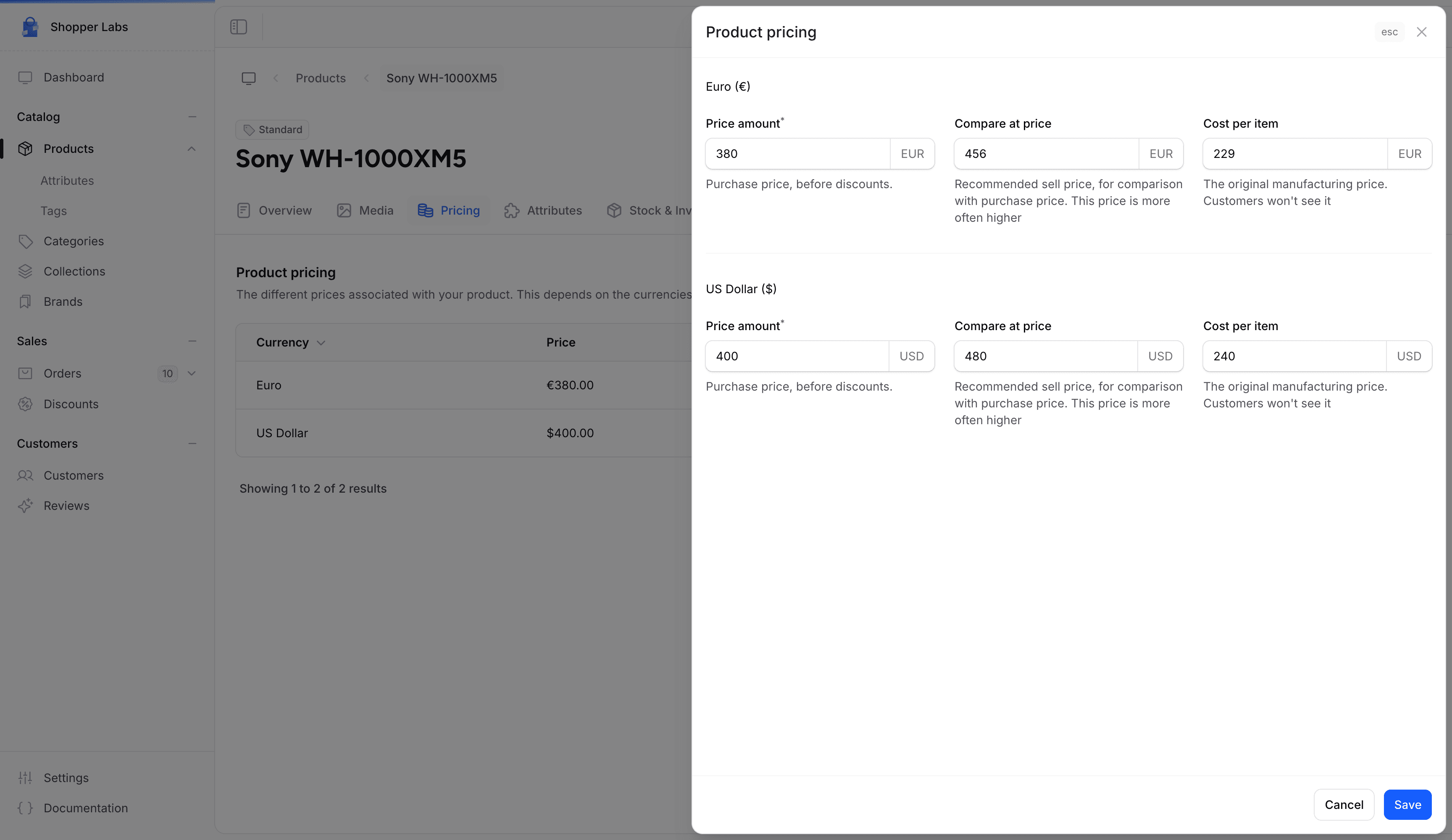
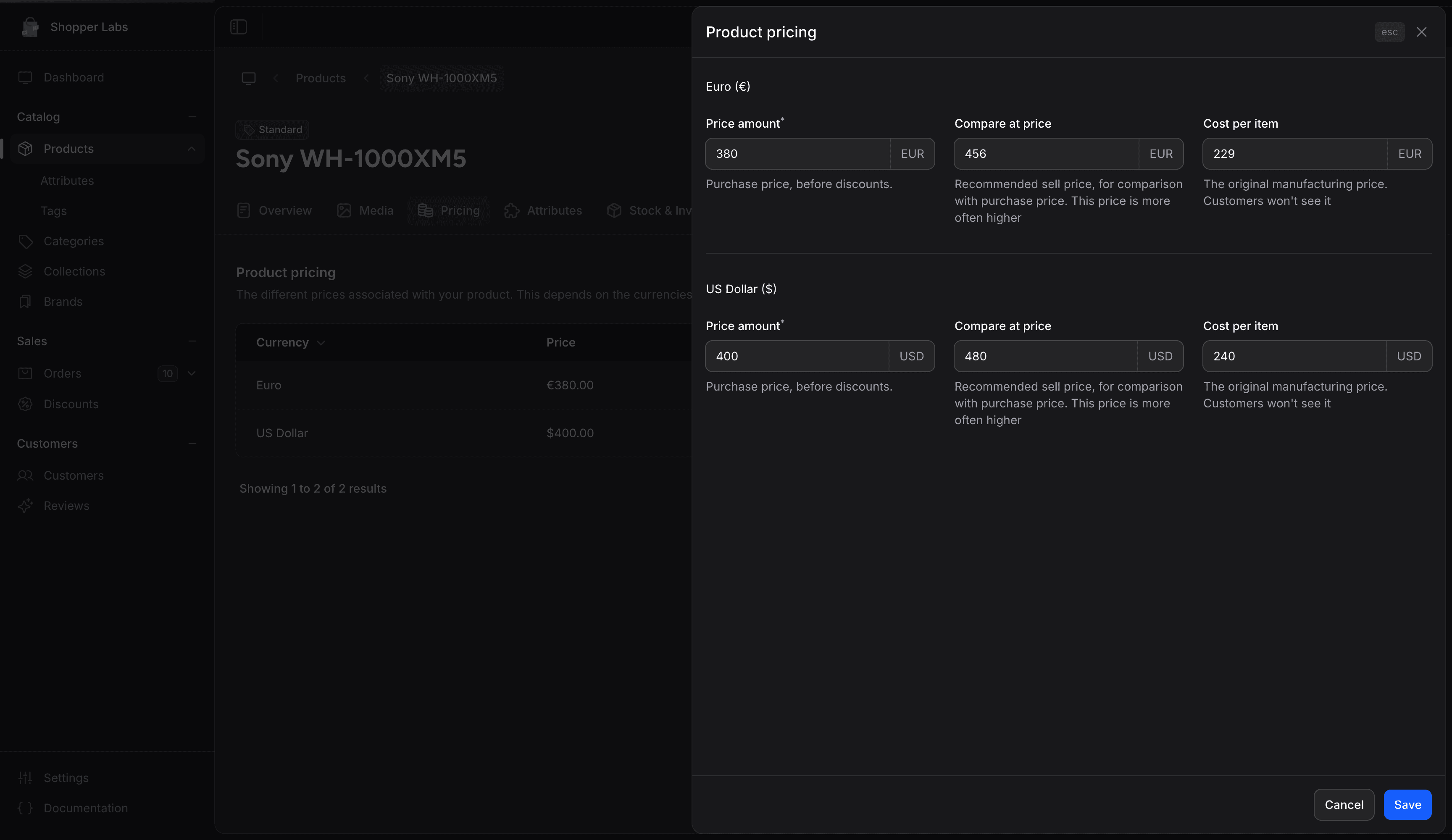
For variant products, pricing is set at the variant level. The parent product doesn't have its own price. Each variant can have a different price.
Pricing Strategies
| Strategy | How to configure |
|---|---|
| Fixed price | Set only the "Price amount" field |
| Sale price | Set "Price amount" lower than "Compare at price" |
| Cost-plus | Fill "Cost per item" to track margins, set "Price amount" with your desired markup |
| Anchor pricing | Set a high "Compare at price" to make the actual price feel like a deal |
Media Management
Manage your product's visual content, including thumbnail and gallery images.
Thumbnail
The thumbnail is your product's primary image. It appears in:
- Product listings and search results
- Shopping cart and checkout
- Order confirmations and invoices
Product Gallery
Additional images shown on the product detail page:
- Upload multiple images for different angles
- Upload them in the order you want them shown, as the gallery has no drag and drop reordering
- Delete images you no longer need
Image recommendations:
- Minimum resolution: 800x800 pixels
- Consistent aspect ratio across products (square works best for most stores)
- Clean white or neutral background for the thumbnail
- Lifestyle and detail shots for gallery images
SEO Optimization
Optimize your product pages for search engines to drive organic traffic.
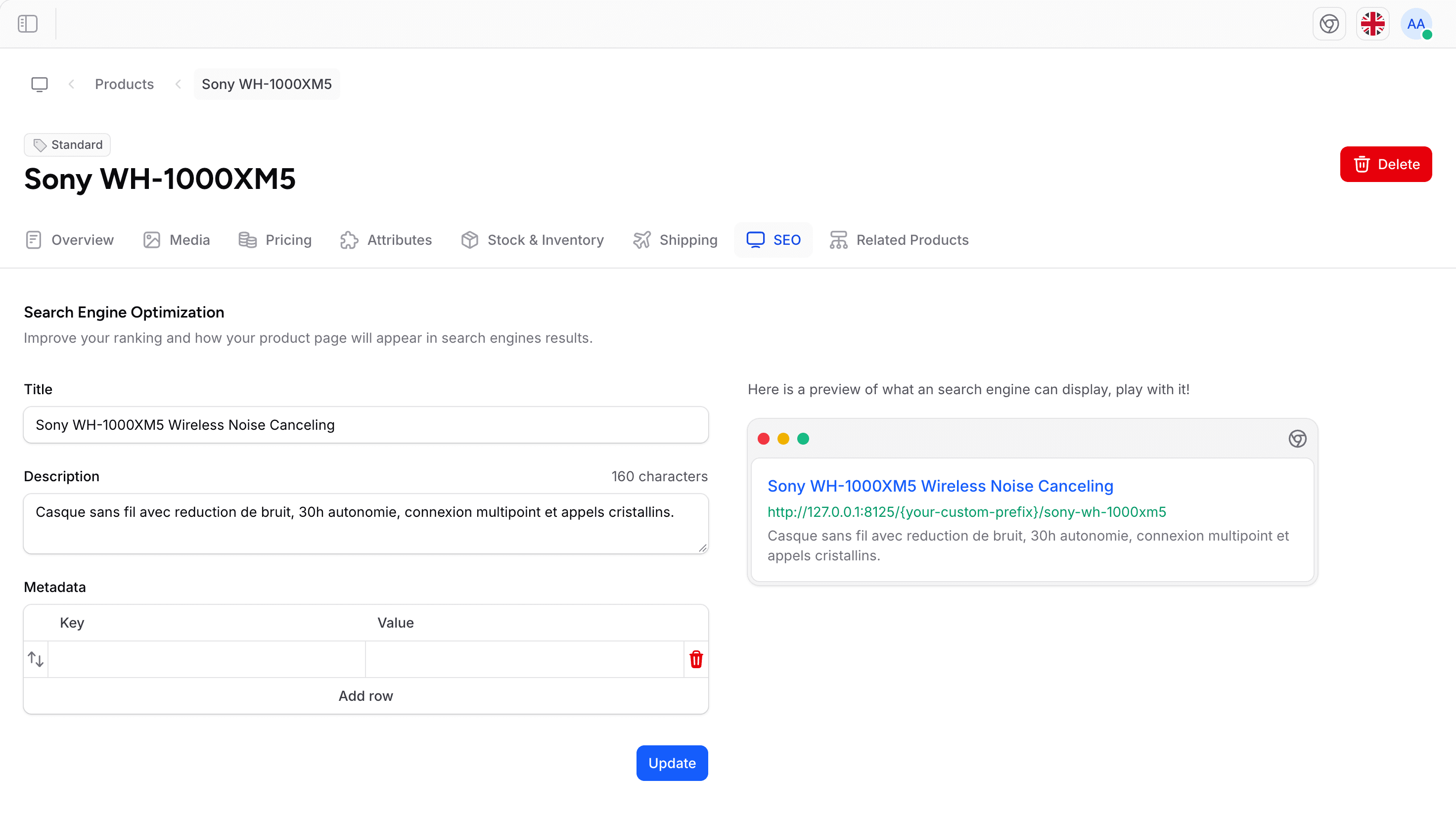
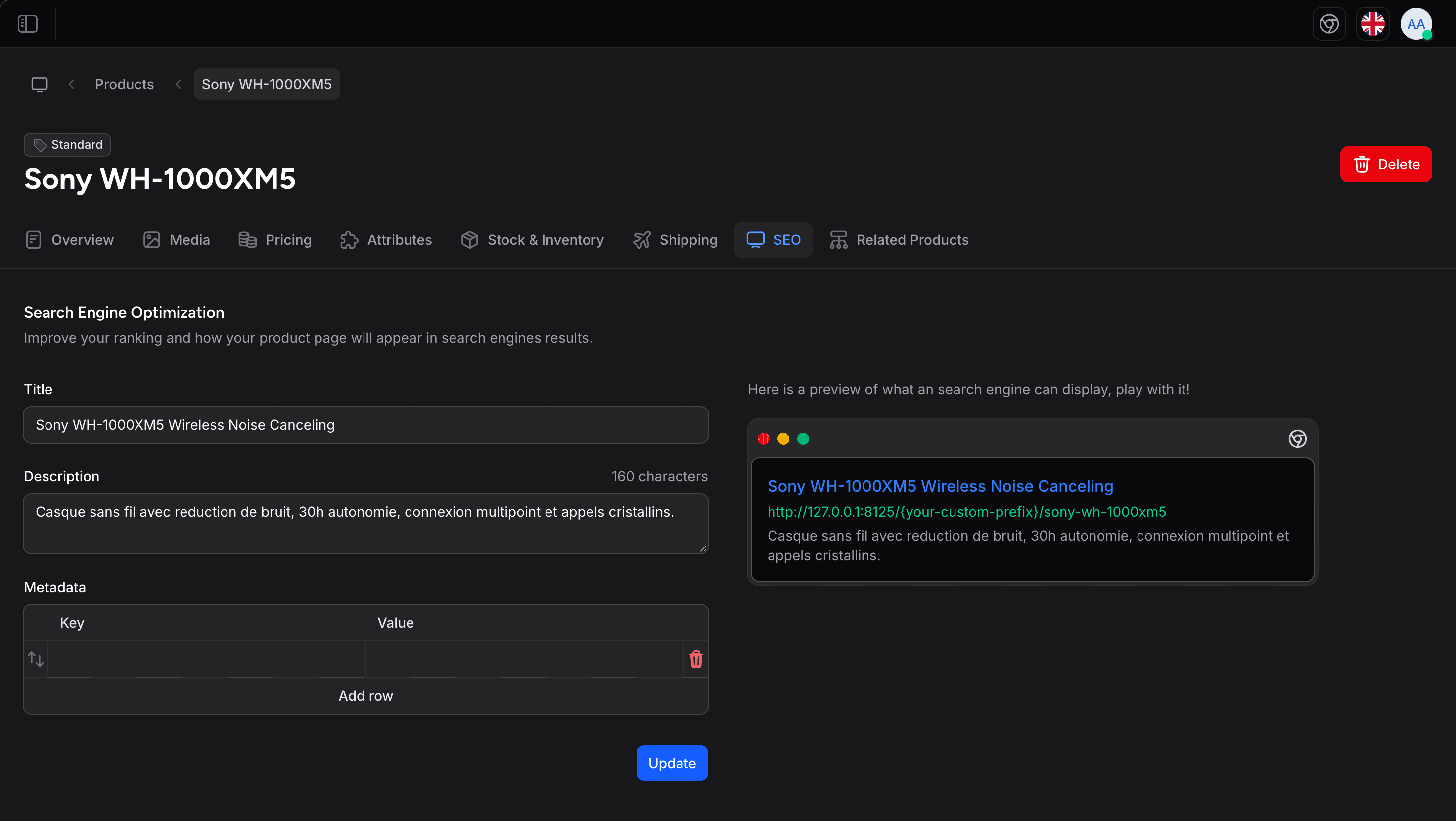
| Field | Description | Best practice |
|---|---|---|
| Title | The title shown in search engine results | Keep under 60 characters. Include the product name and a key benefit. |
| Description | The meta description shown below the title in search results. Limited to 160 characters. | Describe the product and include a call to action. |
| Metadata | Extra key and value pairs saved with the product. Click Add row to add a pair. | Only fill it in if your storefront is built to read these keys. Ask your developer which ones it uses. |
Click Update to save. Next to the form, a preview shows how the product can appear in search results, including its URL. The URL ends with the product slug, which is created from the product name when you create the product and cannot be edited. Choose a clear product name from the start, since renaming the product later does not change the slug.
SEO Tips
- Include keywords naturally in the title and description. Think about what customers search for
- Be specific. "Red Leather Crossbody Bag" is better than "Nice Bag"
- Add a call to action in the meta description, such as "Shop now", "Free shipping", "Limited edition"
- Avoid duplicate content. Each product should have unique SEO text
If left empty, search engines will use your product name as the title and pull text from your description. It's always better to set these explicitly for optimal results.
Related Products
Link related products to encourage customers to explore more of your catalog and increase average order value.
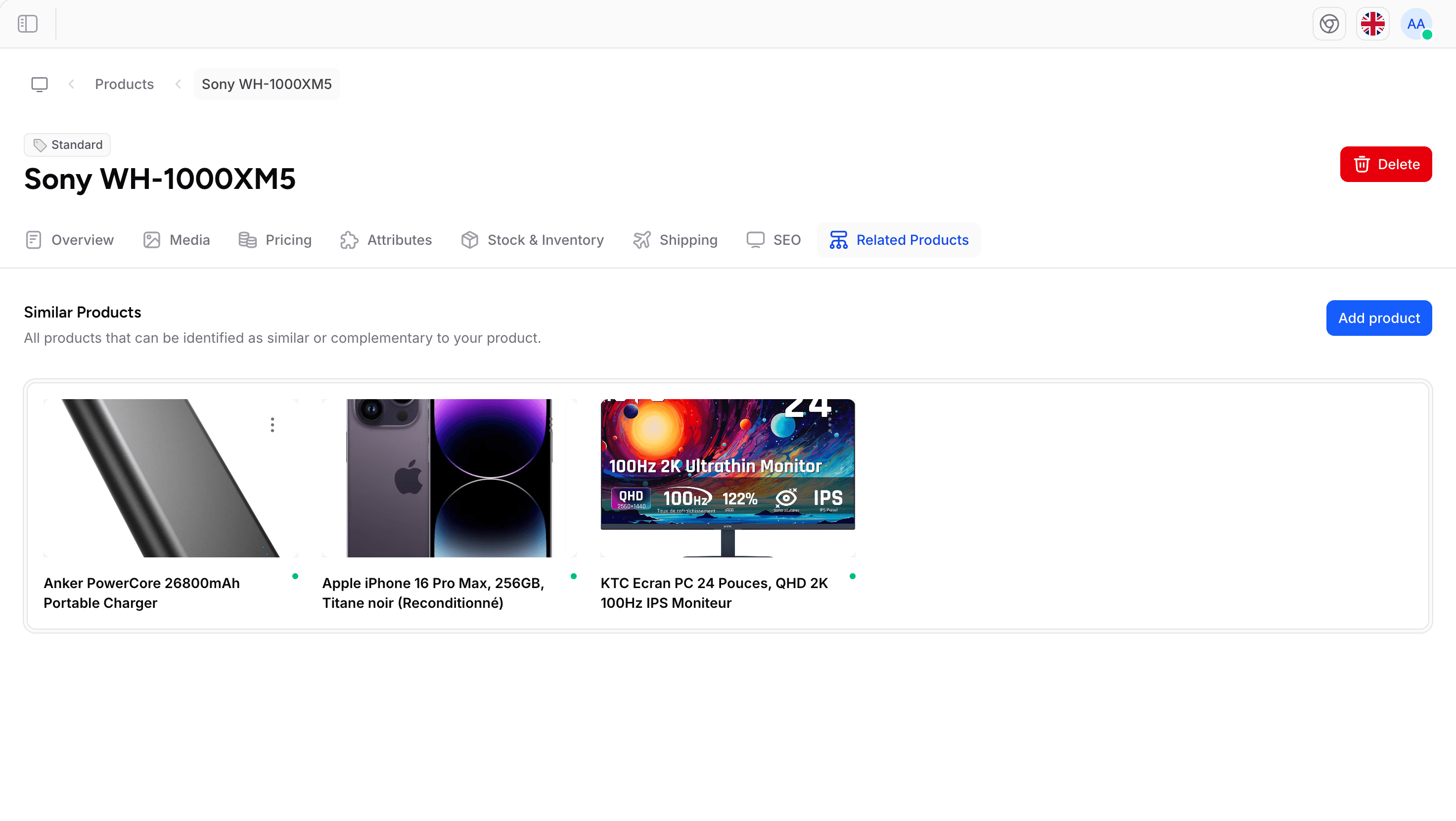
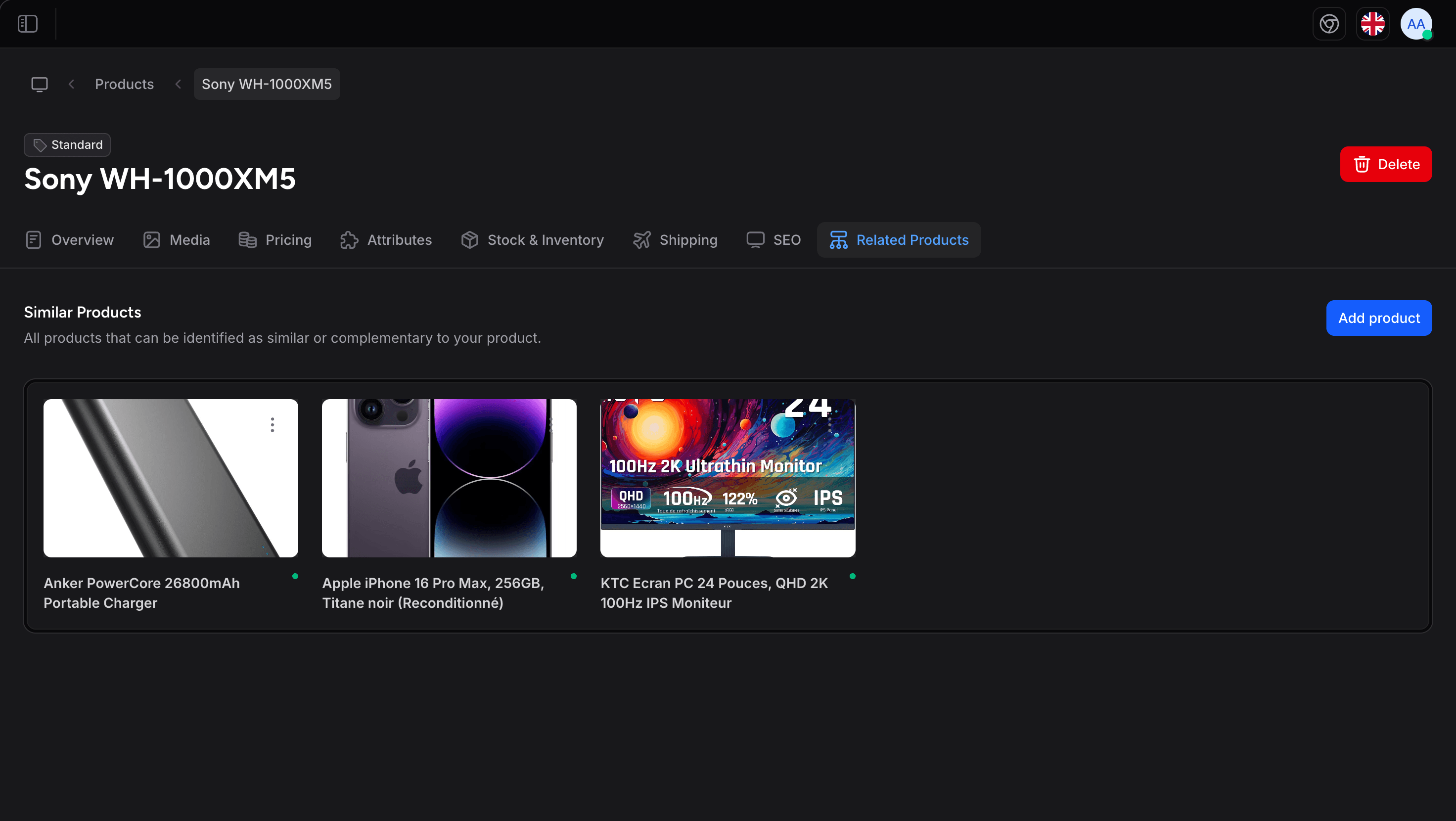
Adding Related Products
- Open the Related Products tab on your product. Its section is titled Similar Products
- Click Add product (or New product if the product has no related products yet)
- In the Add Similar Products panel, search for published products, select them and click Add Selected Products
- Related products appear on the product detail page on your storefront
To unlink a product, click Remove on its card and confirm.
When to Use Related Products
| Use case | Example |
|---|---|
| Complementary items | Shoes: shoe cleaner, laces, socks |
| Same category | Blue dress: other dresses in similar style |
| Frequently bought together | Phone: phone case, screen protector |
| Upsell | Basic model: premium model of the same product |
| Accessories | Camera: lens, tripod, bag |
Visibility & Publishing
Control when and where your product is visible. Both settings are in the Product availability section of the Overview tab.
Visibility Toggle
- Visible: Product appears on your storefront and in search results
- Hidden: Product exists in the admin but is not shown to customers
Use hidden mode to:
- Prepare products before a launch
- Temporarily remove seasonal items
- Hide products being updated or photographed
Publication Date
The Availability date controls when the product goes live:
- Past or current date: Product is immediately available (if visible)
- Future date: Product is scheduled and will become available at that date and time
Combine a future publication date with "Visible" to schedule product launches. The product won't appear until the scheduled date.
Channels
If your store uses multiple sales channels, you can control which channels a product appears on with the Sales channels field, in the Associations section of the Overview tab. It lists the enabled channels of your store, for example:
- Web store. Your main online store
- Mobile app. If you have a mobile shopping app
- POS. Point of sale / in-store
- Marketplace. Third-party marketplace listings
Each product can be assigned to one or more channels.
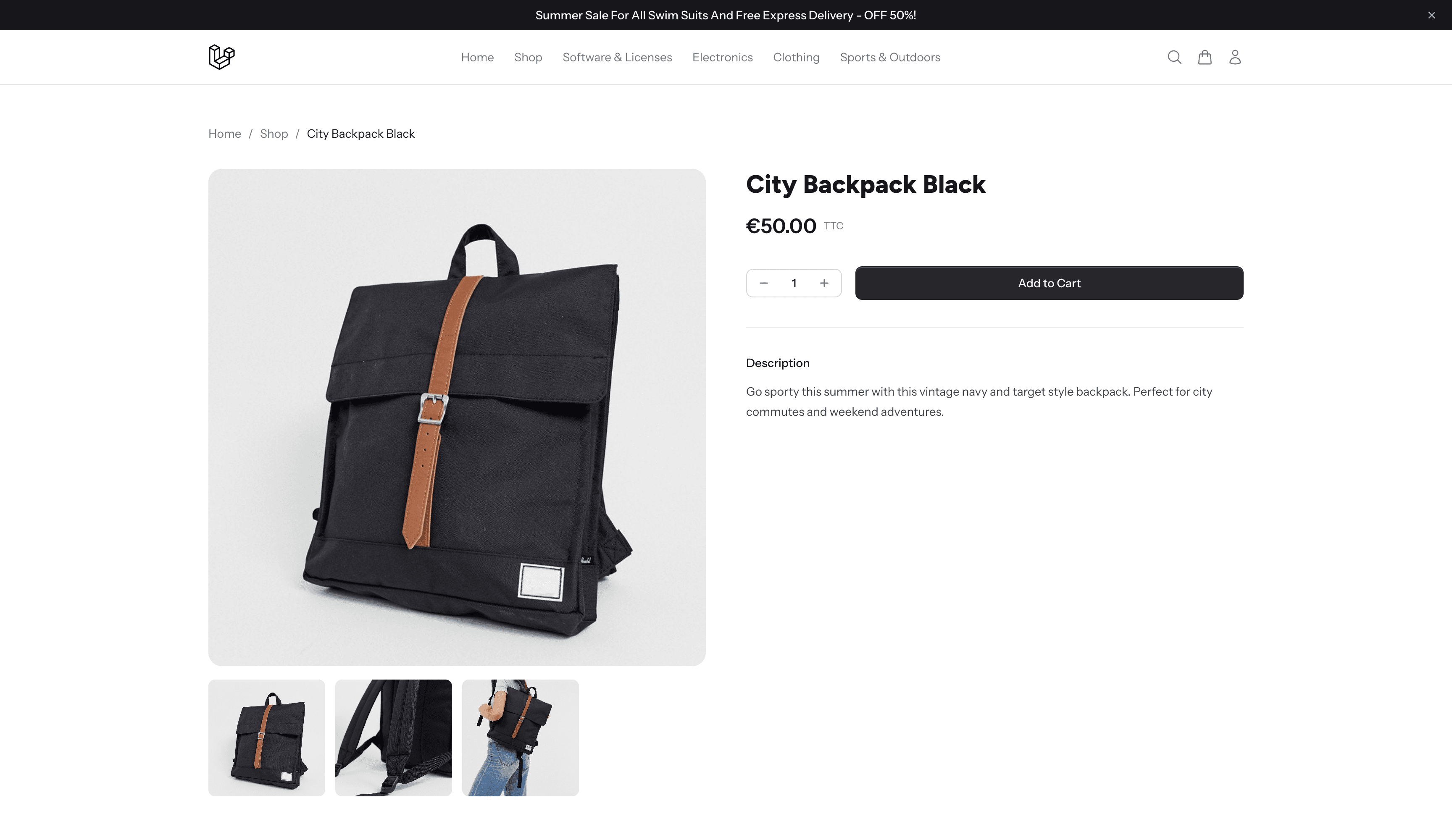
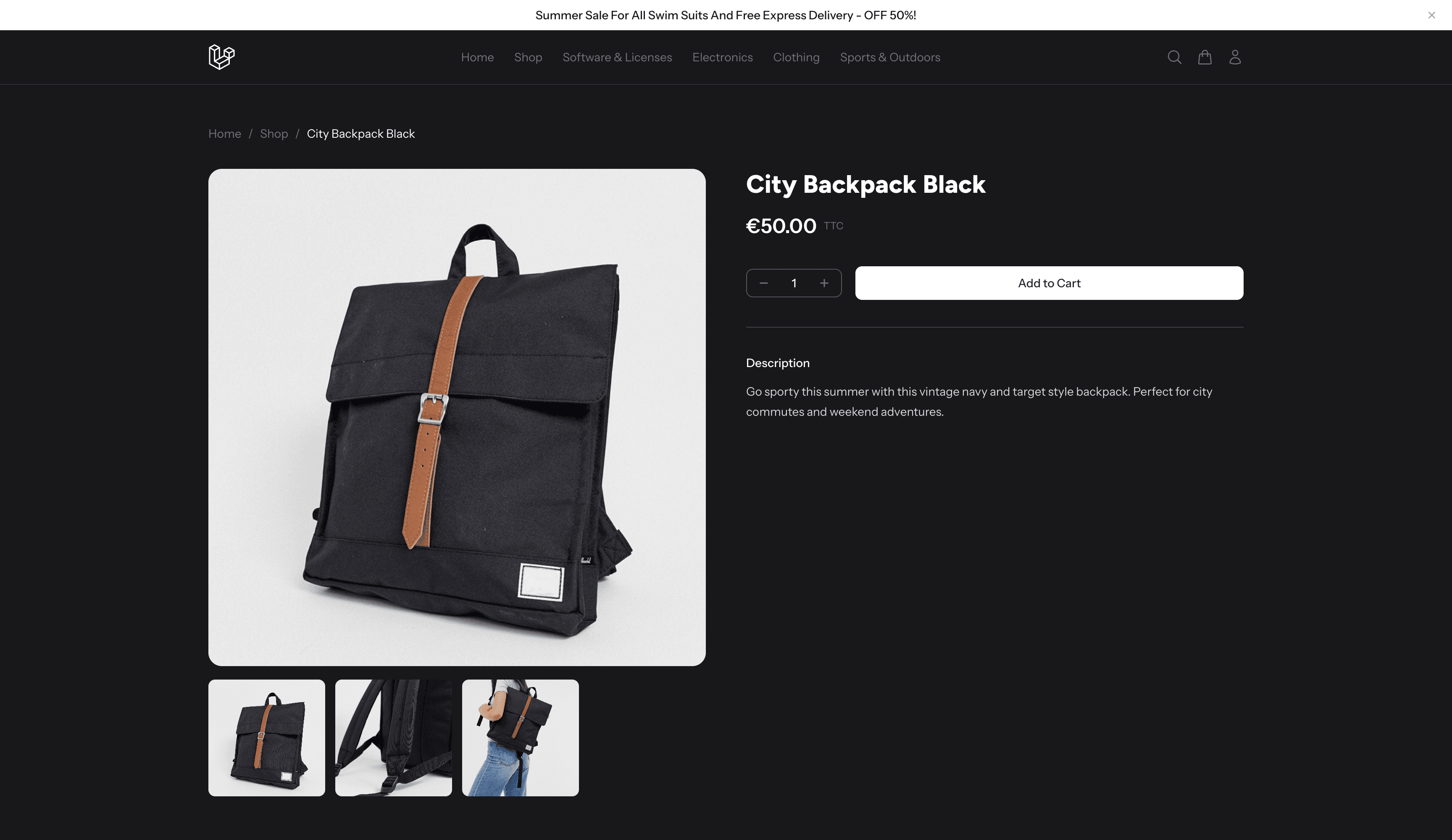
Product on Storefront
Here's how a fully configured product appears to customers:
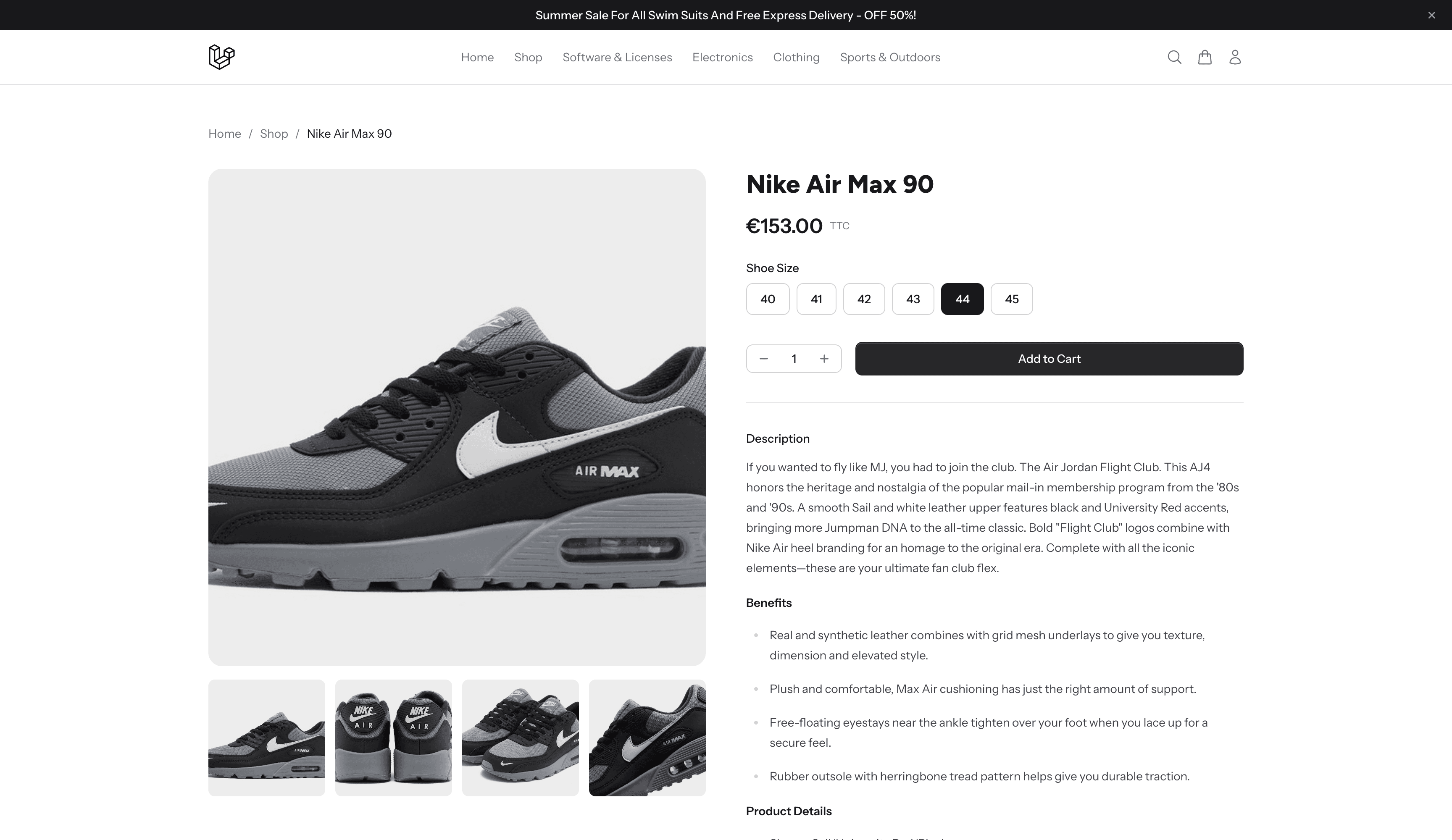
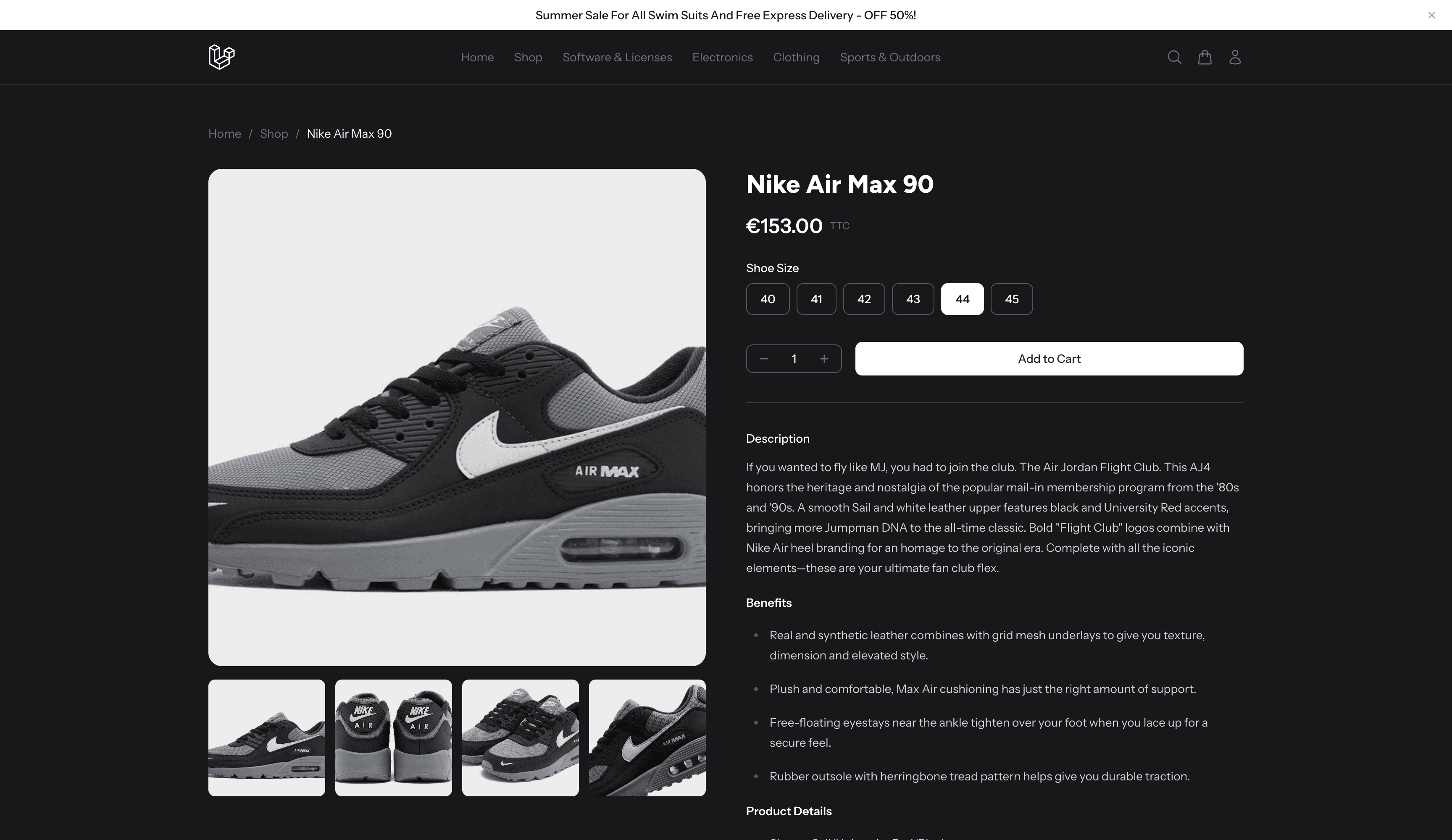
Common Actions
| Action | How |
|---|---|
| Edit product info | Click on the product, modify fields, click Update |
| Change visibility | Toggle the Visible switch in the Overview tab, click Update |
| Update stock | Go to the Stock & Inventory tab, click Add stock |
| Update pricing | Go to the Pricing tab, click Edit on a price, save |
| Delete product | Click Delete at the top of the product page, or on its row in the products list (irreversible) |
| Duplicate product | There is no duplicate action. Click New product and fill in the details again |
Deleting a product cannot be undone from the admin. It also removes the product's images, prices and stock history. Consider hiding the product instead if you might need it again.
For developer details, see the Products documentation.
Last updated on
Edit on GitHub