
Managing Staff Users
Add and manage administrator accounts for your store.
Staff users are the people who help manage your store. Shopper allows you to create multiple admin accounts with different levels of access.
Overview
The Staff management section allows you to:
- Add new administrators
- See every staff account with its role and level of access
- Assign roles and permissions
- Delete the accounts of people who no longer need access
Accessing Staff Settings
- Click on Settings in the sidebar
- Select Staff & permissions from the settings menu
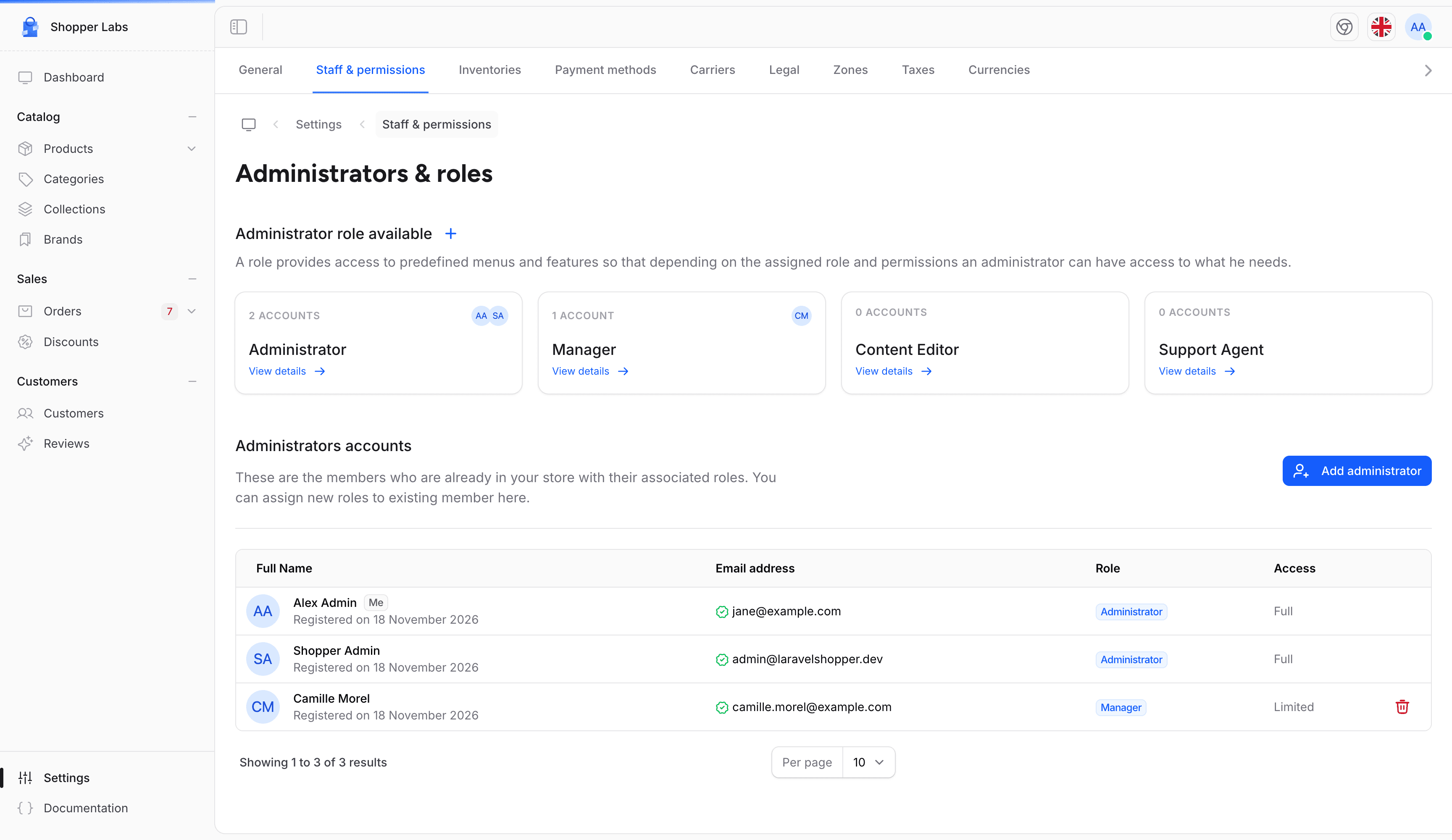
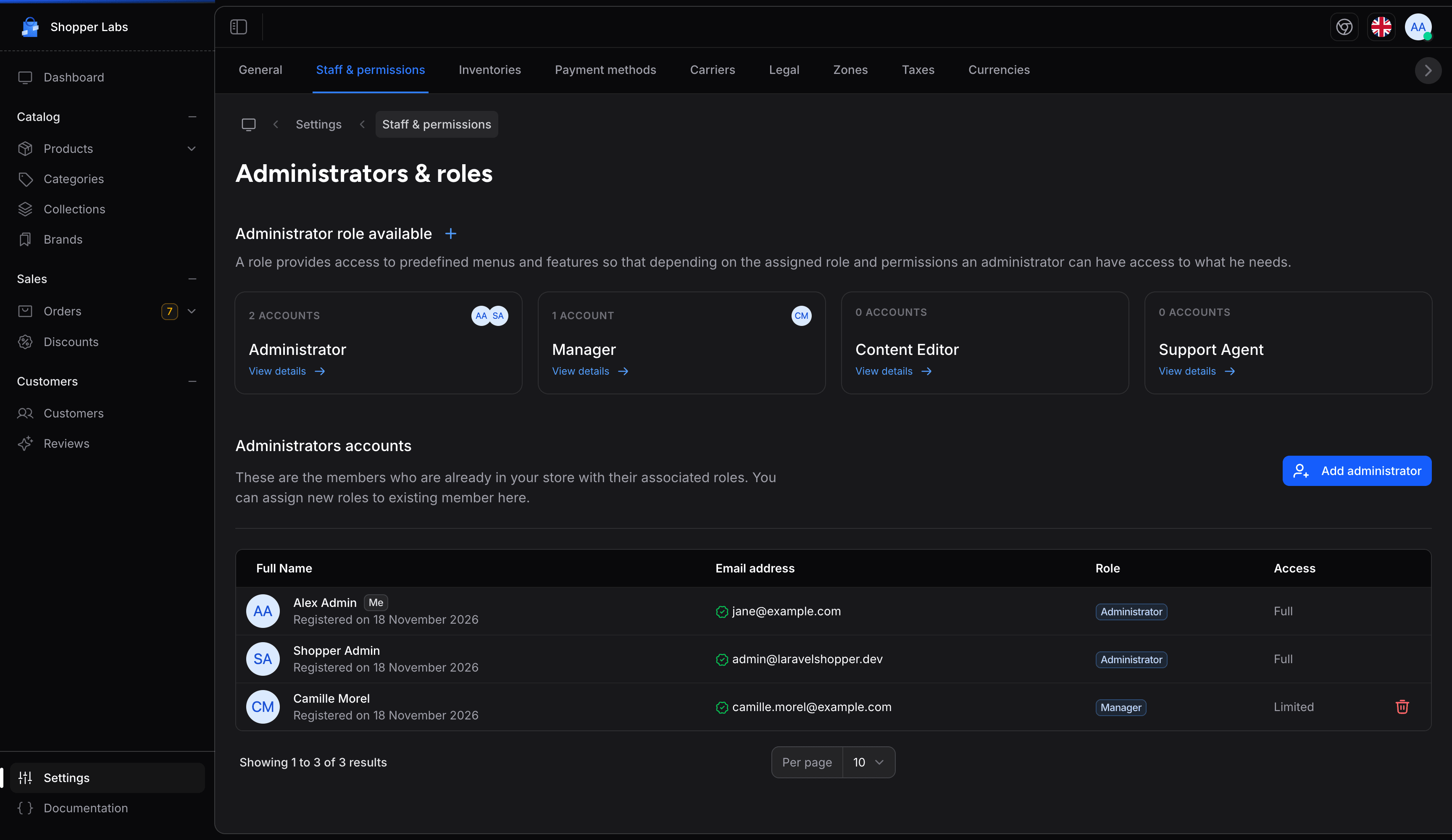
The page opens with the title Administrators & roles. The Administrators accounts table lists your staff:
| Column | Description |
|---|---|
| Full Name | The staff member's name and registration date. Your own row shows a Me badge |
| Login email address, with a green icon once it is verified | |
| Role | The role assigned to the staff member |
| Access | Full for administrators, Limited for every other role |
Adding a New Admin
To add a new staff member:
- Click the Add administrator button
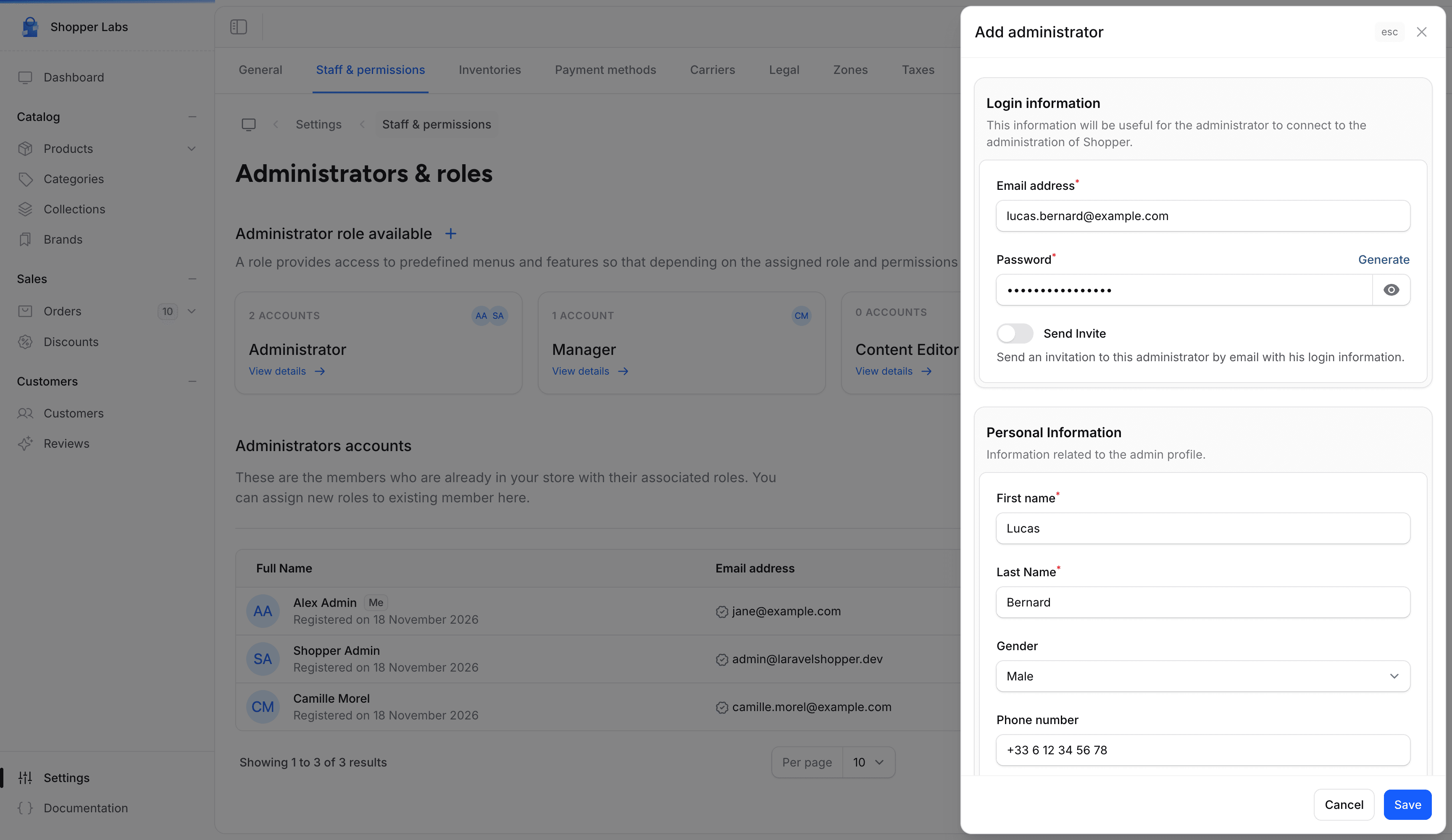
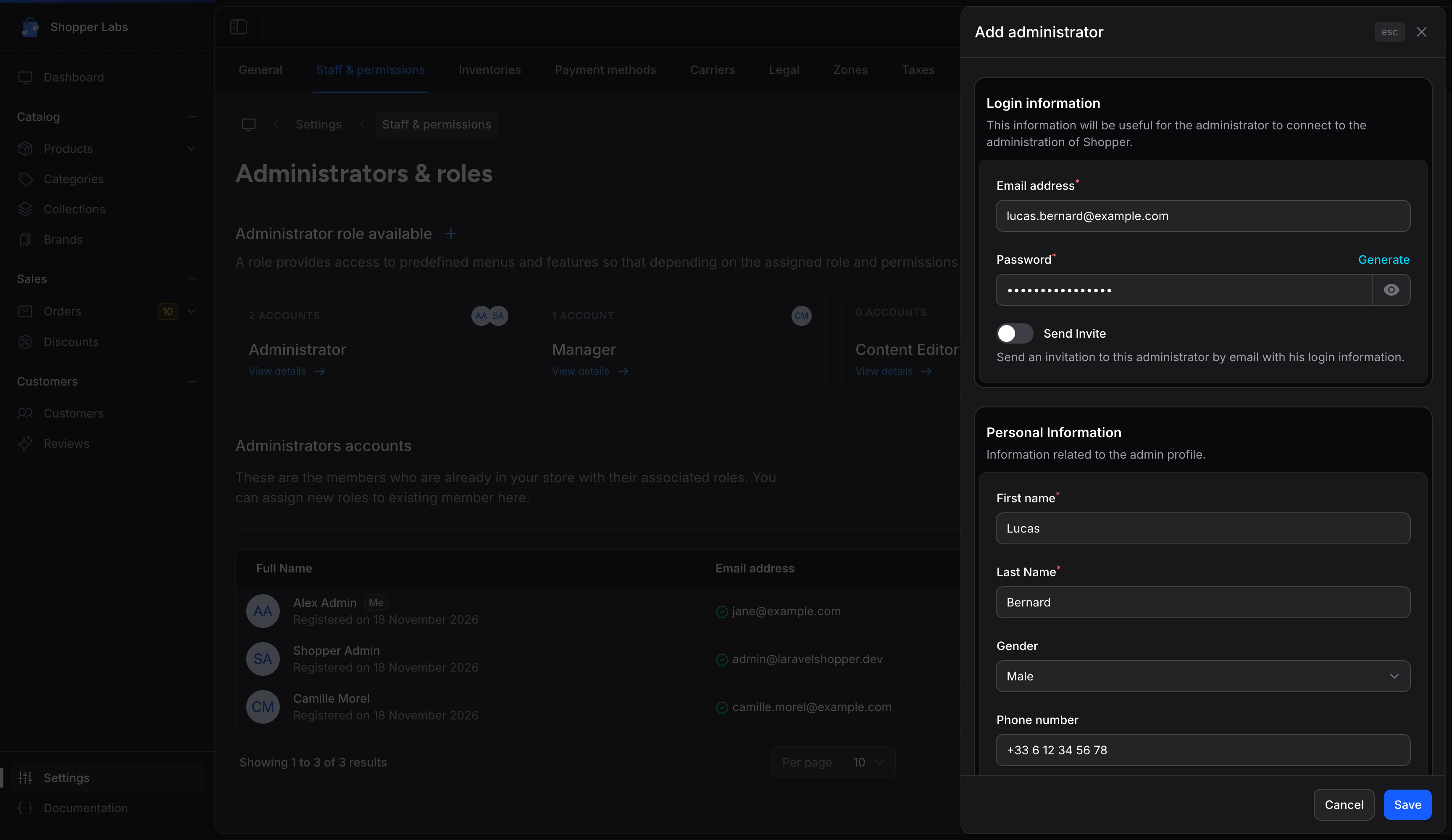
- Under Login information, enter the Email address and a Password, or click Generate to create one. Turn on Send Invite to email the login details to the new administrator
- Under Personal Information, enter the First name and Last Name, and optionally the Gender and Phone number
- Under Role Information, pick a role in Choose a role for this admin
- Click Save
The account can be used right away: its email address is marked as verified when you create it.
Admin Fields
| Field | Required | Description |
|---|---|---|
| Email address | Yes | Login email address (must not be used by another account) |
| Password | Yes | Login password. Generate fills in a random 16-character password, and the eye icon shows it |
| Send Invite | No | Sends the new administrator an email with their login information |
| First name | Yes | Staff member's first name |
| Last Name | Yes | Staff member's last name |
| Gender | No | Male or Female |
| Phone number | No | Contact phone number |
| Choose a role for this admin | Yes | The role of this user, picked from a list of radio buttons |
Only administrators can assign the Administrator role to a new team member. For other staff members, this role does not appear in the role choices. A warning in the form reminds you that the Administrator role gives the same rights and permissions as yours.
Staff Roles
Each staff member is assigned a role that determines what they can access:
| Role | Typical Access |
|---|---|
| Administrator | Full access to all features. Installed with Shopper |
| Manager | Installed with Shopper without any permission: give it the ones your managers need, for example everything except settings |
| Editor | A role you create for product and content management |
| Support | A role you create for orders and customer management |
See Roles & Permissions to create roles and choose their permissions.
Create roles that match your team structure. The principle of least privilege suggests giving users only the access they need for their job.
Managing Existing Staff
Edit Staff Member
The staff list has no edit action: you cannot change another person's name, email address, password or role after the account is created. Instead:
- Each staff member updates their own details and password from their profile (see Your Profile below)
- To change what someone can do, change the permissions of their role on the Roles & Permissions page. The change applies to everyone with that role
Disable Staff Member
Shopper has no option to disable a staff account and enable it again later. To stop someone from signing in, delete their account as described below. If they come back, add them again with Add administrator.
Delete Staff Member
Permanently remove a staff account:
- Click the trash icon on the staff member's row in Administrators accounts. The same icon appears on the Users tab of each role
- Confirm the deletion
- Only administrators see the trash icon, and it never appears on an administrator's row
- Use with caution - this cannot be undone
Your Profile
Each staff member can manage their own profile. Click your avatar at the top-right of the header, then Personal Account:
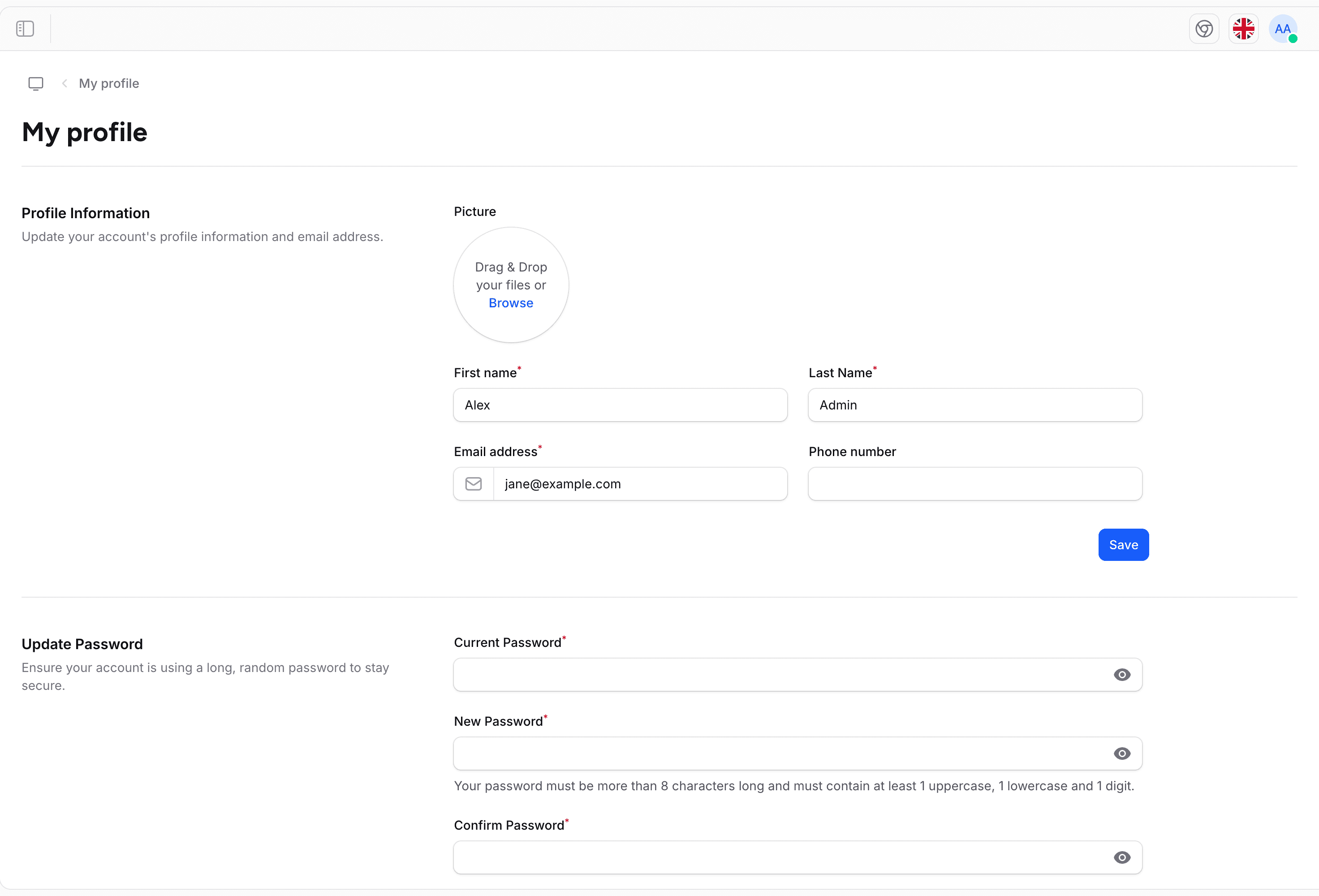
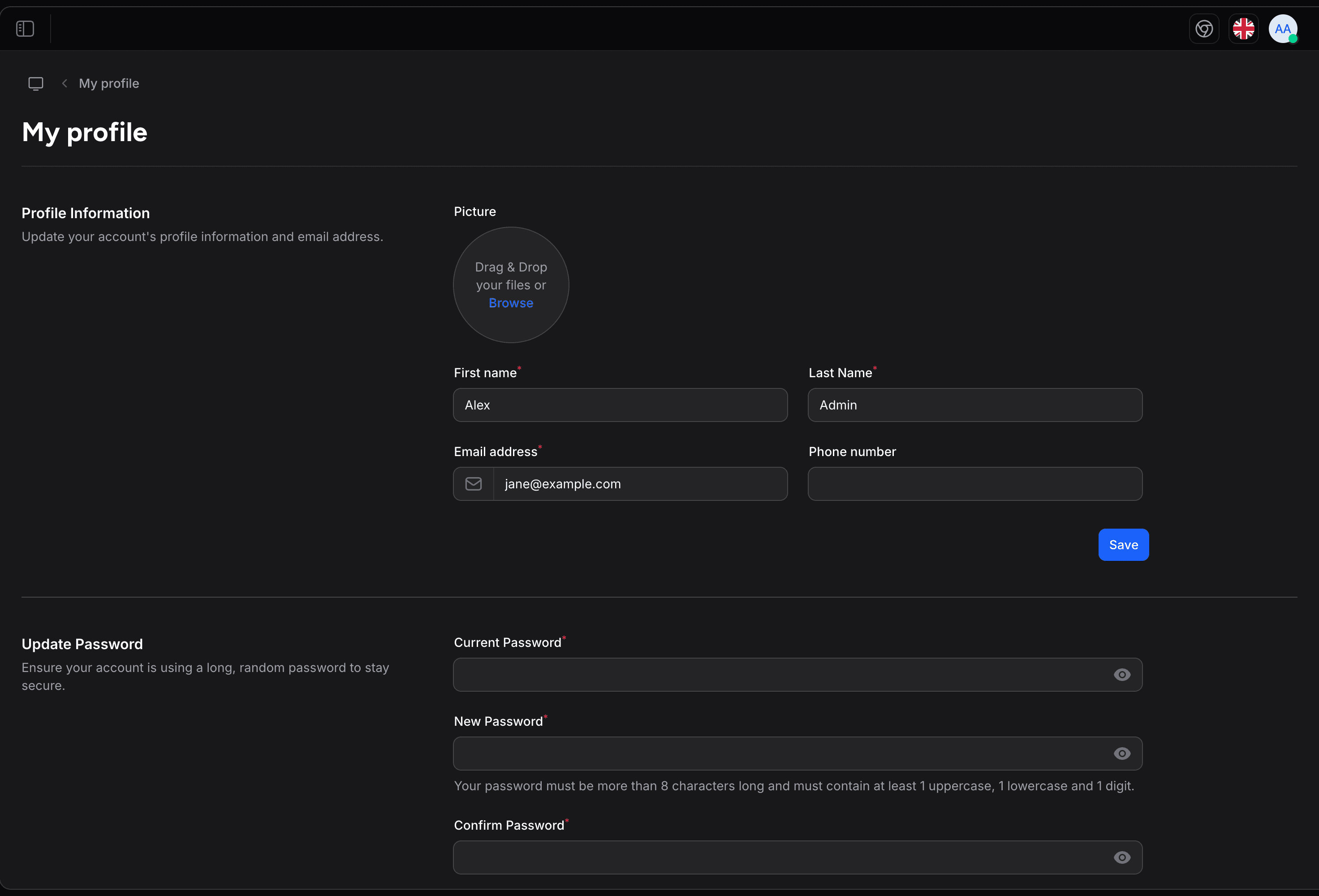
From your profile, you can:
- Update personal information
- Change your password
- Enable two-factor authentication, when it is turned on for your store
- See the devices signed in to your account and log out your other browser sessions
Best Practices
Unique Accounts
Give each person their own account - never share credentials.
Strong Passwords
Require strong passwords for all admin accounts.
Enable 2FA
Encourage or require two-factor authentication.
Regular Audits
Periodically review who has access to your admin.
Security Recommendations
- Remove inactive accounts - Delete the accounts of staff who leave
- Use role-based access - Don't give everyone admin access
- Enable two-factor - Add an extra layer of security
- Monitor activity - Ask staff to check the devices signed in to their account from their profile and log out the sessions they don't recognize. Shopper does not keep a history of staff actions
- Regular password changes - Encourage periodic password updates
For developer details, see the Roles & Permissions documentation.
Last updated on
Edit on GitHub