
Managing Collections
Create curated product collections to highlight specific products.
Collections allow you to group products together for marketing and merchandising purposes. Unlike categories, collections are flexible groupings that can include products from different categories.
Overview
Collections are useful for:
- Seasonal promotions - "Summer Collection", "Holiday Gifts"
- Marketing campaigns - "Best Sellers", "New Arrivals"
- Thematic groupings - "Eco-Friendly Products", "Made in France"
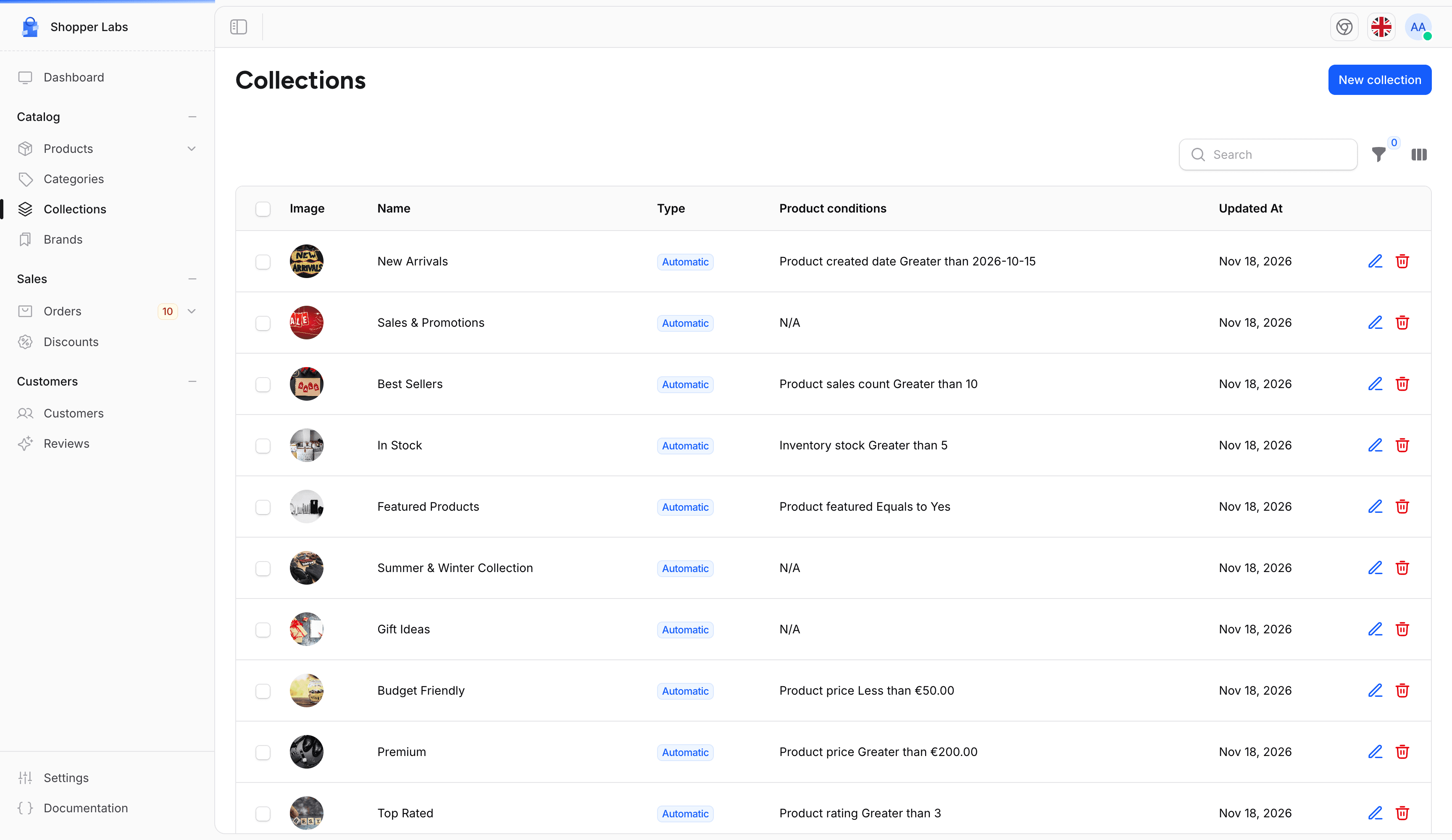
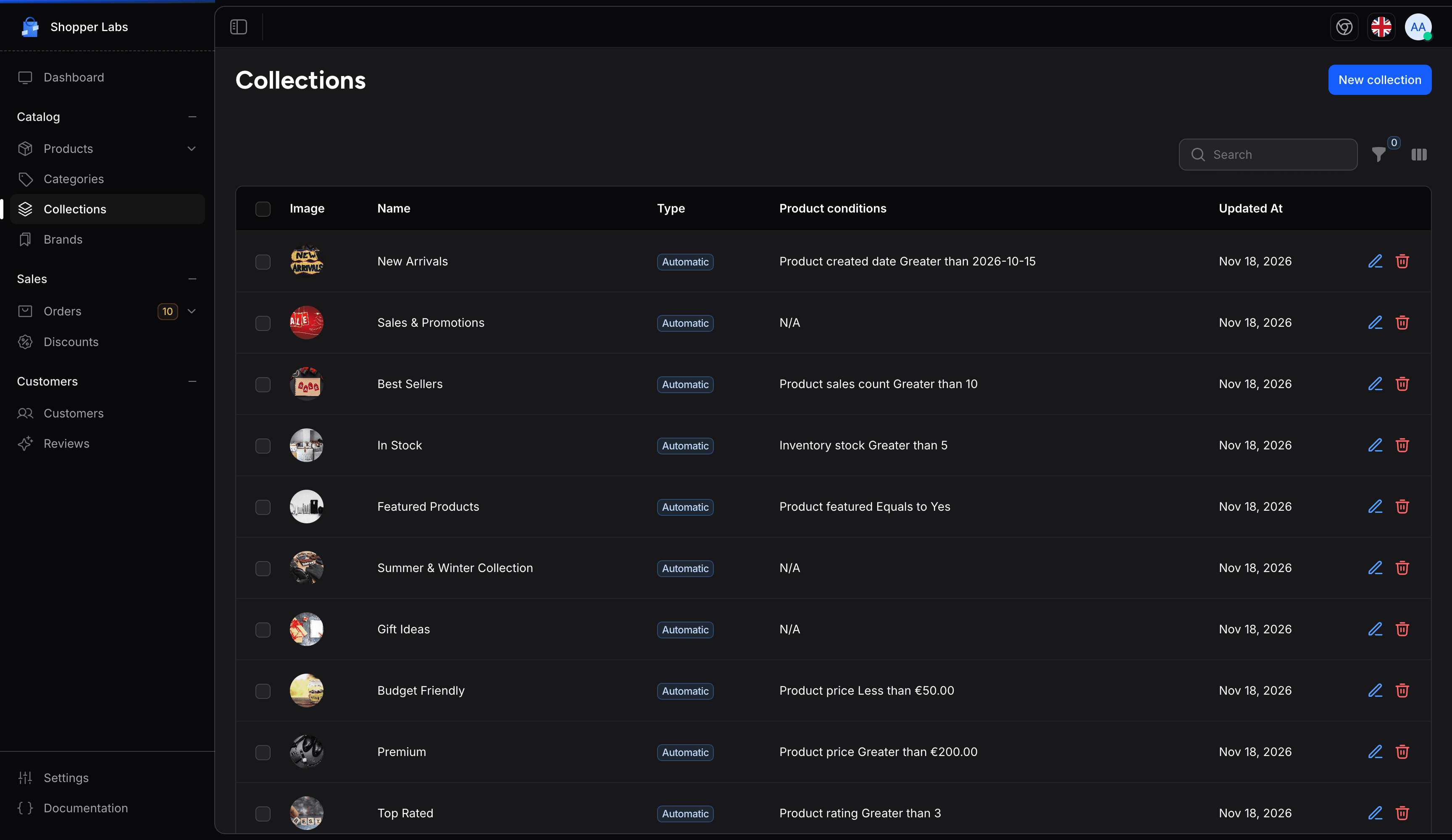
Accessing Collections
Click on Collections in the sidebar to access collection management.
Creating a Collection
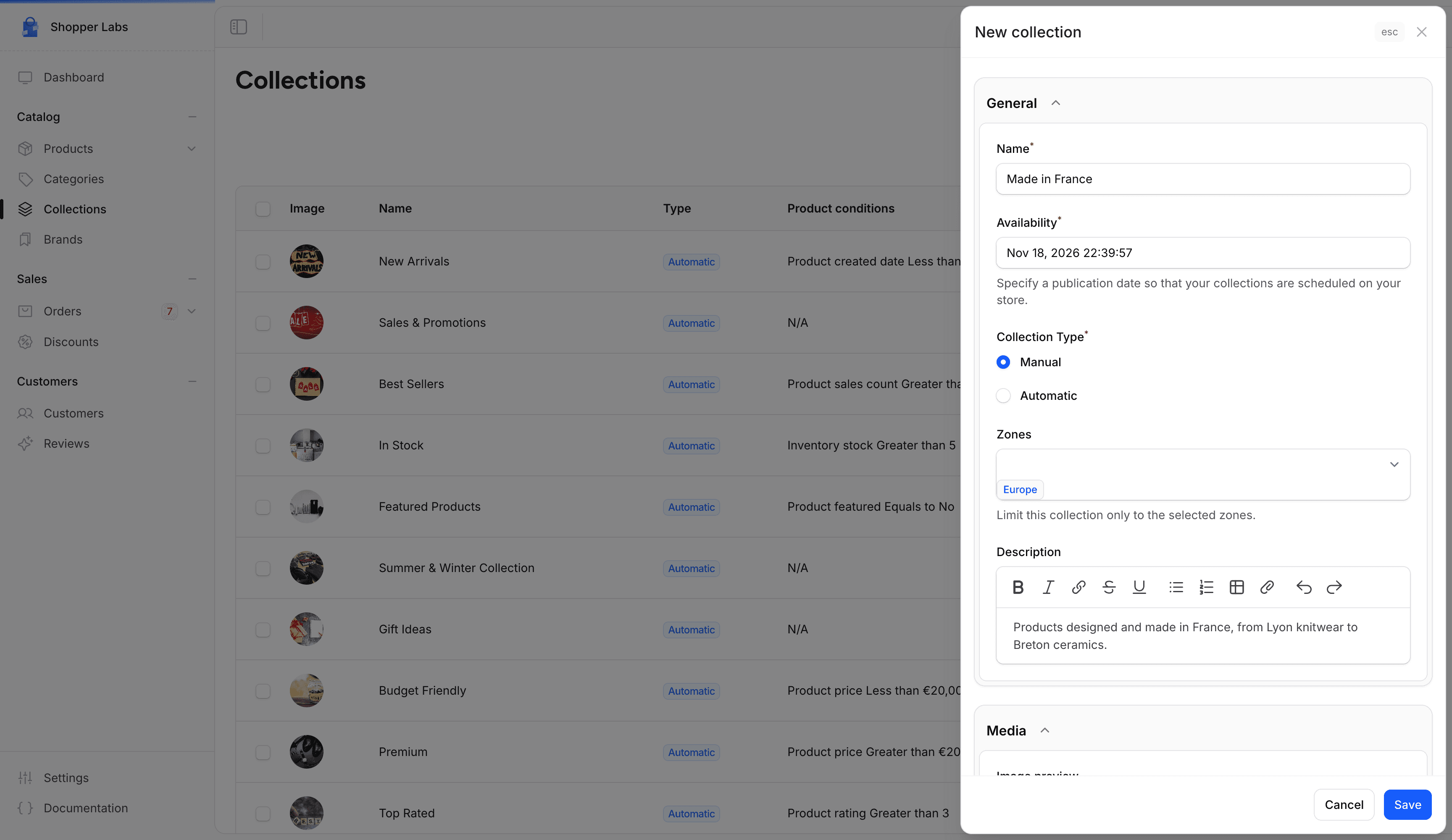
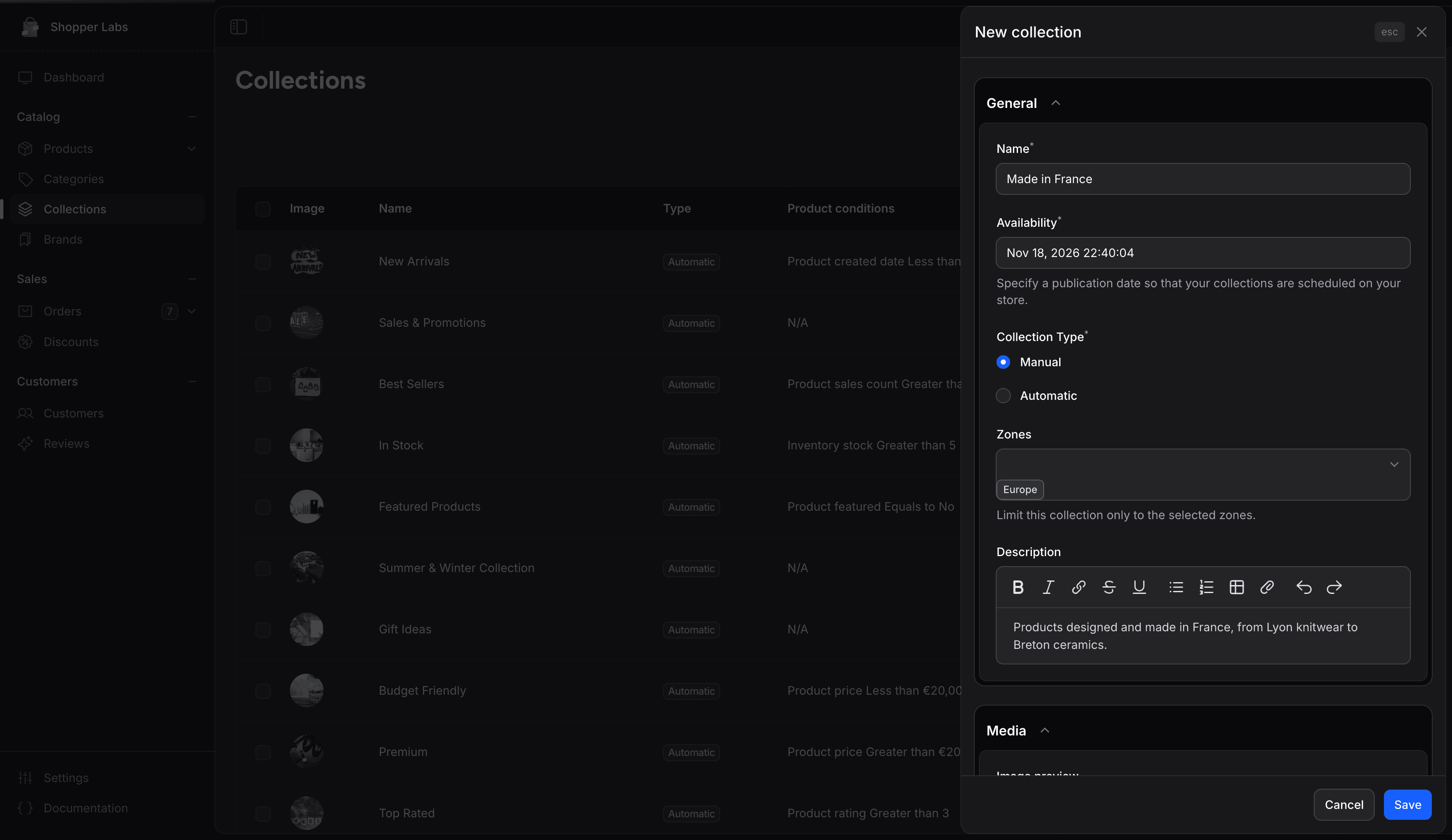
To create a new collection:
- Click the New collection button
- Fill in the collection details and choose the Collection Type
- Click Save. The collection's edit page opens.
- Add products to the collection: click Browse above the product list for a manual collection, or Conditions for an automatic one (see Automatic Collections)
On the edit page, click Update to save changes to the collection details.
Collection Fields
| Field | Required | Description |
|---|---|---|
| Name | Yes | The collection name |
| Availability | Yes | The date and time the collection becomes available on your store. Defaults to now; set a later date to schedule it. |
| Collection Type | Yes | Manual or Automatic (condition-based). It cannot be changed after the collection is created. |
| Zones | No | Limit the collection to the selected zones |
| Description | No | Describe what this collection represents |
| Image preview | No | In the Media section, a cover image for the collection |
| Title and Description | No | In the SEO section, how the collection page appears in search engine results |
| Metadata | No | In the Metadata section, extra key and value pairs your developer can use on the storefront |
Collection Types
Manual Collections
Manually select which products belong to the collection:
- Full control over which products are included
- Products stay in the collection until you remove them
- Best for curated selections
Automatic Collections
Use conditions to include products automatically. On the collection's edit page, click Conditions above the product list to open the Product conditions panel:
- Under Products must match, choose All conditions or Any condition
- For each condition, pick a rule in Choose a rule, an operator in Select operator, then fill in the Value
- Click Add condition to add another one
- Click Save
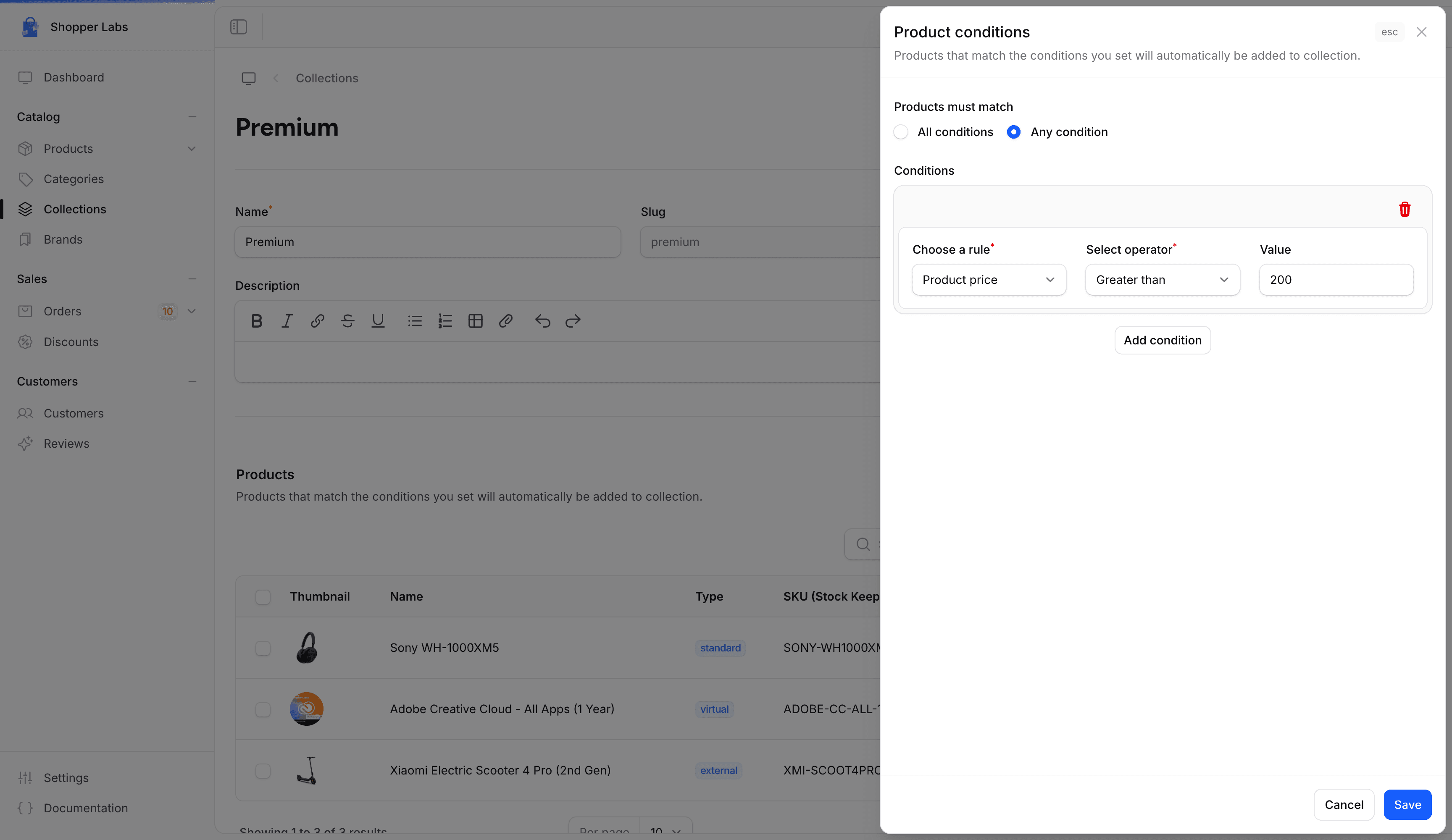
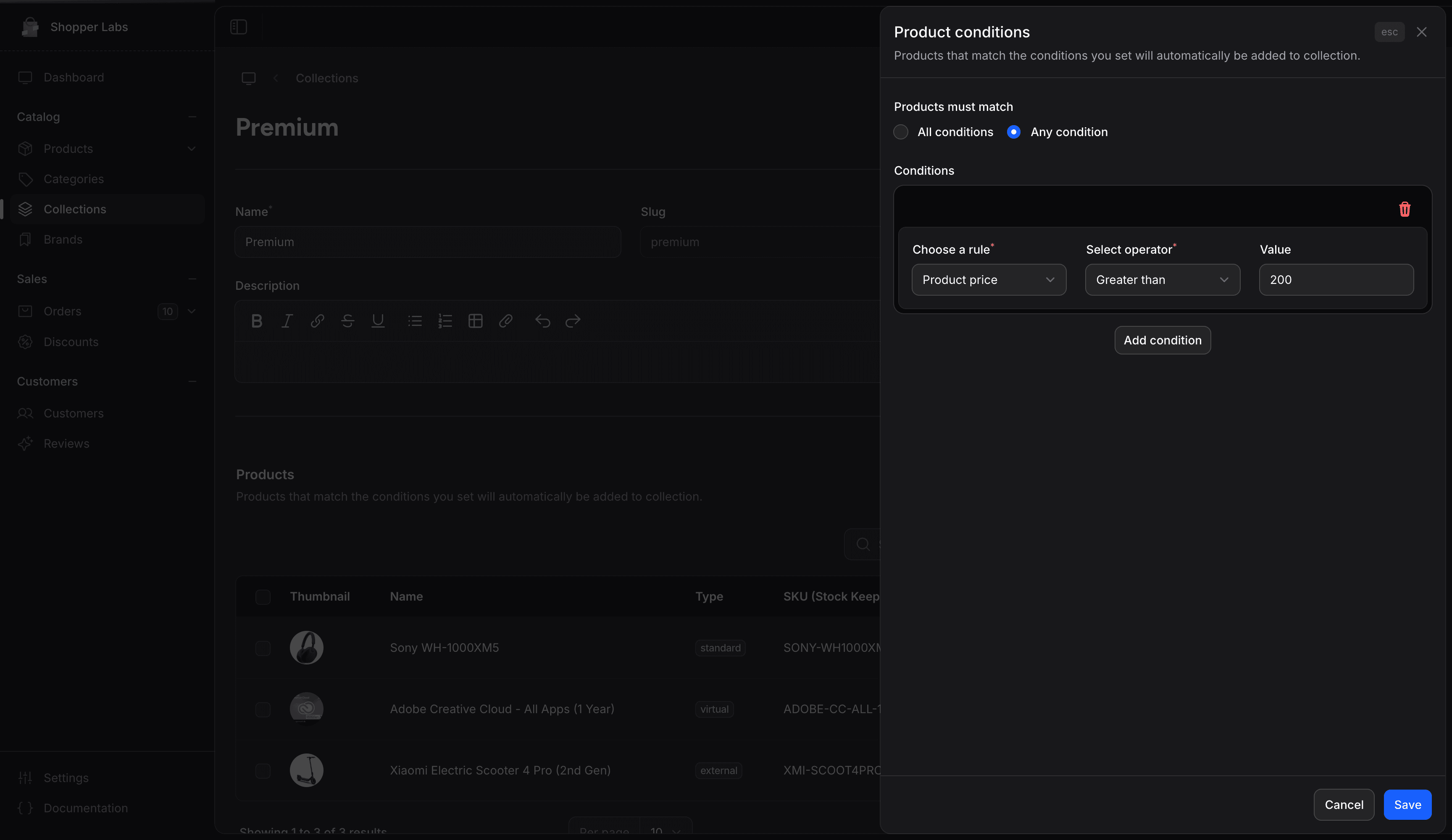
Available rules:
| Rule | Example |
|---|---|
| Product title | Contains "organic" |
| Product brand | Equals to "Nike" |
| Product category | Contains "Shoes" |
| Product price | Greater than 50 |
| Compare at price | Greater than 0 (products shown with a former price) |
| Inventory stock | Greater than 5 |
| Product created date | Greater than a date you pick |
| Product featured | Equals to Yes |
| Product rating | Greater than 3 |
| Product sales count | Greater than 100 |
The product list of an automatic collection is filled when you save its conditions. Products you add or change afterwards join or leave the list the next time you click Save in the Product conditions panel. On the starter kits, the collection page checks the conditions each time it loads, so matching products show there right away.
Collection Preview
On the starter kits, each collection has its own page with a breadcrumb, the collection title and description, then its products. The page is available once the Availability date has passed.
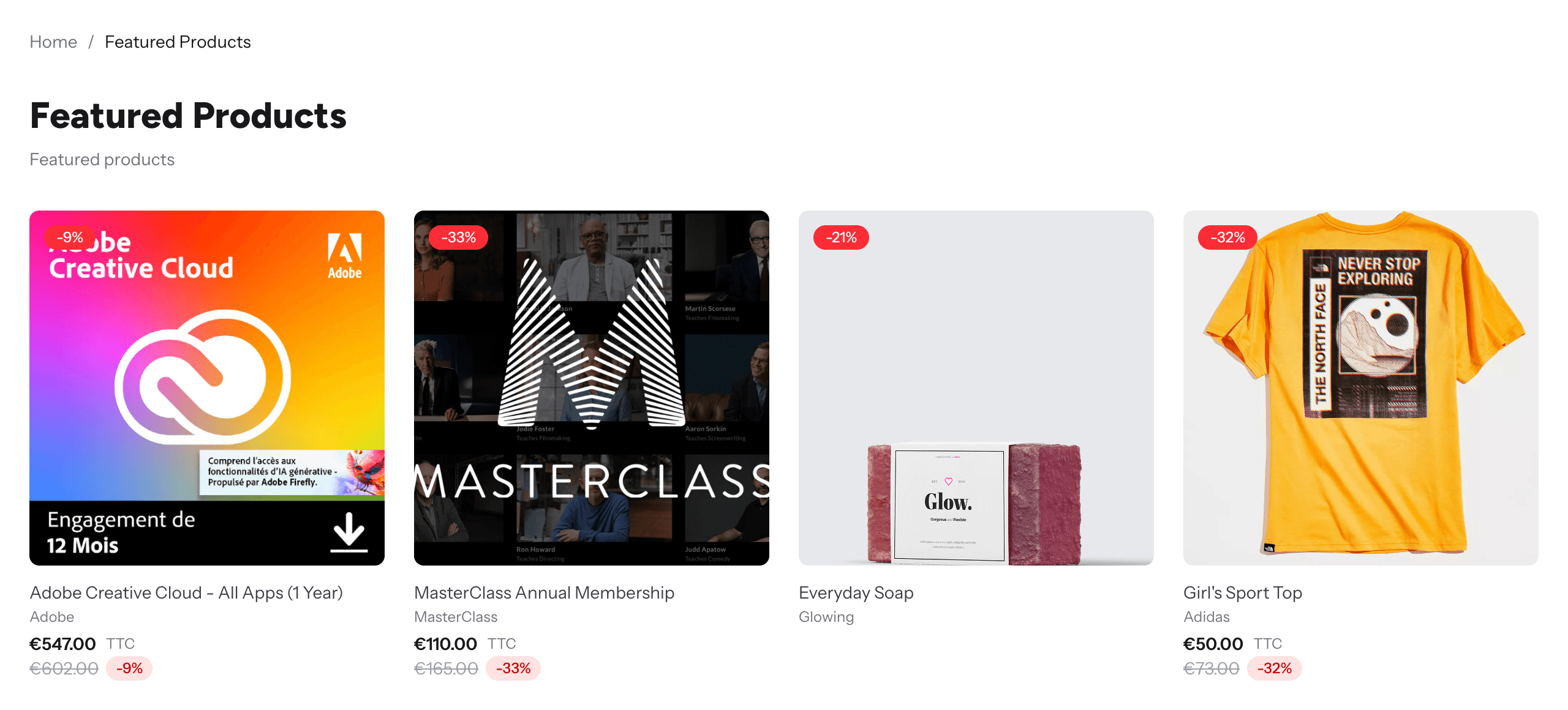
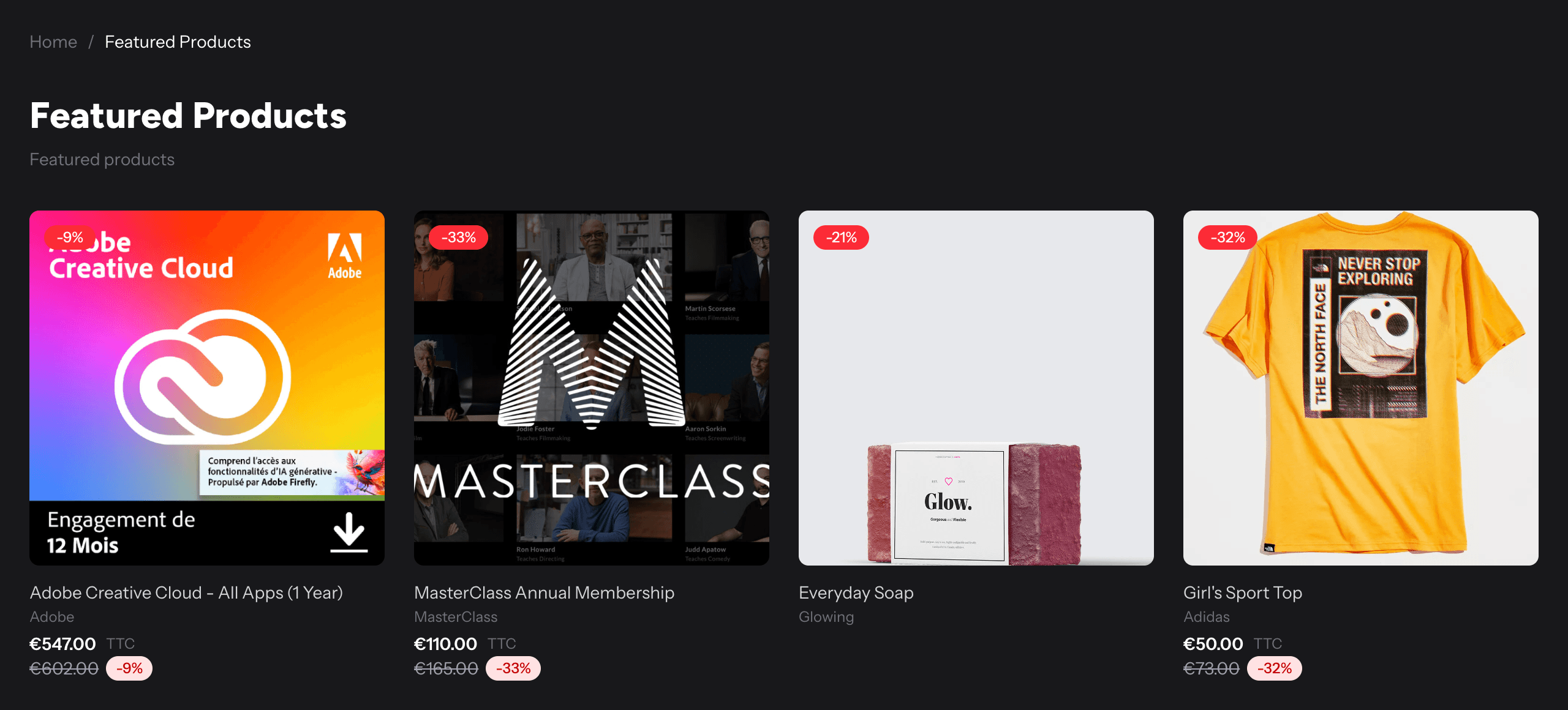
Collections on Storefront
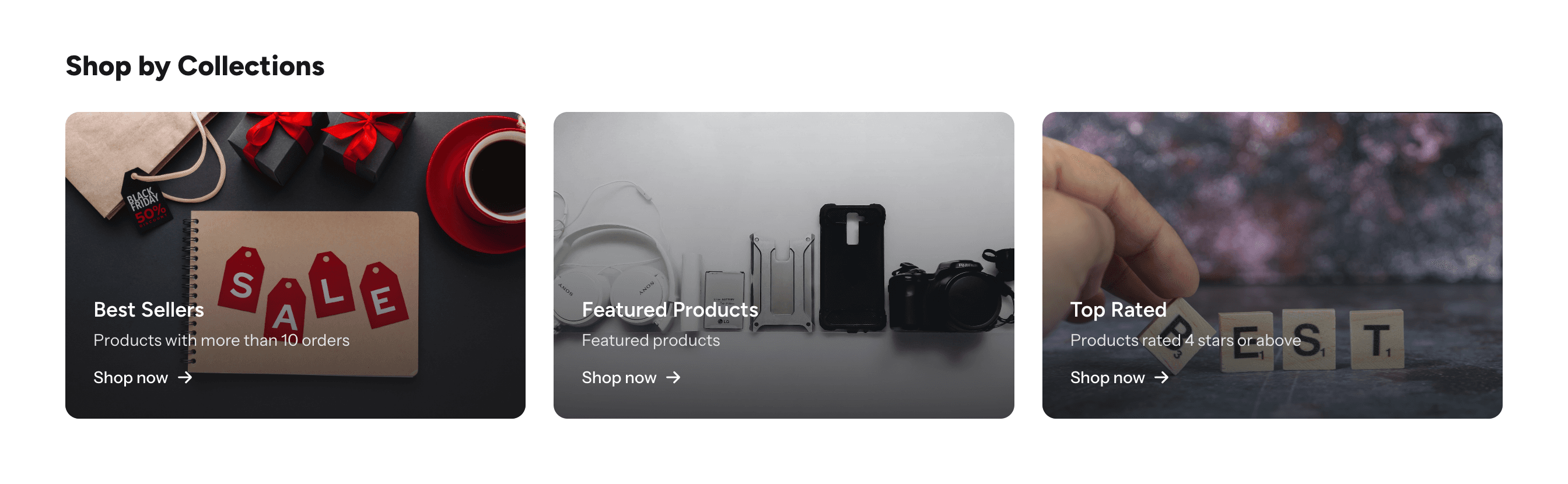
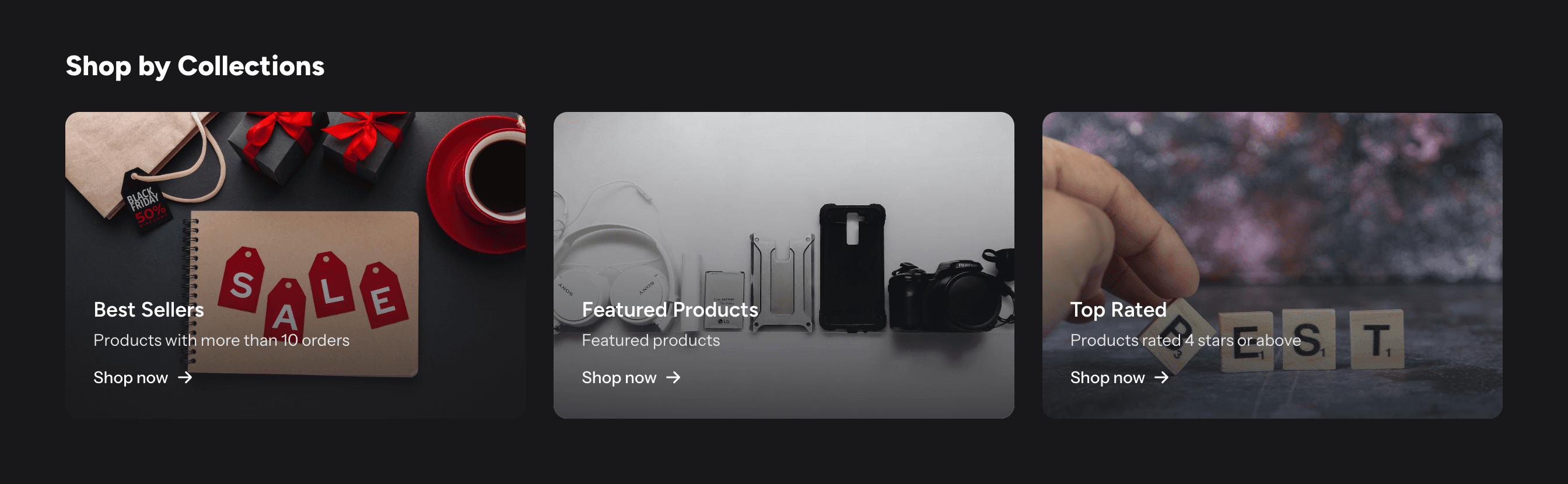
The starter kit home page has a Shop by Collections section that shows three collections, the ones with the most products, each linking to its collection page. There is no page listing all collections.
Use Cases
New Arrivals
Create an automatic collection with a Product created date condition, Greater than the date your new season starts.
Sale Items
Group all discounted products for easy customer access.
Gift Guides
Manually curate products perfect for gifting occasions.
Trending
Highlight your most popular products.
Best Practices
- Update regularly - Keep seasonal collections fresh and relevant
- Use compelling images - Collection images should be eye-catching
- Write descriptions - Help customers understand what makes the collection special
- Feature on homepage - Use collections to drive traffic to key products
For developer details, see the Collections documentation.
Last updated on
Edit on GitHub