
Shipping Carriers
Add shipping carriers and delivery options for your store.
Carriers are the shipping providers that deliver your products to customers. You can add carriers like UPS, FedEx, DHL, or your own local delivery service, and configure delivery options with pricing for each shipping zone.
Shopper supports two types of carriers:
- Manual carriers where you set flat-rate prices for each delivery option
- API-connected carriers that fetch real-time shipping rates from the carrier's system (UPS, FedEx, USPS)
Accessing Carriers
- Click on Settings in the sidebar
- Select Carriers from the settings menu
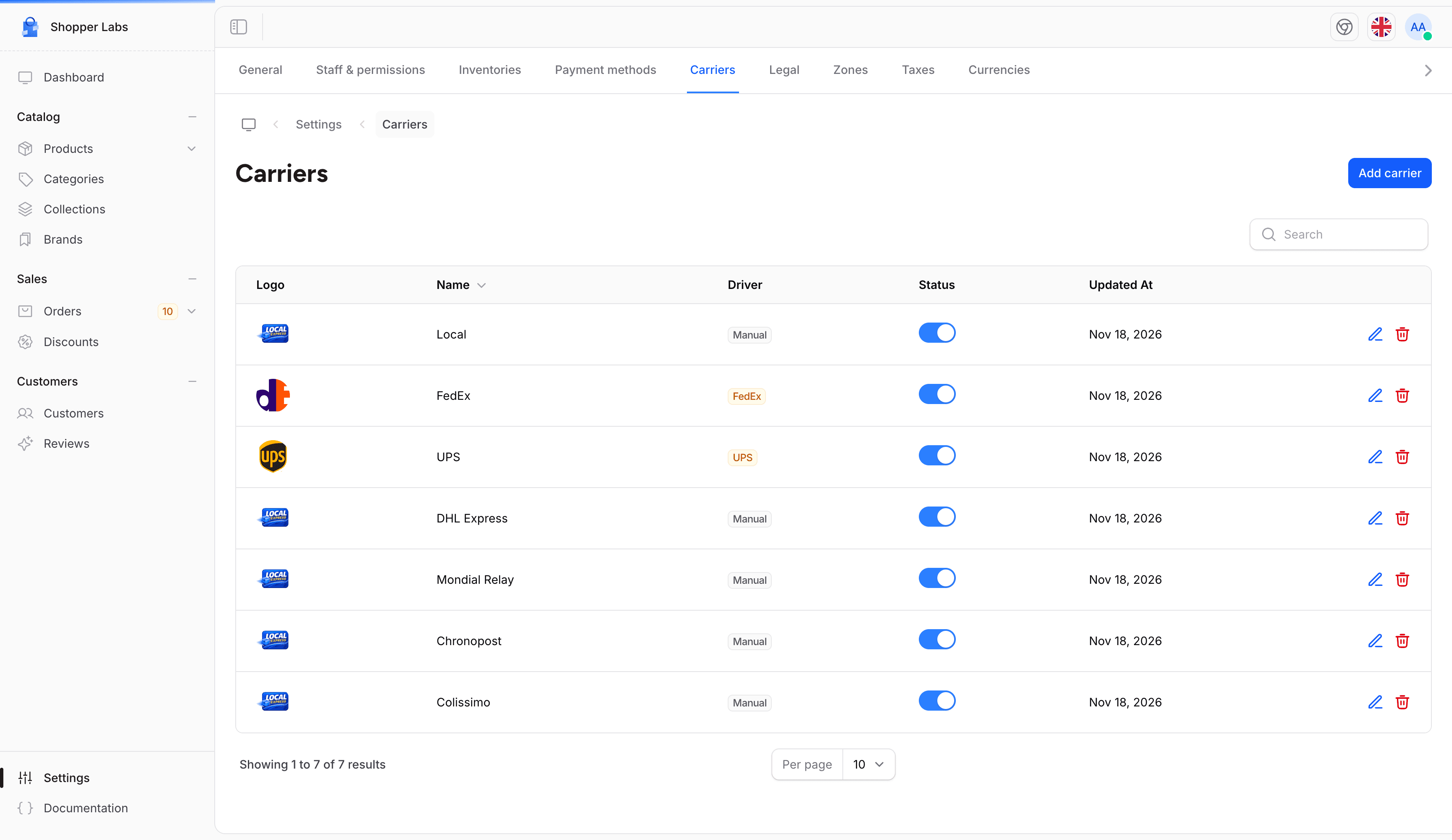
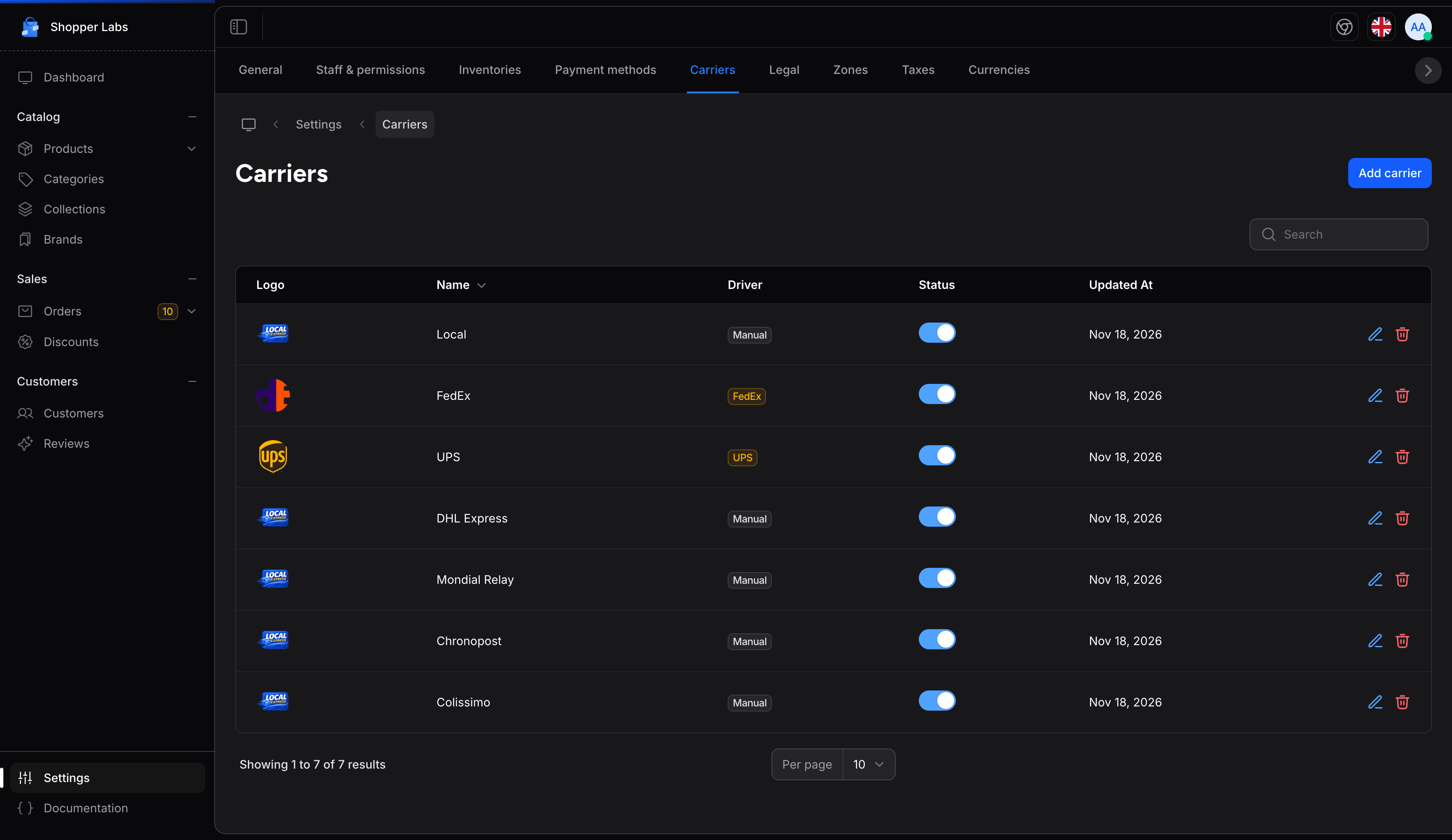
The carriers list shows all your configured carriers with their driver type, status, and last update date. You can enable or disable a carrier directly from the list using the status toggle.
Adding a Carrier
To add a new shipping carrier:
- Click the Add carrier button
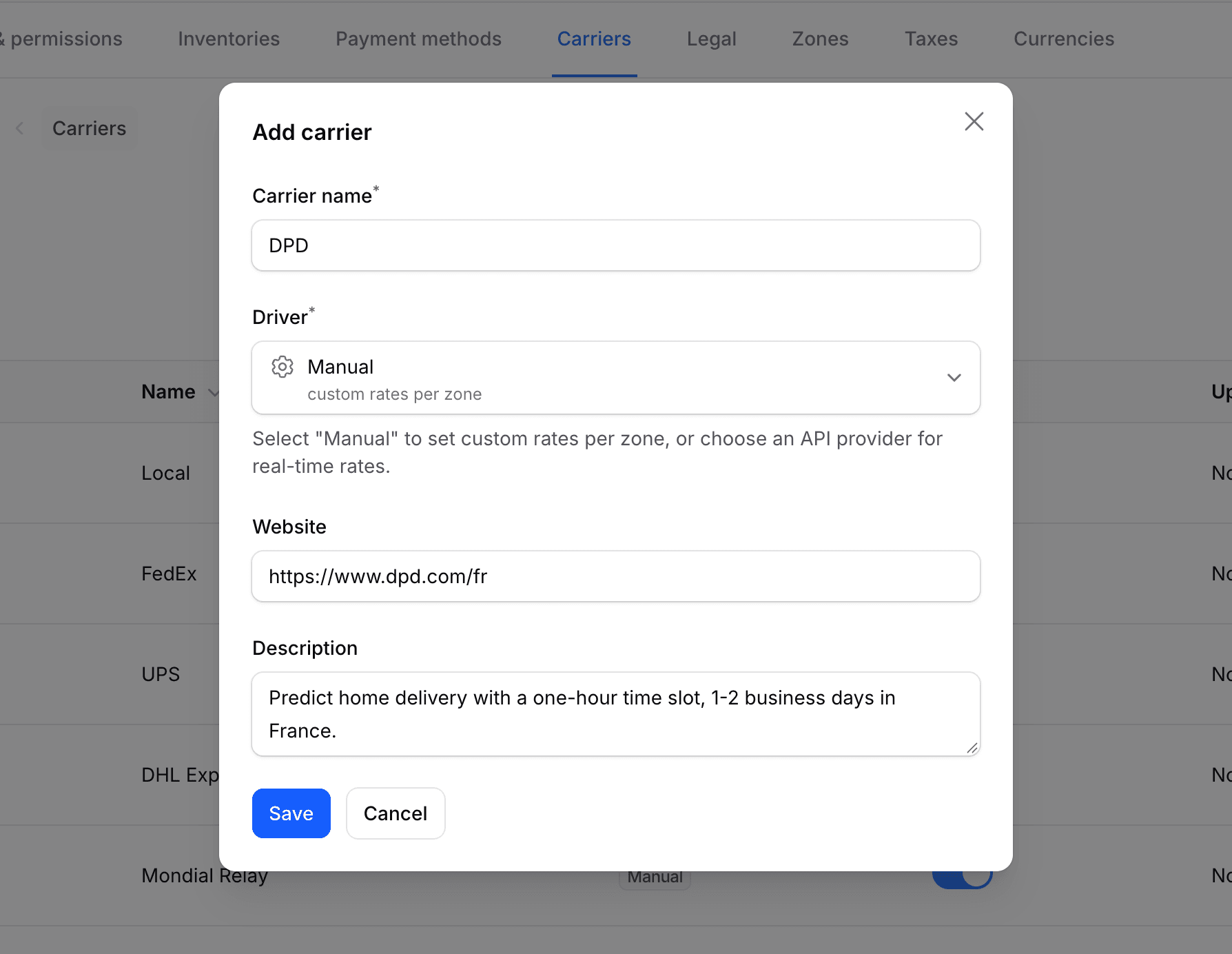
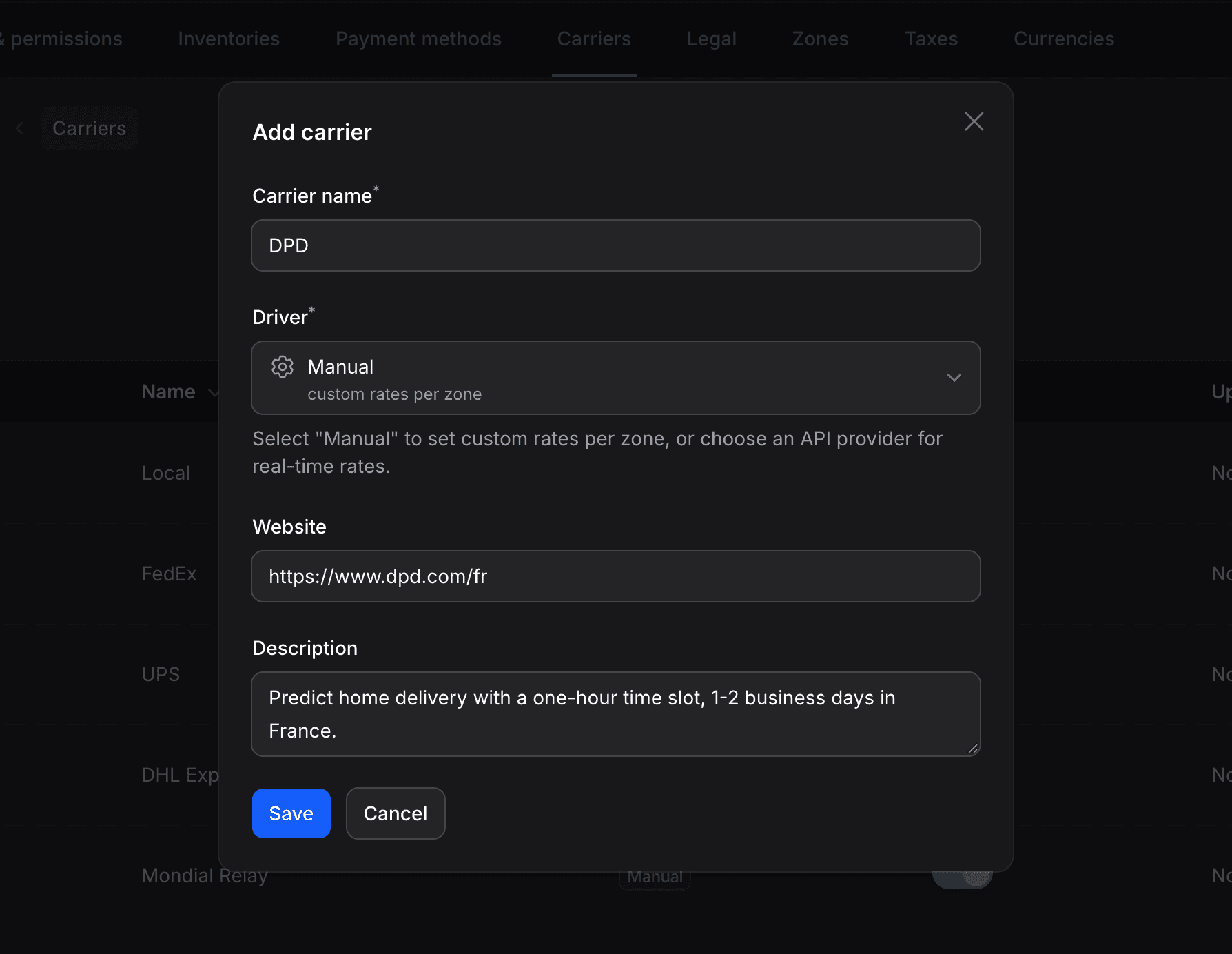
- Fill in the carrier details
- Click Save
Carrier Fields
| Field | Required | Description |
|---|---|---|
| Carrier name | Yes | The carrier's name (e.g., "UPS", "Local Delivery", "Colissimo") |
| Driver | Yes | How rates are calculated. Defaults to Manual (custom rates per zone). Choose a provider like UPS for real-time rates |
| Website | No | The carrier's website URL |
| Description | No | A short description of the carrier |
Choosing a Driver
The driver determines how shipping rates are calculated:
| Driver | How it works | When to use |
|---|---|---|
| Manual | You set fixed prices for each delivery option | Local delivery, flat-rate shipping, free shipping |
| UPS | Rates are fetched from the UPS API in real time | You have a UPS account and want dynamic pricing |
| FedEx | Rates are fetched from the FedEx API in real time | You have a FedEx account and want dynamic pricing |
| USPS | Rates are fetched from the USPS API in real time | You ship within the United States |
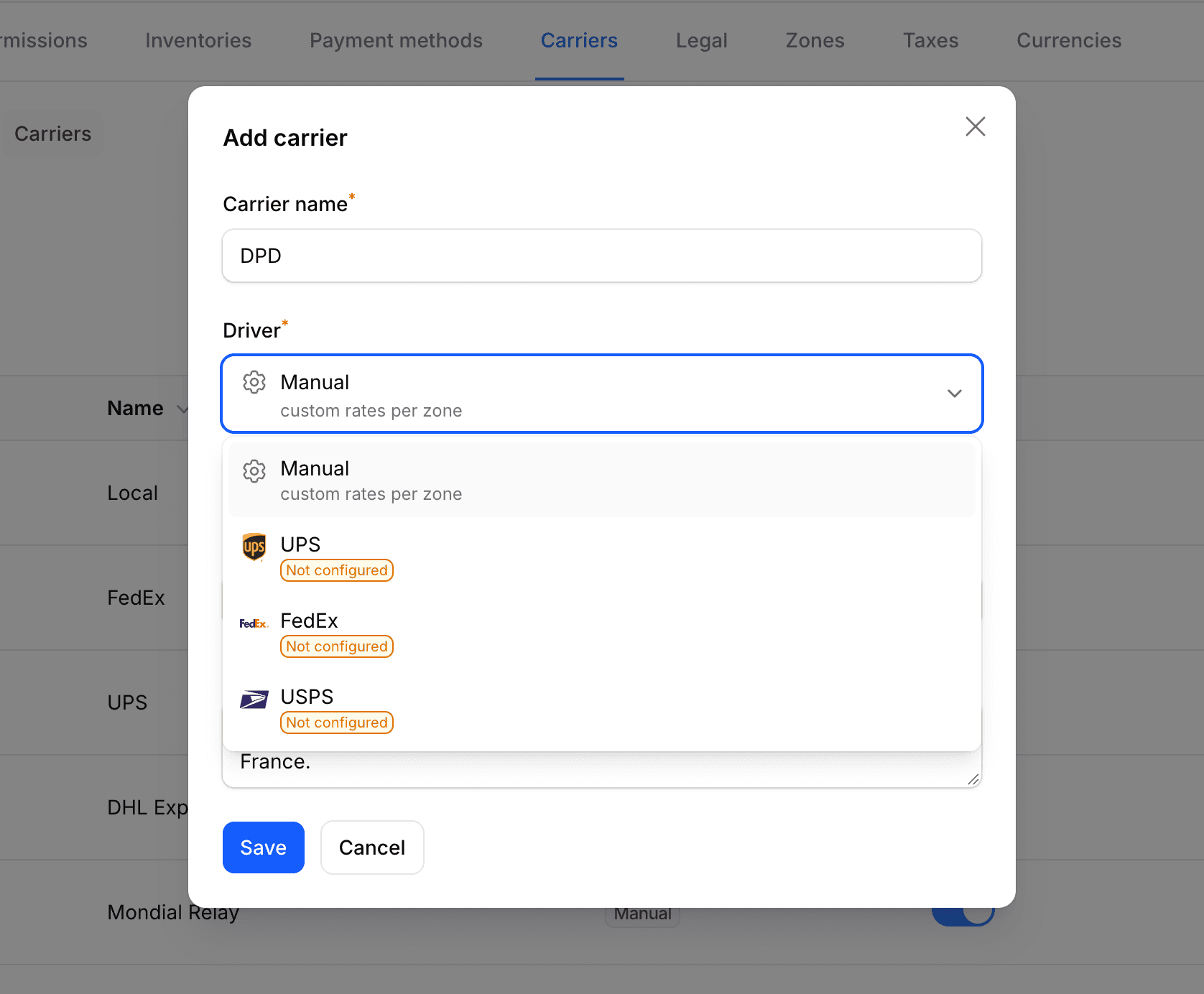
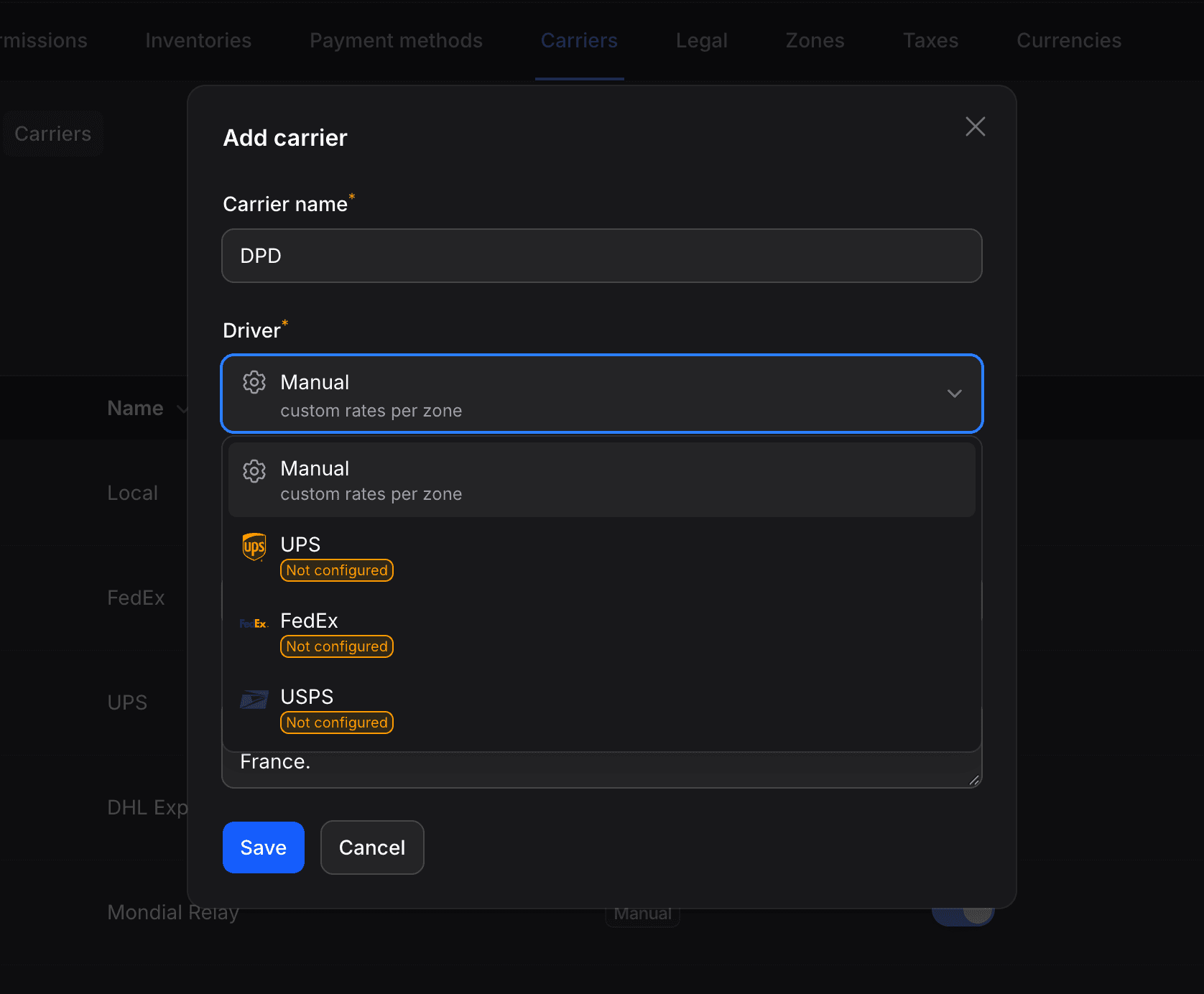
API-connected drivers (UPS, FedEx, USPS) require API credentials to be configured by your developer. If a driver shows a "Not configured" badge in the dropdown, the credentials have not been set up yet. See the Carriers developer documentation for setup instructions.
Managing Carriers
Editing a Carrier
To update a carrier's information:
- Click the pencil icon next to the carrier you want to modify
- Update the fields you want to change
- Click Save changes
Enabling or Disabling a Carrier
You can quickly enable or disable a carrier without editing it by toggling the Status switch directly in the carriers list. Disabled carriers are not shown as shipping options during checkout.
Deleting a Carrier
To remove a carrier:
- Click the trash icon next to the carrier
- Confirm the deletion
Deleting a carrier does not remove its delivery options, and a carrier that still has delivery options cannot be deleted. Remove its options from each zone first. If you have active orders using this carrier's shipping, consider disabling it instead of deleting it.
Setting Up Delivery Options
After creating a carrier, you need to add delivery options with pricing. Delivery options are configured per zone, so the same carrier can have different options and prices for different regions.
To add a delivery option:
- Go to Settings > Zones
- Select the zone where you want to add shipping options
- In the Shipping Options section, click Add Option
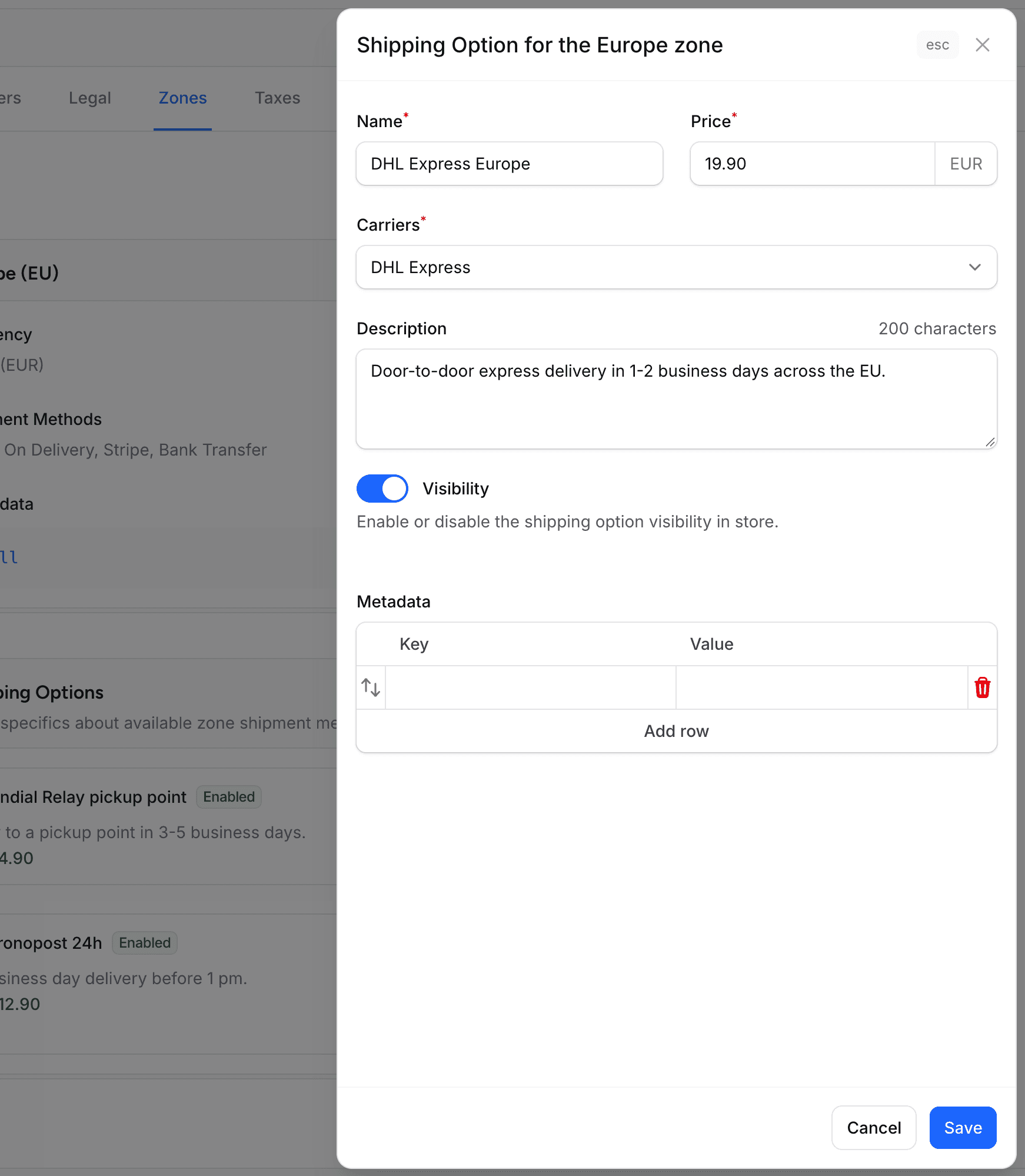
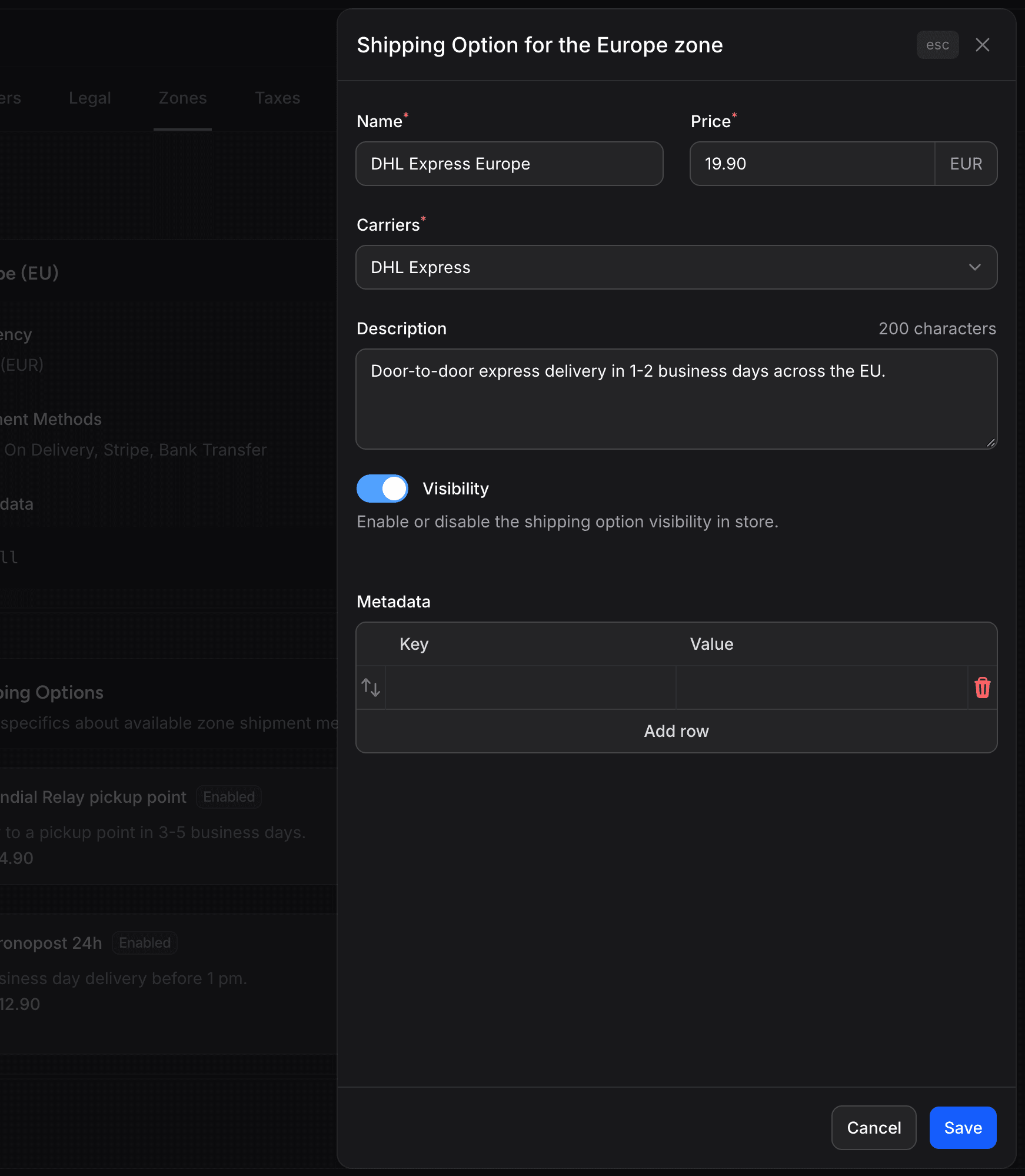
- In the panel that opens (for example "Shipping Option for the Europe zone"), fill in the delivery details and select the carrier. The Carriers list only shows the carriers added to this zone
- Click Save
Delivery Option Fields
| Field | Required | Description |
|---|---|---|
| Name | Yes | The option name shown at checkout (e.g., "Standard Delivery", "Express 24h"). Each name can be used once per zone |
| Price | Yes | The shipping price for this option in the zone's currency. Enter 0 for free delivery |
| Carriers | Yes | The carrier that provides this delivery option, chosen among the carriers added to the zone |
| Description | No | Details about delivery time, up to 200 characters |
| Visibility | No | Off by default. Turn it on to make the option available in your store |
| Metadata | No | Optional key-value data for custom use |
Create multiple delivery options for the same carrier to offer different speed/price tiers. For example, a carrier could have "Standard (3-5 days)" at $5.99 and "Express (next day)" at $14.99.
Viewing Delivery Options
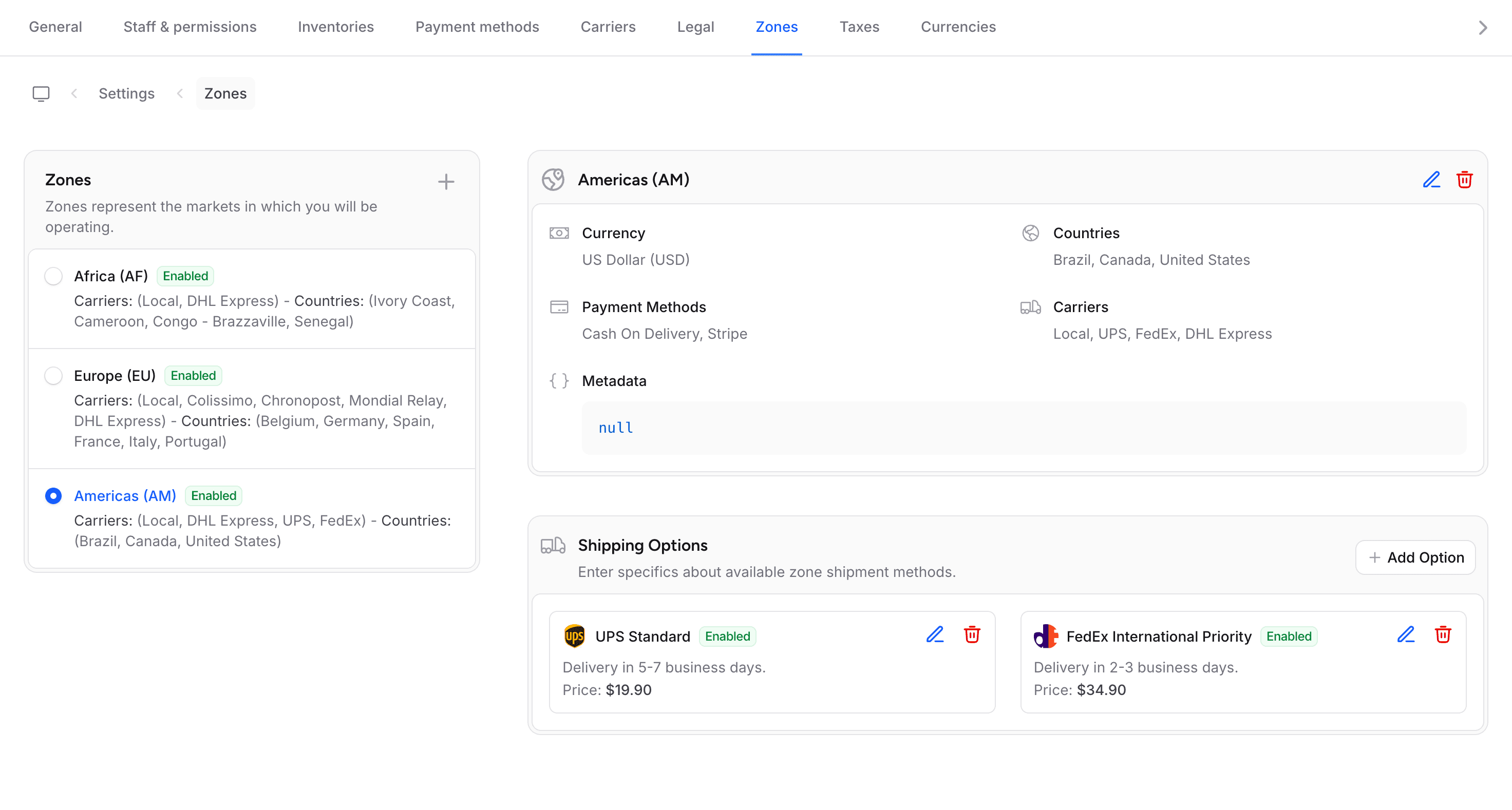
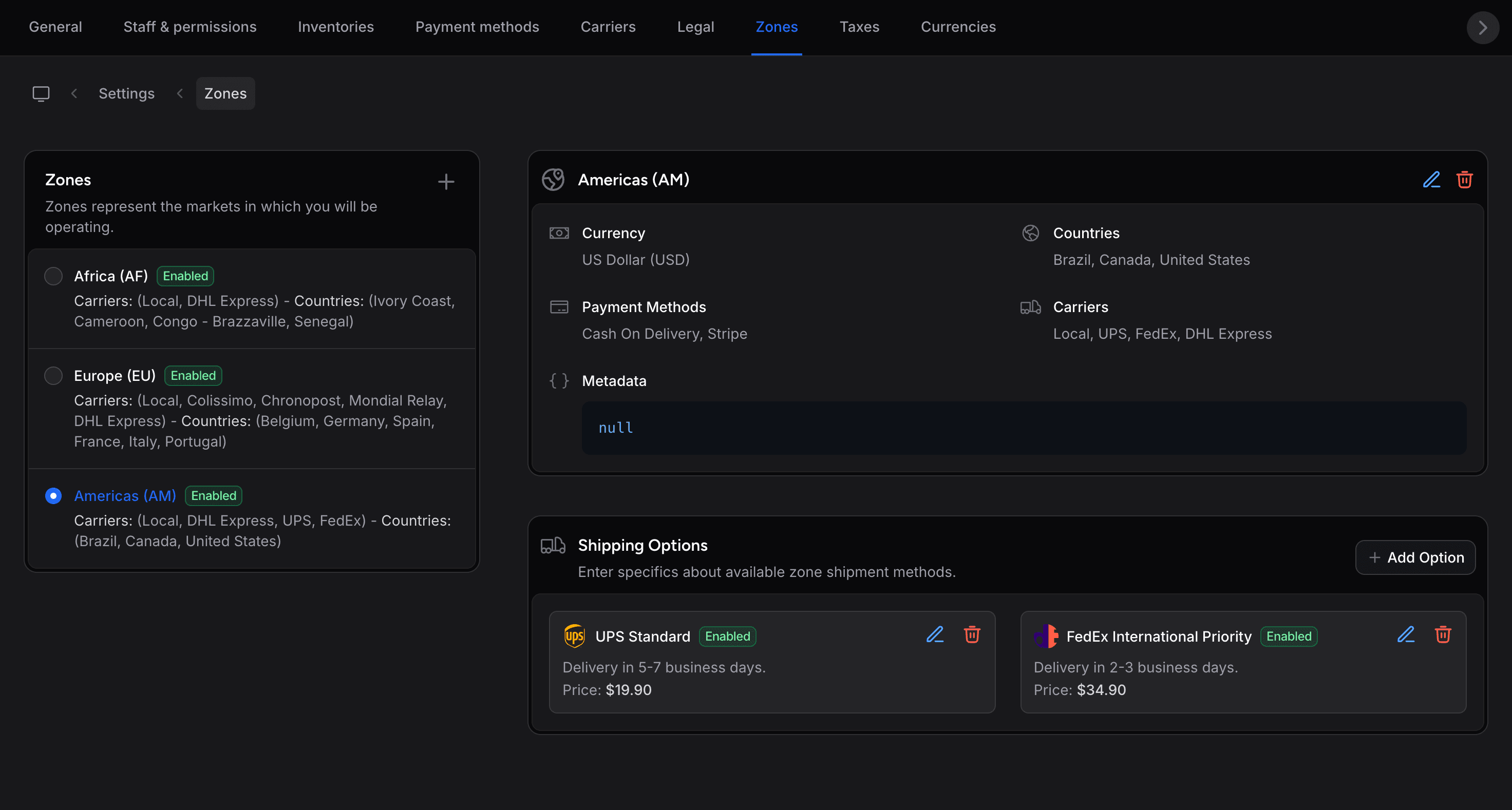
All delivery options for a zone are displayed in the zone's detail page under the Shipping Options section. Each option shows the carrier logo (when the carrier has one), the option name with an Enabled or Disabled badge, its description, and its price.
Editing or Removing Delivery Options
To edit a delivery option, click the pencil icon next to it. To remove it, click the trash icon and confirm.
Common Setups
Here are typical carrier configurations for different store types:
Local Business
| Carrier | Option | Price |
|---|---|---|
| Local Delivery | Same-day delivery | $8.00 |
| Local Delivery | In-store pickup | Free |
National Store
| Carrier | Option | Price |
|---|---|---|
| Standard Shipping | 5-7 business days | $5.99 |
| Express Shipping | 2-3 business days | $12.99 |
| Free Shipping | Free delivery (5-7 business days) | Free |
International Store
| Carrier | Option | Price |
|---|---|---|
| UPS (API) | Ground, Express, Overnight | Real-time rates |
| DHL | International Express | $24.99 |
| Free Shipping | Free delivery, added in the domestic zone only | Free |
Free Shipping
To offer free shipping:
- Create a carrier named "Free Shipping"
- Add this carrier to the zone's Carriers (see Shipping Zones)
- Add a delivery option with a Price of 0 and use the description to say what it includes (e.g., "Delivered in 5-7 business days")
A delivery option has no minimum order amount: a free option is offered on every order in its zone. To limit free shipping to some regions, add the free option only in those zones.
You can combine free shipping with paid options. Customers see all available options at checkout and choose the one they prefer.
Best Practices
Name Clearly
Use descriptive names that include delivery time: "Standard (3-5 days)" is better than just "Standard".
Price by Zone
Set different prices for different zones. Domestic shipping is usually cheaper than international.
Offer Choices
Give customers at least 2 shipping options: a budget option and a faster option.
Test at Checkout
After setting up carriers, place a test order to verify shipping options appear correctly.
For developer details on carriers, shipping drivers, and custom driver integration, see the Carriers documentation.
Last updated on
Edit on GitHub