
Setup Store
The setup wizard a merchant completes on the first login, the General settings page, and the setting key that stores each store detail.
Every store has a name, a contact email, an address, the currencies it sells in and its pages on social networks. A merchant enters these details in the setup wizard on the first login to the admin panel, then edits them on the General settings page. Shopper stores each detail as a row of the settings table, under a key such as name, email or street_address, and your storefront reads it with shopper_setting().
This page maps each field of the wizard and of the General page to its setting key. The Setting model, the shopper_setting() helper, its cache and the full list of keys are covered on the Settings page.
Setup Wizard
After installing Shopper and creating an admin user, log in at /cpanel/login (cpanel is the default prefix, set by SHOPPER_PREFIX). Until the store has an email and a street_address, every admin page behind the login redirects to the wizard at /cpanel/initialize, as described in Access Requirements.
The wizard has three steps: Information, Address and Social Links. Clicking Next saves the fields of the current step. Clicking Save on the last step saves every field, creates the default inventory location in the same database transaction, and opens the dashboard. The Setup Wizard and Settings Pages section explains how these saves use locked rows.
The wizard belongs to the admin panel and cannot be replaced: its route points to the Shopper\Livewire\Pages\Initialization class directly, and the component configuration has no entry for it.
Store Information
The first step asks for the identity of the store and the currencies it sells in:
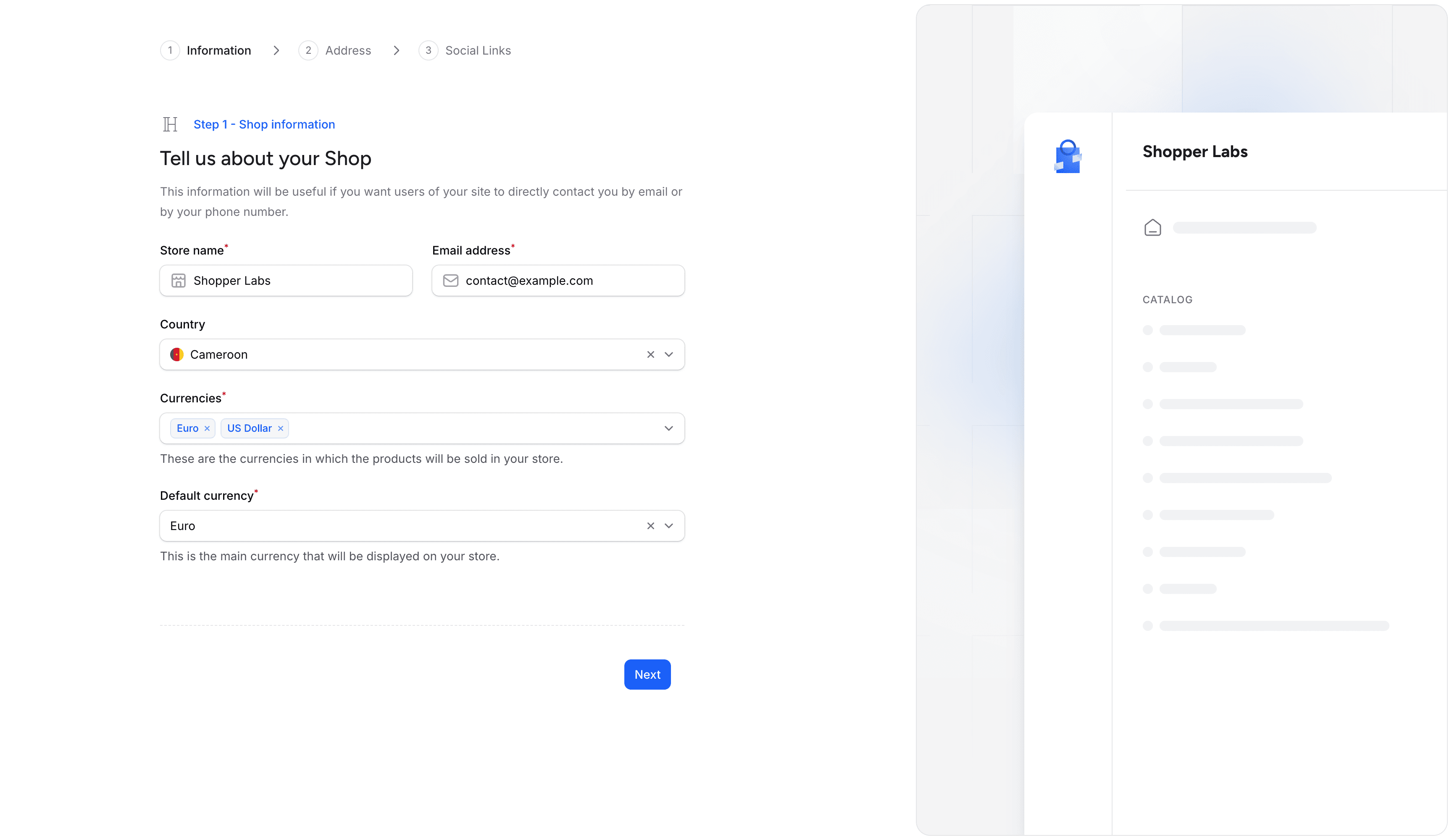
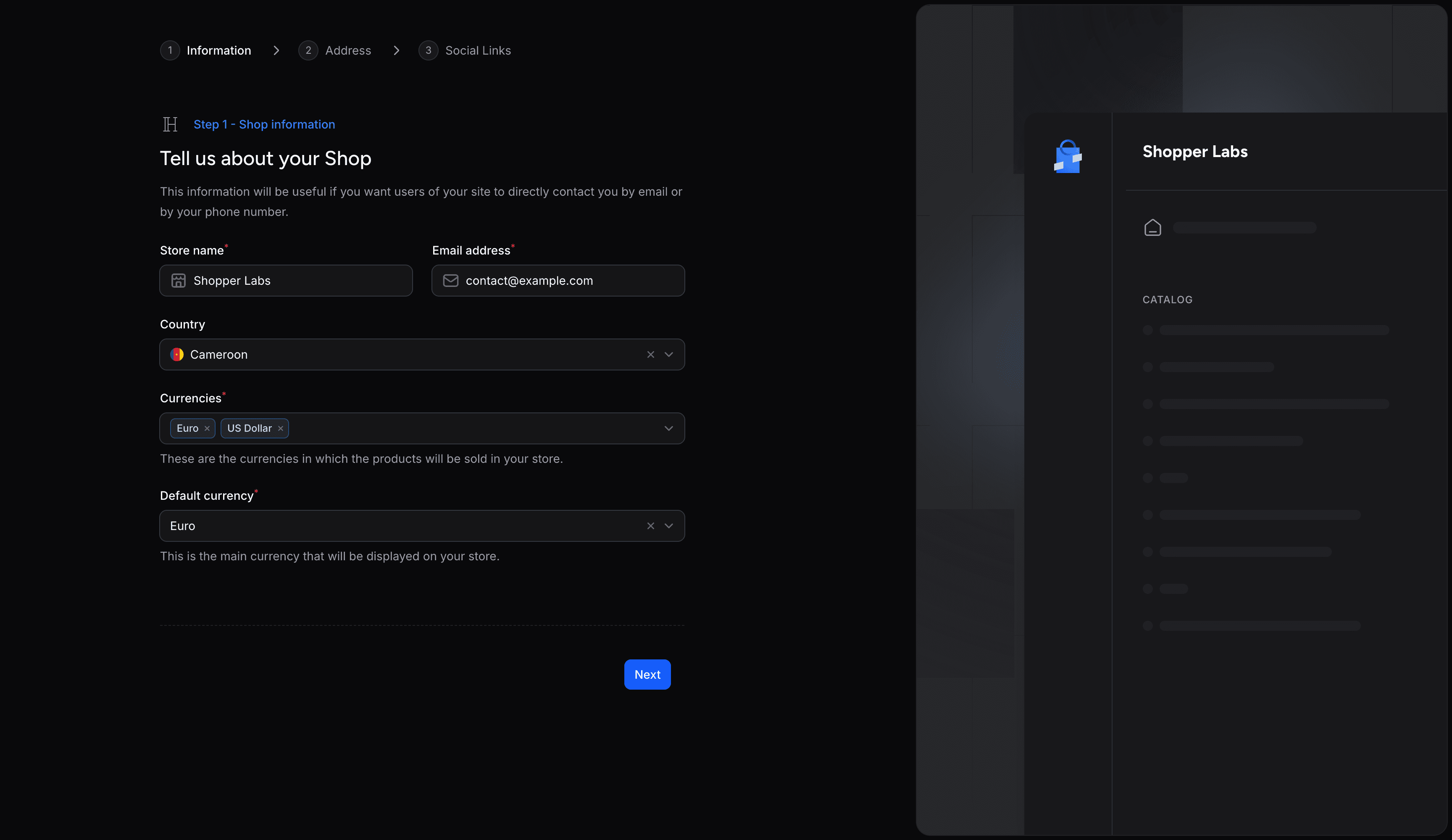
| Field | Setting key | Rules |
|---|---|---|
| Store name | name | Required, 100 characters at most |
| Email address | email | Required, a valid email address |
| Country | country_id | Optional, the ID of a country |
| Currencies | currencies | Required, at least one currency |
| Default currency | default_currency_id | Required, one of the selected currencies |
The country is where the store is based. The phone inputs of the admin panel and the Shopper\Core\Rules\Phone rule use it as their default country.
The currencies list shows every row of the currencies table, sorted by name, and the default currency list only the selected ones. currencies holds the IDs of the selected currencies, and default_currency_id the ID of the main one, which shopper_currency() turns into a code such as EUR. The Currencies page covers selling in several currencies, and Money how amounts are formatted.
Address
The second step asks for the store address. The Store API returns it with the other store details, and Shopper copies it to the default inventory location, described in Default Location:
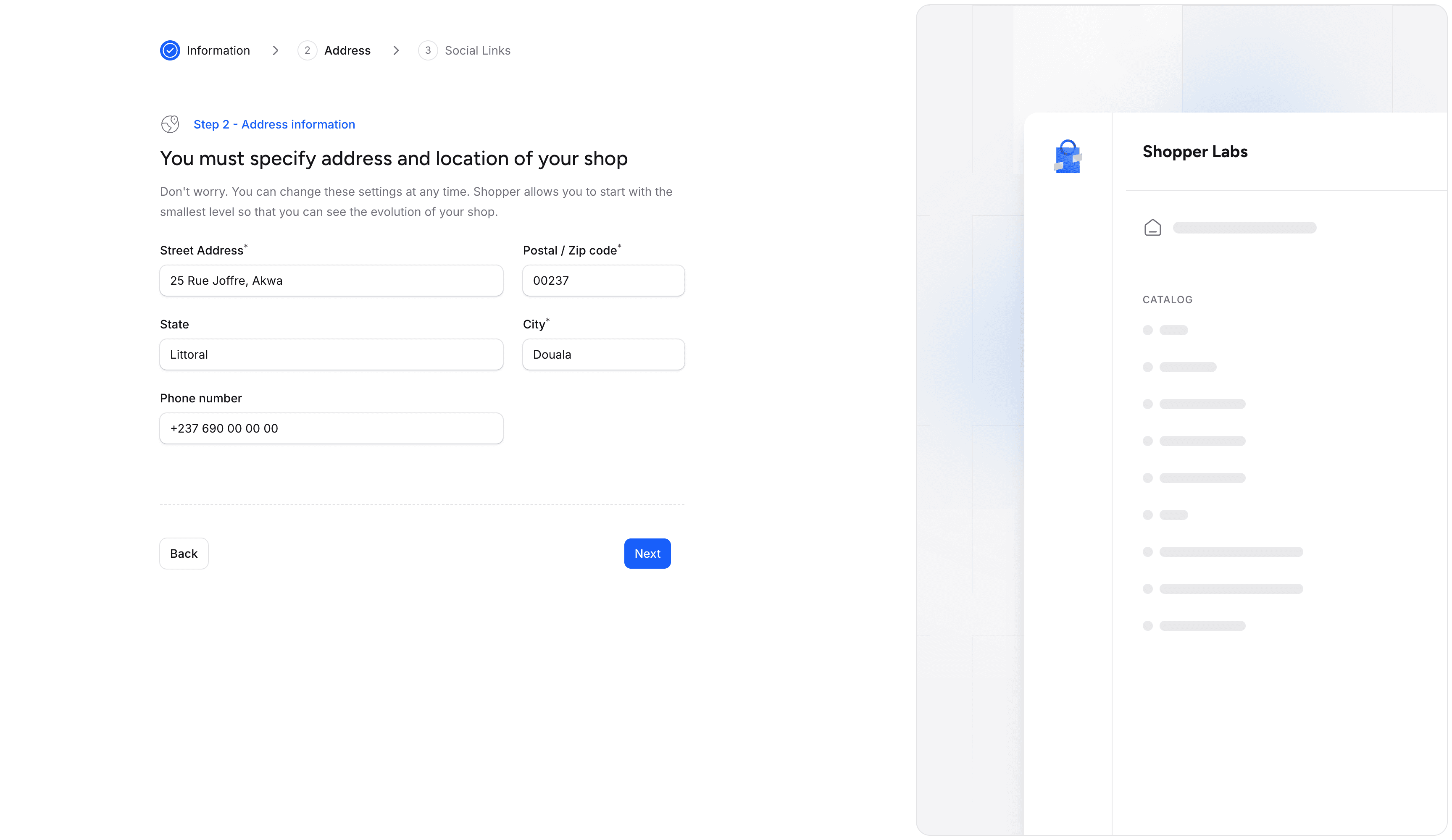
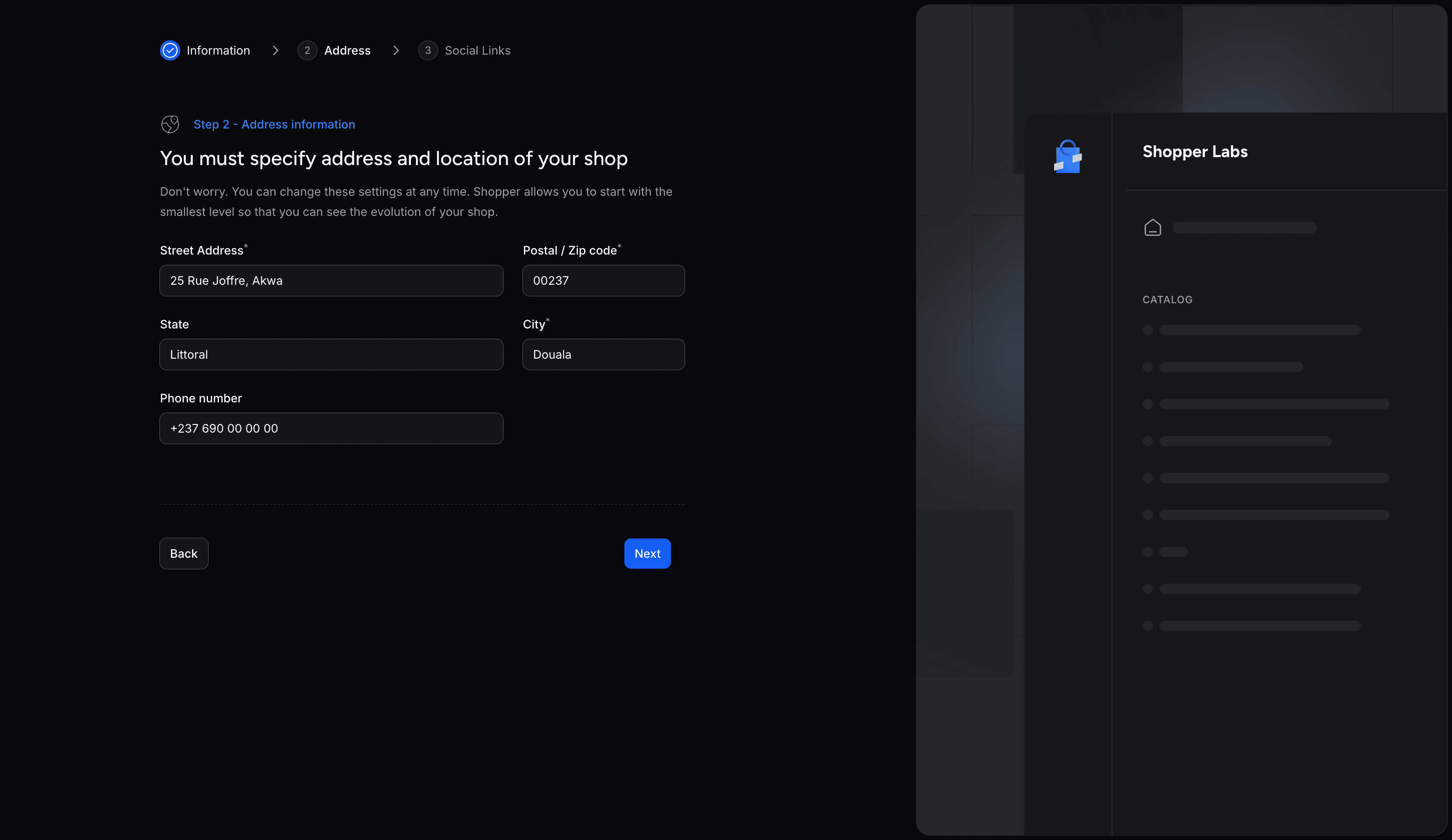
| Field | Setting key | Rules |
|---|---|---|
| Street Address | street_address | Required, 255 characters at most |
| Postal / Zip code | postal_code | Required, 20 characters at most |
| State | state | Optional, 100 characters at most |
| City | city | Required, 100 characters at most |
| Phone number | phone_number | Optional, 30 characters at most |
The wizard stores the phone number as typed. The General settings page checks that it is a valid number, reading it with the store country's dialing code when it has none, and stores it in E.164 format, such as +33142685300.
Social Links
The last step is optional. The merchant adds one row per platform, picks the platform and pastes the full URL of the store's profile:
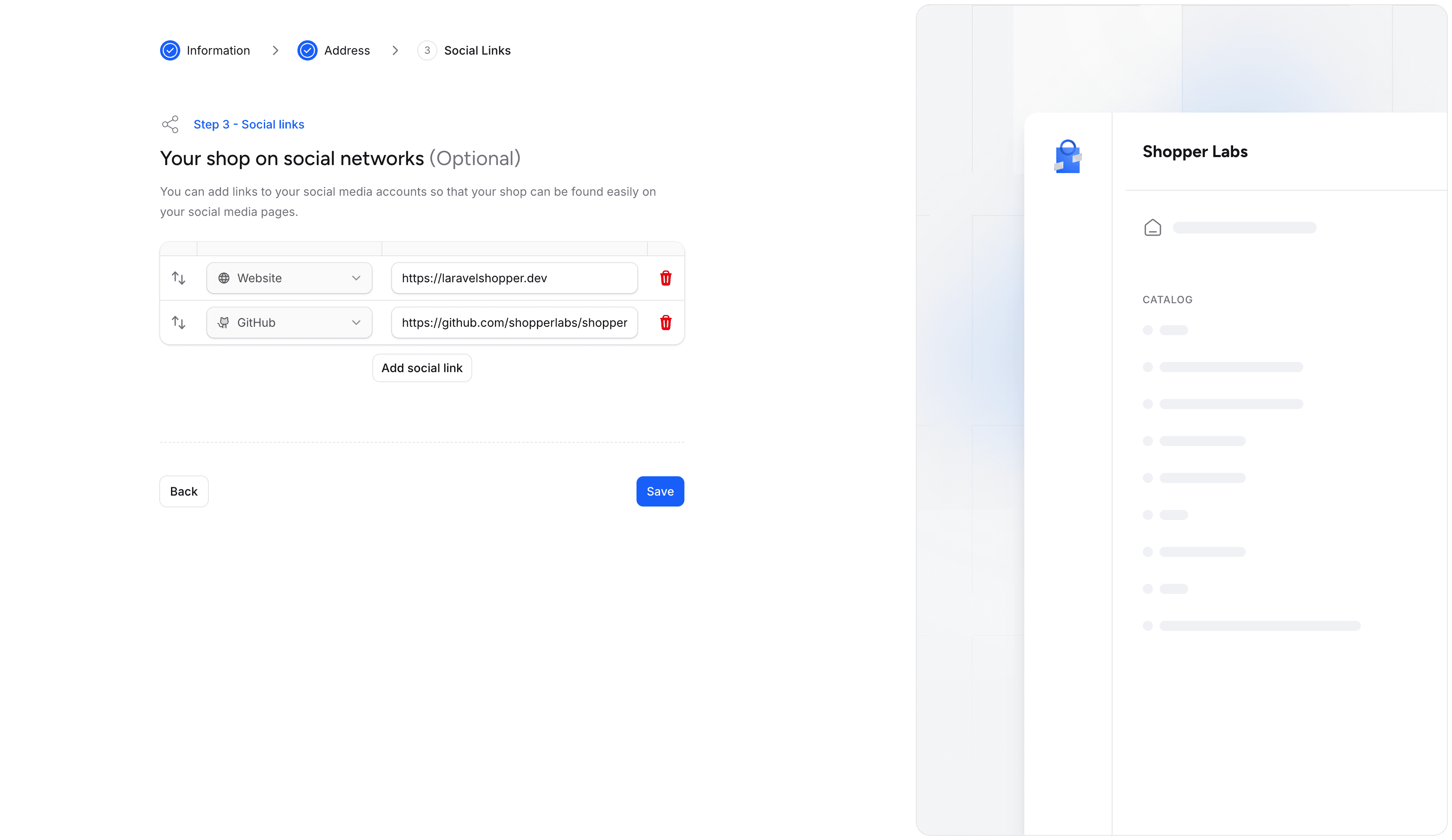
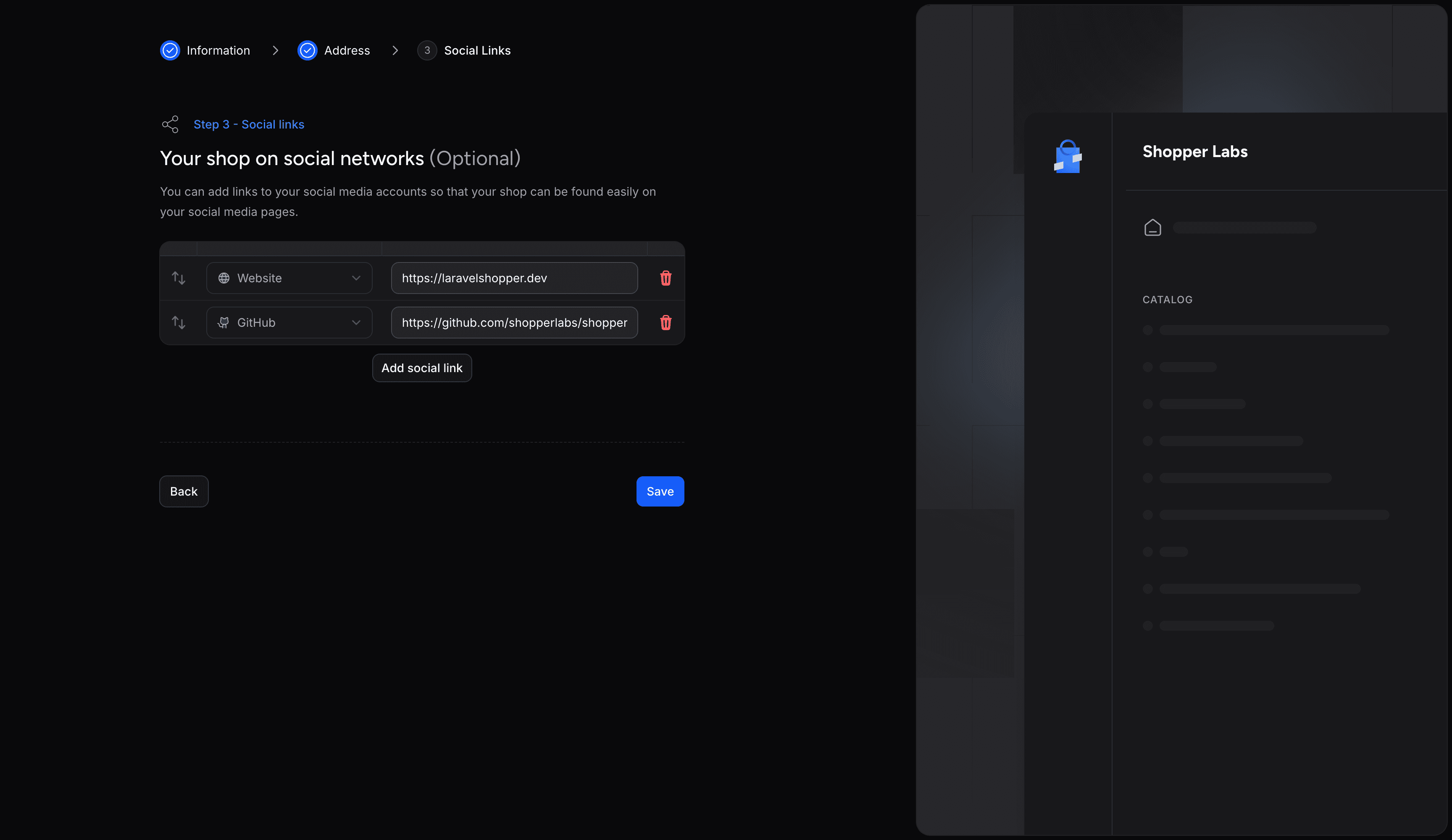
Each platform can be added once, so a store has 12 links at most. The URL must be valid and its host must belong to the platform, with or without www. and including subdomains. Rows can be dragged to change their order:
| Platform | Value | Accepted hosts |
|---|---|---|
facebook | facebook.com, fb.com, fb.me | |
instagram | instagram.com, instagr.am | |
| X (Twitter) | x | x.com, twitter.com |
linkedin | linkedin.com, lnkd.in | |
| YouTube | youtube | youtube.com, youtu.be |
| TikTok | tiktok | tiktok.com |
pinterest | pinterest.com | |
| Snapchat | snapchat | snapchat.com |
whatsapp | whatsapp.com, wa.me | |
| Telegram | telegram | telegram.me, t.me |
| GitHub | github | github.com |
| Website | website | Any host |
The platforms are the cases of the Shopper\Core\Enum\SocialPlatform enum. The links are saved in the social_links key, in the order the merchant set, as a list of platform and url pairs. The Setting Keys section shows the stored shape and how the facebook_link, instagram_link and twitter_link keys of Shopper 2.x are converted.
Default Location
When the merchant clicks Save on the last step, the wizard creates the default inventory location, or updates it when one already exists. The location takes the store name, email, street address, postal code, city, phone number and country, and its code is the slug of the store name, such as classic-apparel. The default location exists only once that last step is saved.
Shopper puts the initial quantity of a new product in the default location, and the Store API uses its address as the origin when it asks carriers for shipping rates. Changing the address on the General settings page later leaves the location as it is: merchants edit it on the Locations settings page, described in Locations.
Channel
The wizard does not create sales channels. The installer creates the default channel before the first login: ChannelSeeder adds an enabled "Web Store" channel marked as default, as described in Default Channel.
Updating the Store Details
After the wizard, merchants edit the store details under Settings, General, at /cpanel/setting/general. The page has five sections and saves them all at once:
| Section | Fields | Setting keys |
|---|---|---|
| Store details | Store name, Email address, Phone number | name, email, phone_number |
| Assets | Logo, Cover photo | logo, cover |
| Store address | Legal name of the company, About, Street Address, City, Postal / Zip code, State, Country | legal_name, about, street_address, city, postal_code, state, country_id |
| Store currency | Currencies, Default currency | currencies, default_currency_id |
| Social links | One row per platform | social_links |
The fields shared with the wizard follow the same rules, without the length limits on the street address, postal code, state and city, and with three additions:
- The legal name is required. The wizard does not ask for it, so the merchant fills it in on the first save of this page.
- The logo and the cover are images of up to 1 MB, of a type listed in
config('shopper.media.accepts_mime_types'). They are stored on the disk set byconfig('shopper.media.storage.disk_name'), and the setting holds the file path. Retrieving Settings shows how to build their URL. - The about text comes from a rich text editor and is stored as HTML. Images inserted in it go to the same disk, in the folder set by
config('shopper.media.storage.collection_name').
Replacing the General Page
The page is the Shopper\Livewire\Pages\Settings\General Livewire component, registered under the pages.general key of the settings components. Publish that configuration:
php artisan shopper:component:publish settingThen point the key to your own class in the published file:
use App\Livewire\Shopper\StoreSettings;

return [
    'pages' => [
        'general' => StoreSettings::class,
        // ...
    ],
];
Your class can extend Shopper\Livewire\Pages\Settings\General. Save the keys of your own fields with the SaveSettings trait, as shown in Writing Settings. The entry of the page on the settings screen is Shopper\Navigation\Setting\Items\GeneralSetting, listed in config/shopper/settings.php and described in Configuration.
Reading the Store Details
A storefront reads the store details with shopper_setting(). This view composer gives the footer the contact details and the social links, with the label of each platform:
<?php

namespace App\View\Composers;

use Illuminate\View\View;
use Shopper\Core\Enum\SocialPlatform;
use Shopper\Core\Models\Country;

class StoreFooterComposer
{
    public function compose(View $view): void
    {
        $country = Country::query()->find(shopper_setting('country_id'));

        $socialLinks = collect(shopper_setting('social_links') ?? [])
            ->filter(fn (array $link): bool => SocialPlatform::tryFrom($link['platform']) !== null)
            ->map(fn (array $link): array => [
                'label' => SocialPlatform::from($link['platform'])->getLabel(),
                'url' => $link['url'],
            ])
            ->values();

        $view->with([
            'storeName' => shopper_setting('name'),
            'storeEmail' => shopper_setting('email'),
            'storePhone' => shopper_setting('phone_number'),
            'storeAddress' => [
                shopper_setting('street_address'),
                shopper_setting('postal_code').' '.shopper_setting('city'),
                $country?->translated_name,
            ],
            'socialLinks' => $socialLinks,
        ]);
    }
}
Register it in a service provider:
use App\View\Composers\StoreFooterComposer;
use Illuminate\Support\Facades\View;

public function boot(): void
{
    View::composer('components.footer', StoreFooterComposer::class);
}
shopper_setting() caches each value for 24 hours, and the wizard and the General page clear the cache of every key they save, so the footer shows a merchant's edit on the next request. The Caching section covers the cases where a value stays cached.
Events
Shopper dispatches no event of its own when the store details change. The wizard and the General page write each key with Setting::query()->updateOrCreate(), so the Eloquent saved event of Shopper\Core\Models\Setting fires once for each key they save. Listen to it to clear a cache of your own:
use Illuminate\Support\Facades\Cache;
use Shopper\Core\Models\Setting;

public function boot(): void
{
    Setting::saved(function (Setting $setting): void {
        if (in_array($setting->key, ['name', 'email', 'phone_number', 'social_links'], true)) {
            Cache::forget('storefront.footer');
        }
    });
}
Permissions
The wizard opens for administrators and for users with the system.settings permission, and answers with a 403 error to anyone else. The General page checks system.settings when it opens and again when it saves. The System Permissions section lists what system.settings gives access to.
In the Admin
Merchants complete the setup wizard once, on their first login, in three steps: Information, Address and Social Links. They edit the same details later under Settings, General, along with the legal name, the about text, the logo and the cover photo. The User Guide walks through these screens.
From a Storefront
The Store API returns the store details at GET /store/settings, without authentication: the name, legal name, about text, email, phone number, address, country, logo and cover URLs, social links and currencies. The Store API section of the Settings page lists the attributes and how to expose a key of your own, and the Store API Store and Regions guide covers the endpoint.
Last updated on
Edit on GitHub